AppScreens vs Canva: Which Fits Your App Store Workflow?
TL;DR: decide by the work you repeat
AppScreens vs Canva is mainly a choice between a store-focused release workflow and a flexible design canvas. Choose AppScreens when device sizes, locales and store uploads dominate the job. Choose Canva when you want to shape the layout yourself and can manage the export checks. Neither tool makes an inaccurate screenshot acceptable to Apple.
Disclosure: We make ScreenFast, a different paid screenshot tool. This comparison does not declare our product the winner. We checked public documentation, not a timed paid-plan benchmark.
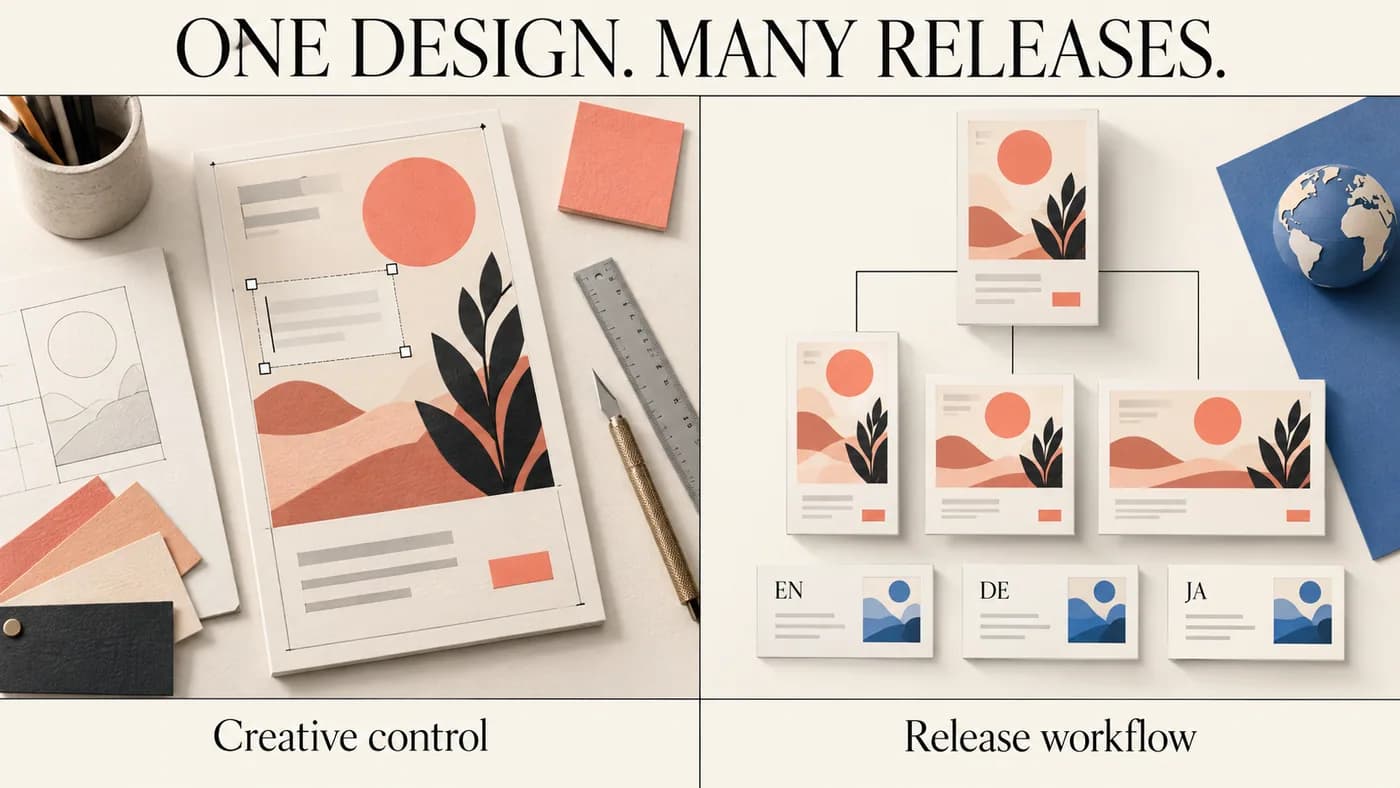
AppScreens vs Canva at a glance
Both can help frame real app UI with captions and a visual style. The important question is what happens after your first design. Can you update a message without missing a file? How do you track languages? Who checks the exported images before upload?
| Decision | AppScreens | Canva |
|---|---|---|
| Main fit | Store-focused screenshot production | General design and custom composition |
| First small set | Free plan with defined project and feature limits | A manual route using your captures and Free content |
| Size workflow | Device library and store outputs; coverage depends on plan | Set up the right canvas and check each exported size |
| Language workflow | Paid localization features inside the screenshot project | Choose a manual or eligible plan/app workflow; review every result |
| Store upload | Paid direct upload to Apple and Google | Do not assume a normal image download includes store delivery |
| Design tradeoff | Store structure reduces repeated setup | More responsibility for keeping the set consistent |
| Best pilot | Change one caption across required sizes and locales | Revise one layout, duplicate it and inspect final files |
The table describes workflow fit, not measured speed. Read the full AppScreens review for its plan details. If you have already chosen Canva and need instructions, go to the Canva screenshot tutorial. This page is for deciding between them.
When Canva is the more practical choice
Canva makes sense when the design is the main job and the release matrix is small. You may already have the app's colors, font choices, logo and campaign artwork in your design process. Staying in that environment can avoid rebuilding the visual language in a second tool.
A small launch might need one language and a few carefully framed app screens. In that case, manual work is not a flaw. You can adjust a headline, crop and background until the message feels right. The overhead of setting up another platform may not pay off.
The risk is treating a general canvas as if it were a release checklist. A beautiful layout can still have the wrong outer size, an unlicensed element or a caption that only fits in English. Decide how you will track those items before duplicating the design.
Use a naming pattern that survives revisions. For example, en-US_iphone_01_v03.png tells a reviewer more than final-final.png. Keep the editable source separate from the approved export folder. Record the exact pixel size in your delivery sheet, even when the filename contains a device label.
Our Figma vs Canva comparison covers another design-first choice. AppScreens enters the decision when the problem shifts from arranging layers to maintaining a release set.
When AppScreens is worth evaluating
AppScreens deserves a closer look when one design must turn into many store assets. Its designer documentation describes a screenshot-focused editor. You supply the raw app captures and build the surrounding presentation. It does not edit the contents of the raw app screenshots for you.
That boundary is useful. A changed feature should start with a fresh capture of the real app, not a marketing image that quietly invents a new interface. The screenshot tool can frame that capture, but your team still decides whether the claim is true.
The strongest reason to pilot AppScreens is repeated work across sizes, languages and store destinations. Its paid plans list direct uploads and localization. Those features can reduce file handling, but you still need to verify locale mapping, output order and the text itself. Automation moves the check; it does not remove it.
Keep the pilot close to your next release. A two-language utility app and an agency with several clients have different needs. Do not buy the largest tier just because its feature list is longer. Write down the required projects, locales and client rights, then check the plan against that list.
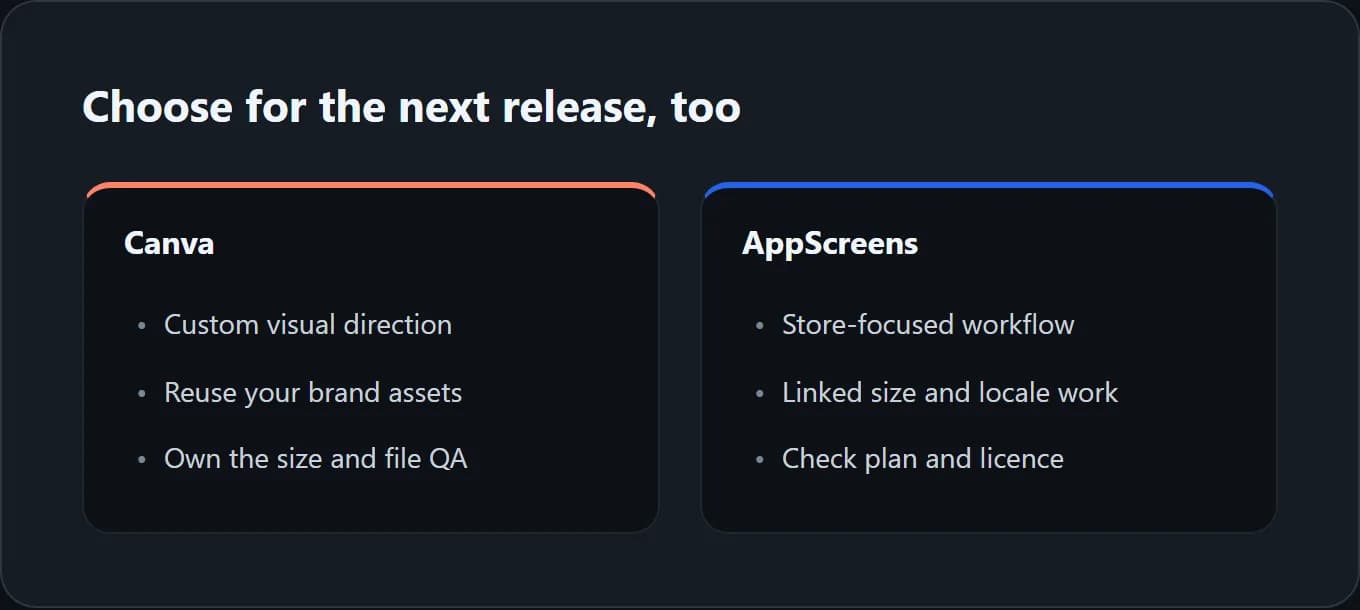
Pricing: compare the bill, not just the monthly-looking number
Pricing checked: October 8, 2026. On the AppScreens pricing page, the annual USD offers are $99 per year for Pro and $180 per year for Scale, before applicable tax. The displayed $8.25 and $15 monthly figures are annual-plan equivalents. They are not the amount you pay for a month-to-month purchase.
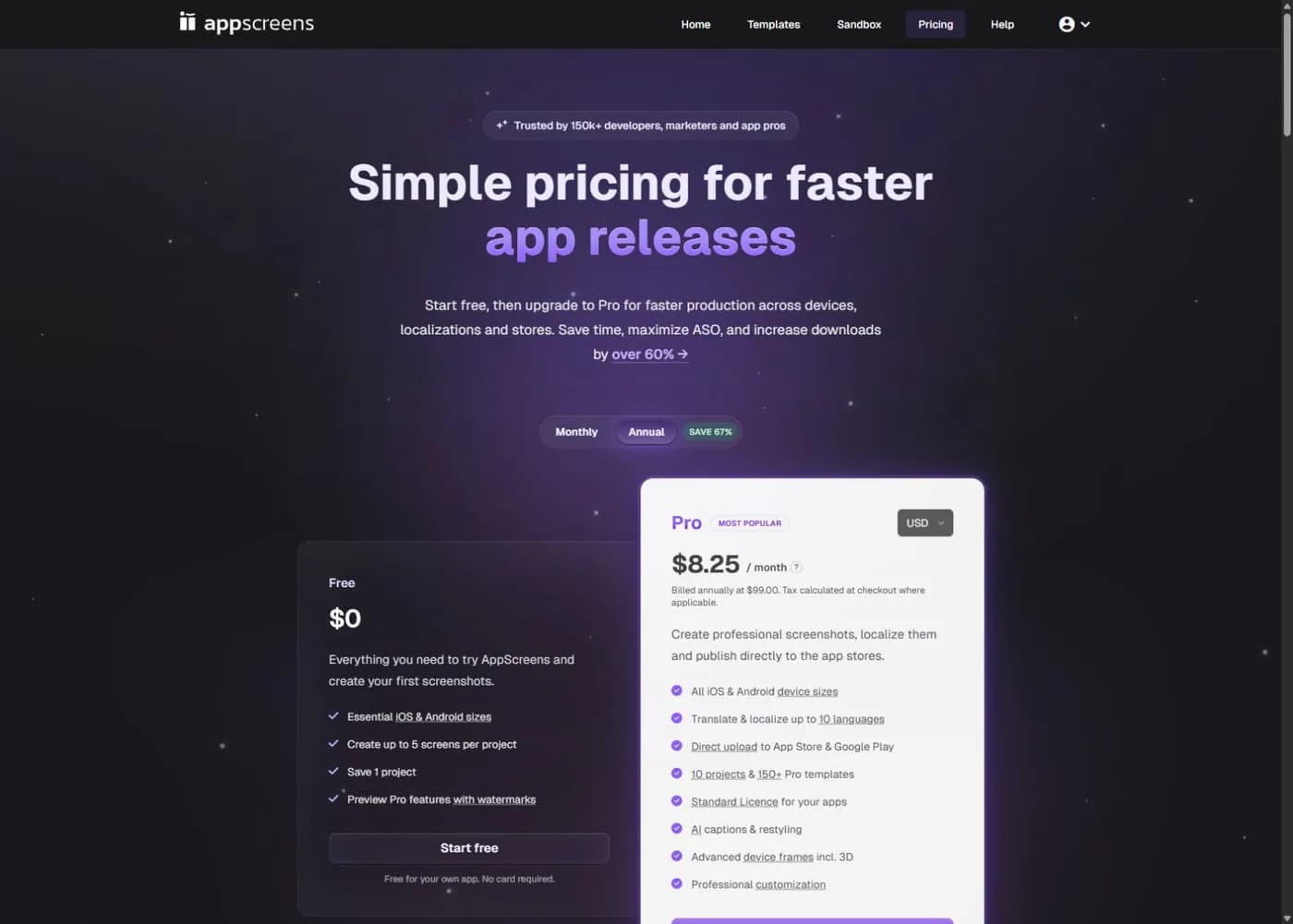
Free has one saved project and up to five screens per project. Pro lists ten projects and up to ten languages. Scale adds broader locale coverage, unlimited projects and client-work rights. Confirm the current billing toggle and checkout before purchasing; currencies and tax can change the total.
For Canva, start with the subscription and assets you already use. We do not quote a universal paid price because region, plan and billing term can differ. A zero additional subscription cost is plausible if your existing account already covers the job. It does not make your time or third-party app fees zero.
Canva's licensing explanation distinguishes Free and Pro content. Review any premium assets in the design instead of assuming a downloaded template is free for your use. For AppScreens, check its plan-specific usage license, especially when delivering paid client work.
For a strict zero-budget launch, use our free screenshot generator shortlist. It focuses on what you can complete without buying a plan, rather than comparing every premium feature.
Count the release workload before switching
Suppose your launch needs six frames, two independently prepared size sets and four locales. That is 6 x 2 x 4 = 48 files to account for. This is an illustrative workload, not an Apple requirement or a benchmark from either tool.
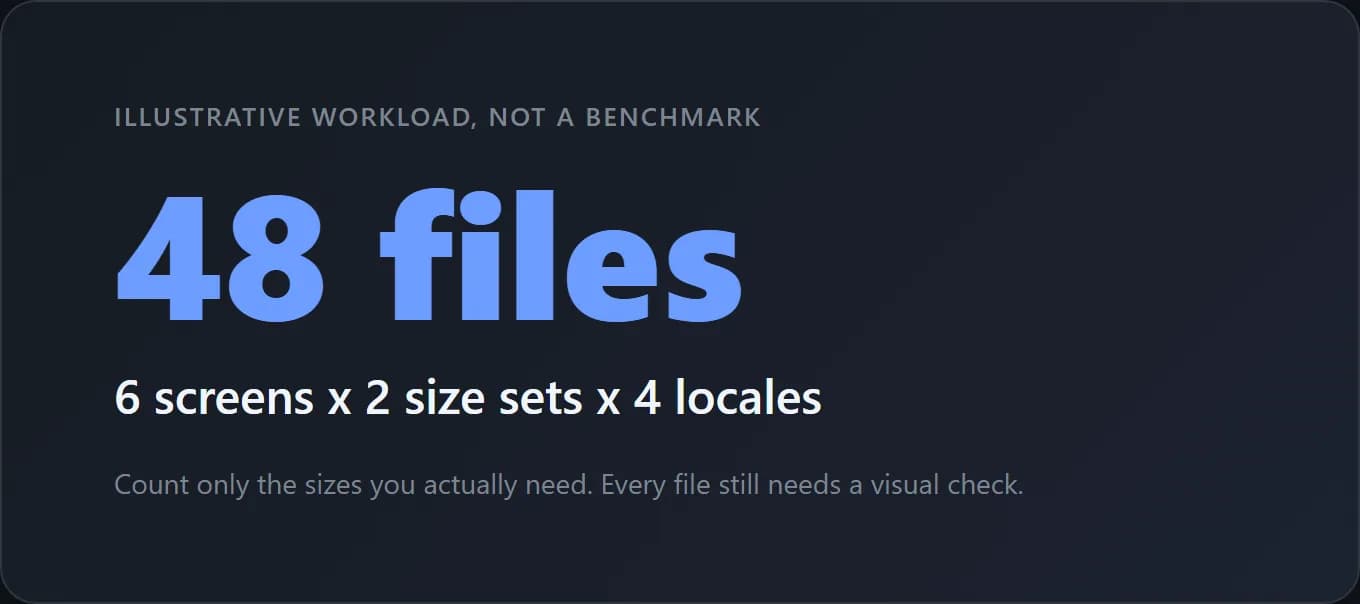
Only count the sets your app actually needs. Apple's reuse rules may reduce the number of sizes you prepare. Still, the example shows why a tiny copy change can become a coordination problem. A headline can wrap in one locale, collide with a device frame in another size, or remain stale in a forgotten export.
Compare costs using your own pilot:
release cost = incremental tool cost + manual time + review time + rework
Do not put an invented hourly rate into that formula and call it a market saving. Record your own time while changing one representative frame. Include download, naming, upload preparation and the correction of mistakes. A tool that makes the first image fast may still make the second release slow.
For a fair comparison, give both tools the same source capture, caption and required outputs. Do not compare an untouched Canva blank page with a polished AppScreens template. Start each workflow at the stage you would genuinely use it.
Sizes, localization and store upload: three separate problems
Sizes: A device frame inside the picture is not the outer file size. Apple's screenshot specifications define the accepted dimensions for each display class. Inspect the downloaded file, not just the editor label. Our screenshot size guide explains the current mapping.
In Canva, automatic resizing is a plan-dependent feature. Its Magic Resize help lists the eligible plans and current limits. Creating a custom-size design and converting an existing one are different tasks. Even a paid resize does not prove that the new layout is readable or appropriate for that device.
Localization: Translate the claim, not merely its words. A short English phrase may need more space in German. A localized caption around an English-only app screen can also give the wrong impression about the app. Review the in-app UI, currency, dates and feature availability for the market. The localization guide provides a practical review sequence.
Upload: Treat delivery to App Store Connect as its own step. A direct integration is useful when its permissions, locale mapping and target app are correct. A manual upload can be fine for a small release. Either way, confirm that processing finishes and that the intended set appears in the intended slot. Neither editor's successful download is proof of an accepted upload.
Canva apps change the comparison
It would be inaccurate to say that Canva has no app-screenshot integrations. Its public Apps directory includes App Screenshot Gen, a third-party app for store screenshots and feature graphics. Its listing describes support for iPhone, iPad and Android.
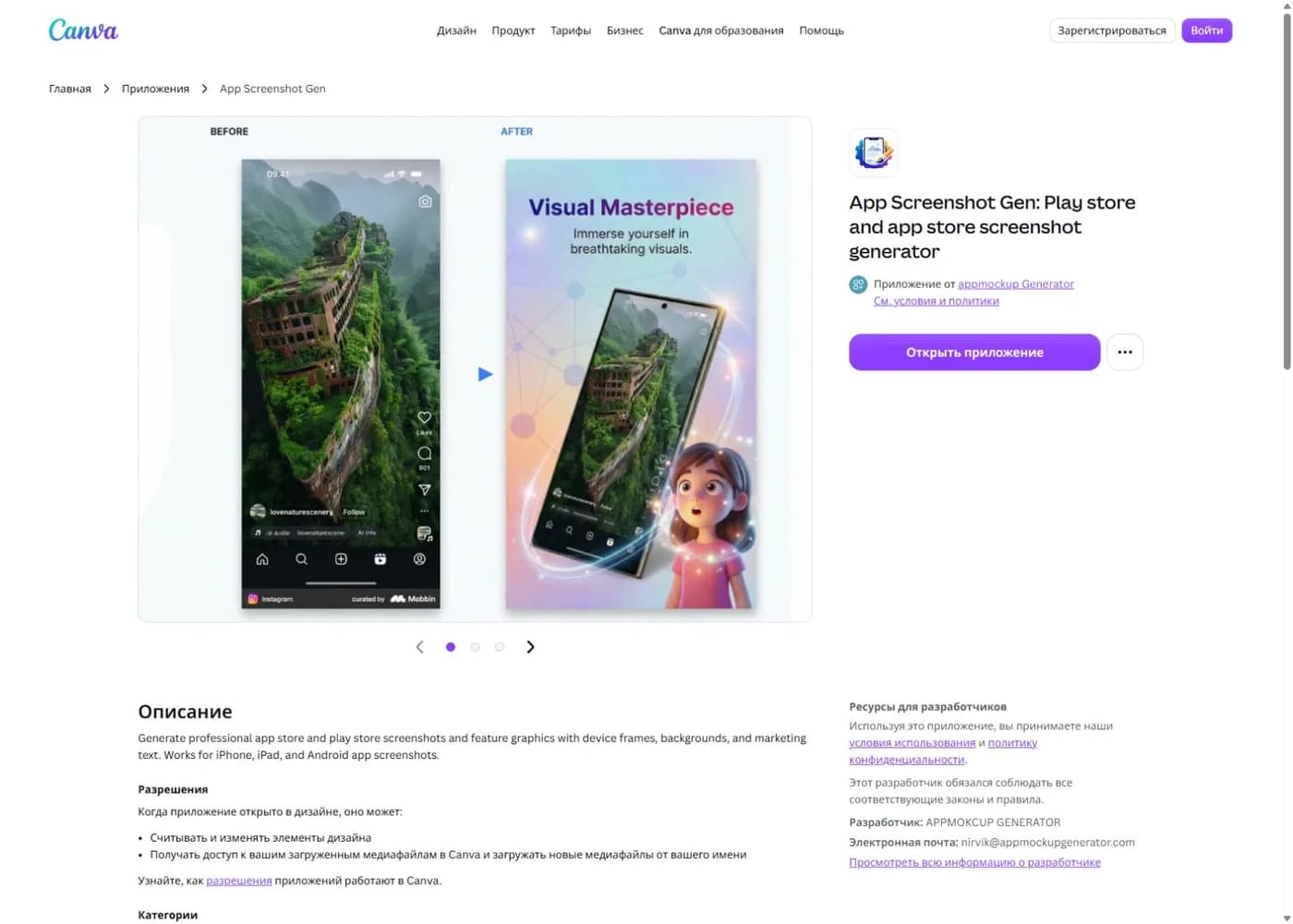
An app-directory listing is not a promise that every feature is free or included in Canva Pro. Check the developer's own terms, pricing, data access and export behavior. We inspected the public listing; we did not install it or test a paid export.
This is why the useful comparison is between your complete workflows. You might use Canva alone, Canva with a third-party app, or AppScreens. Each has a different setup and review burden. Write down which product actually performs each task before paying for overlapping features.
A small pilot that gives you a real answer
Use this five-step test before moving an entire project:
- Pick one representative frame. Use a real app screen with normal text density and a headline you plan to ship.
- Build it in each shortlisted workflow. Use assets and features your intended plan permits.
- Make one realistic change. Replace the capture and lengthen the headline. If relevant, add a second locale.
- Inspect actual output. Check dimensions, opacity, type size, cropping and file order outside the editor.
- Record what the next release needs. Save the source, name the owner of the project and note the steps that remain manual.
Choose the workflow with the fewest costly failure points for your job. If both produce acceptable files, familiarity and maintainability can matter more than the number of templates. Keep a record of the selected plan and billing cycle so a short launch project does not become an unnoticed recurring expense.
If neither solves your problem because you lack a creative direction, that is a different buying decision. ScreenFast, our product, generates ten design directions after a free audit and paid checkout. The one-time package is $9.99. Its base exports are 1290x2796 iPhone masters, not a native all-platform replacement for AppScreens. Read ScreenFast vs AppScreens or try the AI screenshot workflow only if that narrower job matches your needs.
FAQ
Is AppScreens better than Canva for App Store screenshots?
It can be a better fit when repeated sizes, locales and store delivery are the bottleneck. Canva can be the better fit for a small manually designed set or an existing design process. Compare a realistic release task rather than assuming one is universally better.
Can I make the screenshots for free in either tool?
Both have free routes with boundaries. AppScreens limits project capacity, screens and features. Canva's no-cost route depends on using permitted Free content and manual workflows. Check the actual export and usage rights before building the full set.
Is AppScreens Pro 8.25 dollars for one month?
The inspected annual USD offer is $99 billed annually, displayed as $8.25 per month equivalent. That is not a monthly checkout quote. Select the billing term you need and review the actual charge before paying.
Does Canva automatically export every App Store screenshot size?
Do not assume that from a template or a paid account. You must select the required sizes and inspect the resulting files. Third-party apps can add workflows, but their supported outputs and fees need their own check.
Can these tools guarantee a conversion increase?
No. A tool can help produce or manage assets, but the message, audience, app, traffic source and test design affect results. Apple's App Review rules still apply. Do not invent UI or paid-feature access just to make a stronger image.
Which should an agency choose?
Start with client-delivery rights, project count, handoff and repeat edits. AppScreens distinguishes its own-app and client-work licenses. In Canva, review the relevant content and client terms. A client's ability to revise the source later is also worth checking before delivery.
How we tested
We reviewed official AppScreens pricing, license and designer documentation, plus Canva's licensing, resize help and public app listing on October 8, 2026. We checked Apple's documentation for the final-file boundary. Public page captures illustrate those sources, not a logged-in production test.
We did not buy both paid plans, conduct a stopwatch comparison, install the Canva add-on or measure download lift. The 48-file example and cost formula are editorial planning tools. The hero is an illustration, and the decision cards summarize the reasoning in this article.
Google US comparison results and public developer discussions about creating store screenshots informed the questions, not our product claims. We have no affiliate relationship with the tools compared. ScreenFast ownership is disclosed above.
Last updated: 2026-10-08.