App Store Screenshot Sizes 2026: iPhone and iPad Requirements
TL;DR
App Store screenshot sizes are exact pixel pairs, not just aspect ratios. Apple's current required-size summary names iPhone with Dynamic Island (medium display) and, for iPad apps, the 13-inch iPad. The medium iPhone class accepts 1179 x 2556 or 1206 x 2622 pixels in portrait. Apple's per-device notes also allow inherited, scaled assets. Check the required wells in your app's Media Manager before treating a single export as the complete submission.
Use JPEG or PNG with no alpha channel or transparency. If the app runs on iPad, the iPhone set is not enough: add a separate 13-inch iPad set at 2064 x 2752 or 2048 x 2732 pixels in portrait. We checked these values against Apple's current screenshot specifications on October 17, 2026.
What changed in the current Apple specification
Apple now names iPhone classes by Dynamic Island, Face ID, and Home Button, rather than only their diagonal size. It also lists separate iPhone Duo displays. An older guide that says "6.9-inch only" misses the new required-size summary. The accepted large-display pixel dimensions have not disappeared.
Match the display class before choosing a size
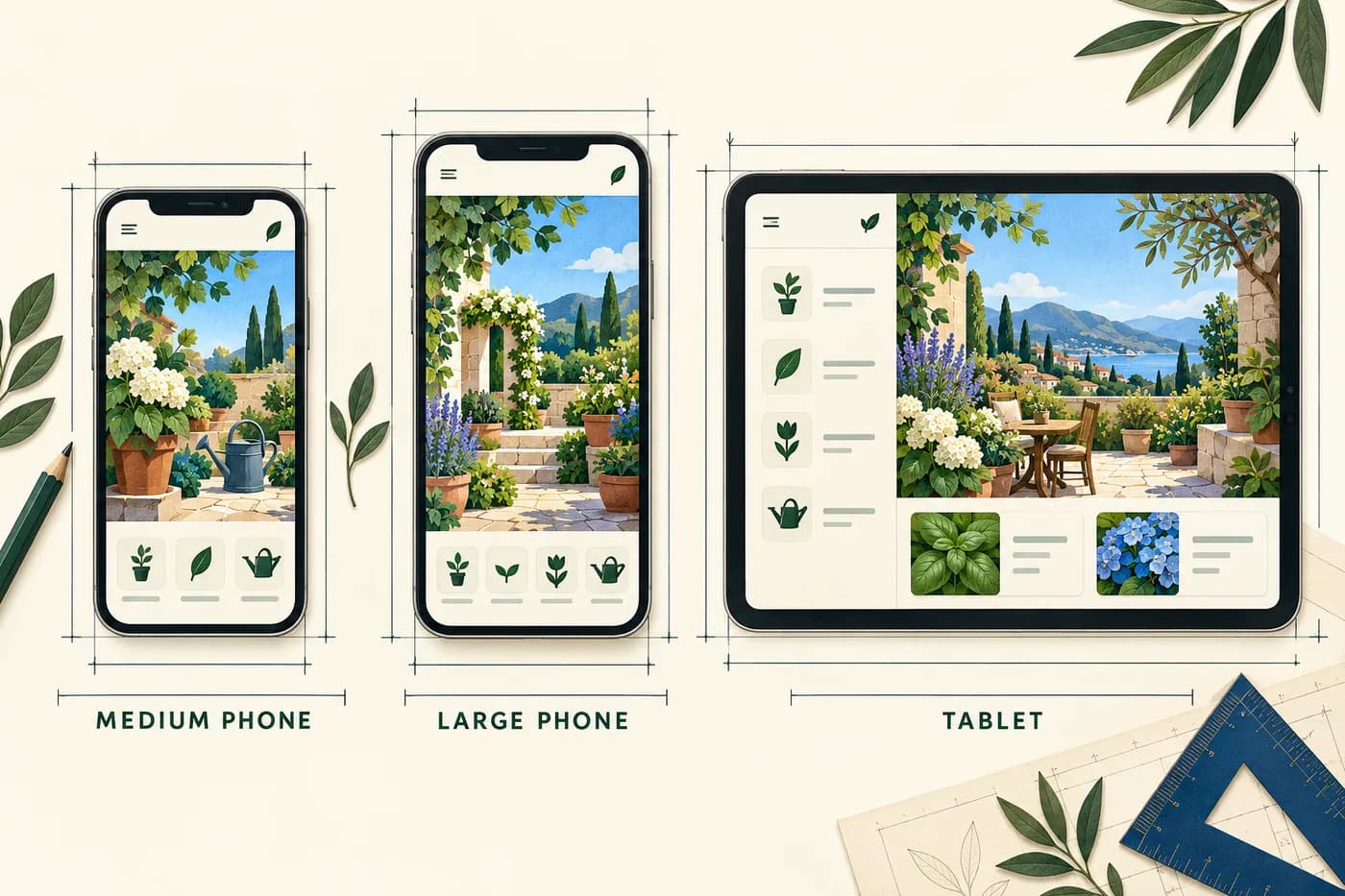
Conceptual device canvases, not a scale drawing or a list of required exports.
1290 x 2796 pixels remains accepted for iPhone with Dynamic Island (large display), the class older guides call 6.9 inch. ScreenFast uses this canvas for its base output. An accepted export size is not a guarantee that one set meets every requirement of your app.
The large Dynamic Island class accepts:
| Orientation | Accepted large Dynamic Island screenshot sizes |
|---|---|
| Portrait | 1260 x 2736, 1290 x 2796, 1320 x 2868 |
| Landscape | 2736 x 1260, 2796 x 1290, 2868 x 1320 |
The label is an App Store Connect display class, not a promise that every listed phone has the same native panel dimensions. Build for an accepted bucket and exact pixel size rather than relying on a Figma frame name such as "latest Pro Max."
Apple's upload guidance says that, when the user interface is the same across multiple device sizes and localizations, you can provide only the highest-resolution screenshots required. App Store Connect scales those assets down. If a smaller device needs a meaningfully different crop or layout, use Media Manager to supply a custom set for that class.
Complete accepted iPhone dimensions
You usually do not need to export every row below. The table is useful when App Store Connect reports a dimension error, an old project still contains device-specific sets, or a layout genuinely changes between classes.
| App Store display class | Accepted portrait dimensions | Accepted landscape dimensions | Practical rule |
|---|---|---|---|
| Dynamic Island, large | 1260 x 2736, 1290 x 2796, 1320 x 2868 | 2736 x 1260, 2796 x 1290, 2868 x 1320 | Accepted large-display assets |
| Face ID, large | 1284 x 2778, 1242 x 2688 | 2778 x 1284, 2688 x 1242 | Check the large-display fallback rule |
| Dynamic Island, medium | 1179 x 2556, 1206 x 2622 | 2556 x 1179, 2622 x 1206 | Named in Apple's required-size summary |
| Face ID, medium | 1170 x 2532, 1125 x 2436, 1080 x 2340 | 2532 x 1170, 2436 x 1125, 2340 x 1080 | Supply a custom set only when the layout needs it |
| 5.5 inch | 1242 x 2208 | 2208 x 1242 | Scaled from the 6.1-inch set if omitted |
| 4.7 inch | 750 x 1334 | 1334 x 750 | Legacy class; scaled from 5.5 inch if omitted |
| 4 inch | 640 x 1136 with status bar; 640 x 1096 without | 1136 x 640 with status bar; 1136 x 600 without | Legacy class |
| 3.5 inch | 640 x 960 with status bar; 640 x 920 without | 960 x 640 with status bar; 960 x 600 without | Legacy class |
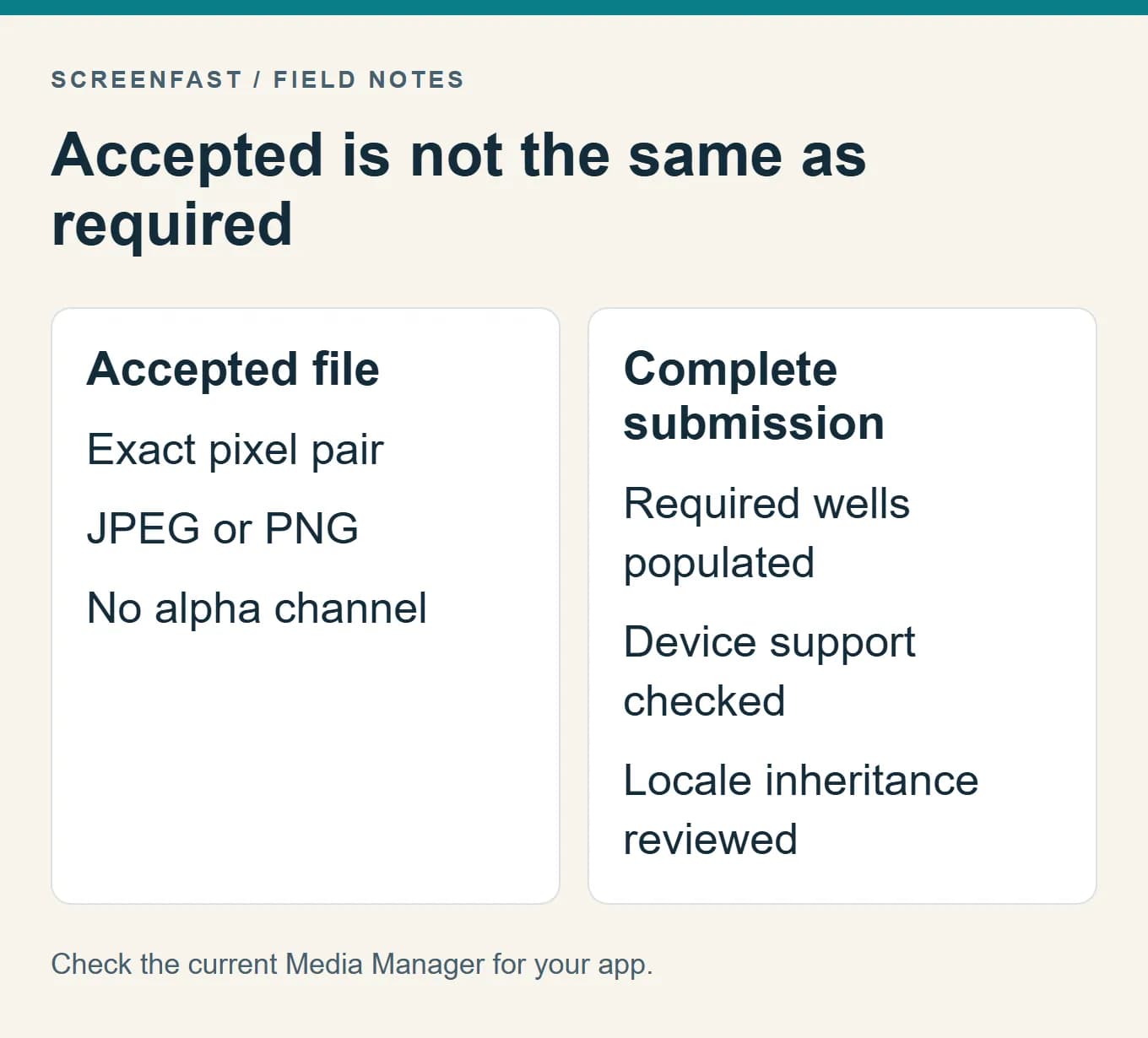
Think in terms of accepted, required, and inherited. Apple's summary and its per-device scaling notes describe different parts of the process. Open the target well to see which image is inherited and which needs an upload. If a required medium-display well remains empty, prepare an accepted medium size instead of repeatedly uploading the same large file.
iPhone Duo inner and outer displays
Apple lists 1398 x 2034 for the outer display and 2007 x 2853 for the inner display, with the dimensions reversed for landscape. Its current note states that Duo screenshots will be required starting in April 2027 for apps using the iOS 27.1 SDK or later. That future requirement is not a reason to treat Duo as a mandatory October 2026 export for every app. These are distinct canvases, not other names for 1290 x 2796. Check the actual Media Manager options and the uploader's supported display types. Do not force a Duo image into a standard iPhone well.
Keep device-specific captures separate. Stretching a standard phone screen into a wider composition does not show a genuine responsive layout. Use the real supported interface and a separate source design when you need such a set. ScreenFast's base output does not claim native Duo exports.
iPad App Store screenshot sizes
If the binary runs on iPad, Apple requires an iPad screenshot set. Do not stretch an iPhone composition to the wider iPad canvas: it changes information density, safe space, and the visible product UI.
| App Store display class | Accepted portrait dimensions | Accepted landscape dimensions | Requirement |
|---|---|---|---|
| 13 inch | 2064 x 2752, 2048 x 2732 | 2752 x 2064, 2732 x 2048 | Required when the app runs on iPad |
| 12.9 inch | 2048 x 2732 | 2732 x 2048 | Scaled from 13 inch if omitted |
| 11 inch | 1488 x 2266, 1668 x 2420, 1668 x 2388, 1640 x 2360 | Matching landscape rotations | Optional custom set |
| 10.5 inch | 1668 x 2224 | 2224 x 1668 | Legacy custom set |
For the common case, create the 13-inch set and let App Store Connect handle smaller iPads. ScreenFast's base generation is iPhone-only; it does not claim to export the separate iPad canvas.
File format and upload requirements
Apple's rules are short but exact:
- Upload at least one and at most ten screenshots for a supported display slot.
- Use
.jpeg,.jpg, or.png. - Do not include an alpha channel or transparency.
- Use one accepted pixel size exactly. A file that is one pixel off can fail validation.
- Keep portrait and landscape assets in the correct orientation and slot.
- Use screenshots to show the real app experience. Generated copy, device frames, and visual effects still need a human accuracy review.
App previews are a separate asset type with separate video resolutions. Do not use screenshot dimensions as App Preview export settings; see the video-versus-screenshots comparison if you are deciding whether to produce both.
Which size should you choose?
Choose 1290 x 2796 when you want a dependable iPhone default and your production tool already exports it. Choose 1320 x 2868 when your workflow starts from that larger accepted canvas and all source UI remains sharp. Choose 1260 x 2736 when that is the native output available to you. All three belong to the large Dynamic Island class. For a medium Dynamic Island well, use 1179 x 2556 or 1206 x 2622 instead. Match the upload target, not just a familiar phone name.
Do not upscale a soft source merely to reach the largest number. Exact dimensions do not recover detail that was missing in the original screenshot. Capture the UI at a suitable resolution, then compose captions, backgrounds, and device frames on the final accepted canvas.
If you capture in Xcode, the iOS Simulator screenshot workflow covers Cmd+S, simctl, status-bar cleanup, and the difference between a raw device capture and a marketing tile.
Common App Store screenshot rejection reasons
- Wrong slot. You drag a valid 1290 x 2796 file into a different device bucket.
- One-pixel resize drift. An editor exports 1289 x 2796 or rounds a fractional Figma frame.
- Transparency. The design looks opaque, but the PNG still contains an alpha channel.
- Incorrect color or export mode. Flatten the asset and export a normal RGB JPEG or PNG.
- iPad support without an iPad set. The app runs on iPad, but you supplied only iPhone assets.
- Inaccurate UI or claims. A generated frame shows controls, results, or text that the real app does not provide.
For error-by-error troubleshooting, use the App Store Connect screenshot upload errors guide.
Methodology
We used Apple's live screenshot specification and upload guidance as the primary sources. The tables cover the iPhone and iPad classes discussed here, not every Apple platform. We distinguish accepted dimensions from required wells and inherited images. We did not test a Duo upload. We checked ScreenFast's export claims against the product workflow instead of extending them to unsupported iPad or Android canvases. The source check took place on October 17, 2026.
A worked export check: correct canvas, wrong destination
Suppose a designer delivers three fictional reading-app images at 1290 x 2796. The files are valid opaque JPEGs, and the large Dynamic Island well accepts them. That answers one question: the files match that target. It does not answer whether every required well in the app's submission is complete.
Open the medium-display well and inspect the inherited image, if any. If it is populated through an accepted fallback, review the crop and text. If it remains empty or the layout is unsuitable, prepare an accepted medium-size set. Do not stretch the JPEG until a different dimension check passes. Return to the source layout, fit the real interface and export a new file.
Now check whether the app supports iPad. If it does, inspect the separate iPad set. A wide tablet layout may show a sidebar and a detail pane that are absent from the phone UI. Use a real tablet capture when the app's interface differs. The goal is to represent the product accurately, not merely to fill a larger rectangle.
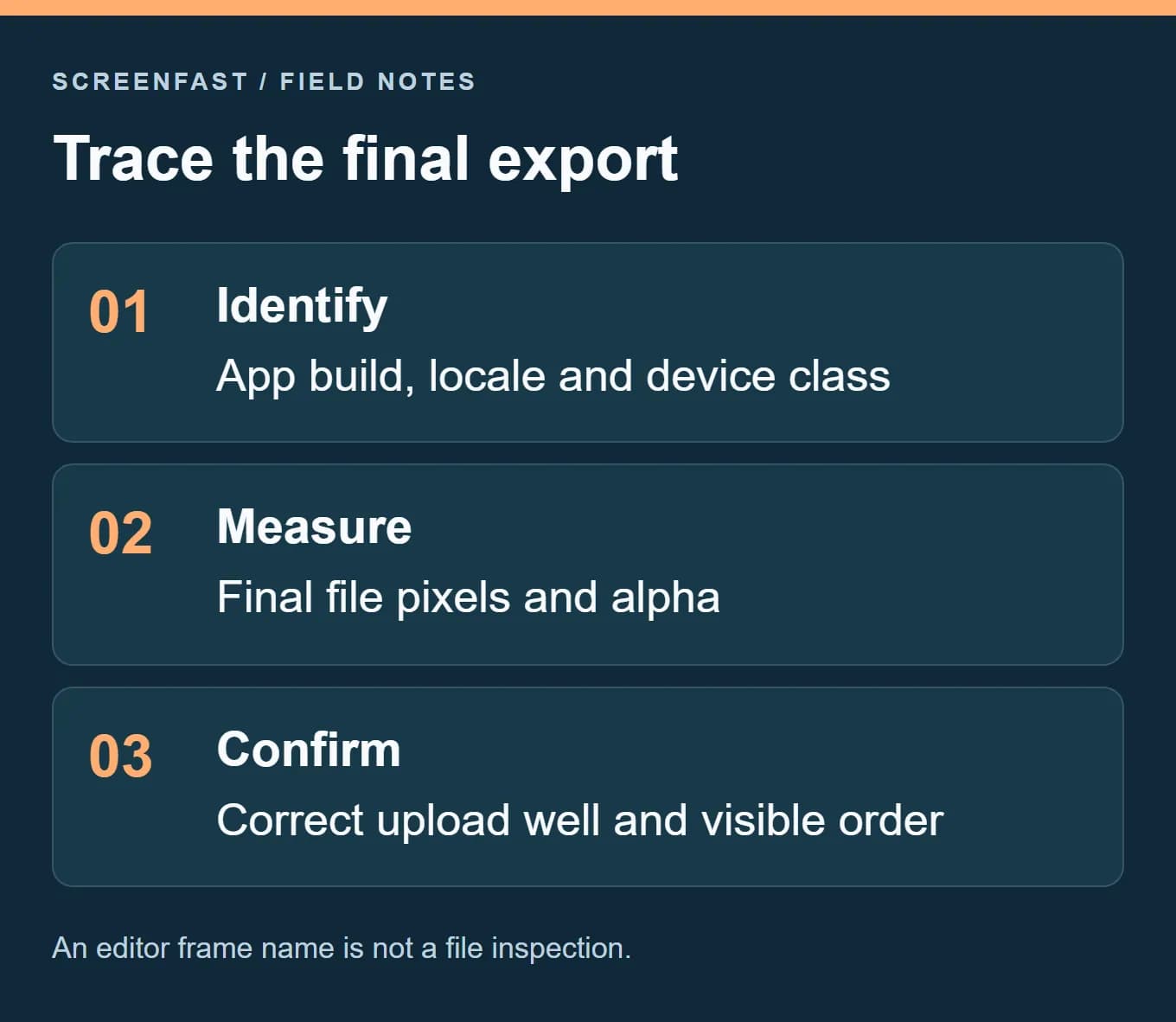
Keep a small delivery record: source build, locale, device class, final width and height, format, alpha status and approved filename. This makes a later rejection or localization update much easier to trace. An editor preset called "App Store" is not enough evidence because presets can age or export at an unexpected scale.
Upload checklist
- Required iPhone wells populated, including the medium Dynamic Island requirement or an accepted inherited asset
- Separate 13-inch iPad set if the app runs on iPad
- One to ten screenshots per required slot and localization
- Exact portrait or landscape dimensions
- JPEG or PNG with no alpha channel
- Real, accurate product UI
- Legible captions at thumbnail size
- Final check against Apple's live specification page
Generate the accepted iPhone set
ScreenFast uses a 1290 x 2796 canvas, an accepted large Dynamic Island size. Check the required wells and the final file format before submission. Paste a live App Store URL or upload prelaunch screens, review the audit first, then unlock ten design directions for $9.99 one-time. A subscription is not required. See the App Store screenshot generator workflow and review every generated detail before submission.
Frequently asked questions
Is 1290 x 2796 still an accepted App Store screenshot size?
Yes, Apple's current reference lists it for the large Dynamic Island iPhone class. Match the required wells and inheritance separately; an accepted size is not a complete submission plan.
Do I need to export every size in the table?
Usually not. Apple's scaling rules can cover smaller targets when the interface is consistent. Inspect your app's required wells and supply custom sets where necessary.
Can I change only the file extension to fix a format error?
No. Renaming a file does not convert its image data. Export or convert it to a genuine accepted format, then verify its dimensions and alpha properties.
Is a visually opaque PNG guaranteed to have no alpha channel?
No. A file can look opaque while retaining an alpha channel. Inspect the actual export and flatten it correctly if needed.
Can a generated iPhone image replace the required iPad set?
No. Review iPad support and the applicable iPad screenshot requirements. ScreenFast's base iPhone output is not a native iPad export.
Should I upload Duo screenshots for every app today?
Do not infer that from the presence of a reference row. Check the dated SDK requirement in Apple's documentation and the device targets available for your app.
Last updated: 2026-10-17.