AppScreens vs Figma: Store Workflow or Design System?
TL;DR: choose what you want to maintain
AppScreens vs Figma comes down to release operations versus design control. Choose AppScreens when sizes, languages and store delivery are the repeated work. Choose Figma when an editable design system, custom art direction and collaboration matter most. A good Figma file can be efficient; a purpose-built tool can still need careful review.
Disclosure: ScreenFast is our product. It offers a different, paid AI design workflow, not an automatic winner in this comparison. Last updated: 2026-10-17.
The difference that matters after the first export
A screenshot set is easy to underestimate. The first version may have five English captions and one phone size. Then your app changes its navigation. A translator sends longer copy. Someone asks for a second store listing with a different opening message.
Your choice of tool decides where those changes live. In a general design file, you define the rules. In a store-focused editor, you adopt more of the tool's rules. Neither arrangement is inherently better. The better fit is the one your team can maintain without guessing which file is current.
Consider this decision table before comparing template galleries:
| Your main task | Stronger starting point | What you still own |
|---|---|---|
| Reuse an existing app design system | Figma | Export frames and release checks |
| Prepare many store sizes and locales | AppScreens paid plan | Translation and layout review |
| Create unusual layered artwork | Figma | Asset rights and small-screen clarity |
| Deliver screenshots for paying clients | Figma with cleared assets, or AppScreens Scale | Handoff terms and client approval |
| Publish one simple set on no budget | Test either free plan | Exact export and feature limits |
| Explore a new visual direction from an app brief | Consider ScreenFast separately | Accuracy, text and final output review |
This is a workflow recommendation, not a speed benchmark. We have not run a timed paid-plan test of both tools.
Where AppScreens reduces release work
AppScreens organizes the job around store screenshots. Its paid workflow includes localization and direct store uploads. That matters when the same message must survive changes in size and language. You still need a person to check the result, but fewer parts of the release process need a separate naming system.
The current AppScreens plan table lists Pro with 50 saved projects, 10 apps and 80+ locales. Scale adds unlimited apps and saved projects, plus up to 25 screens per project. Pro supports up to 10. These are different limits: an app is not a project, and neither is an individual exported image.
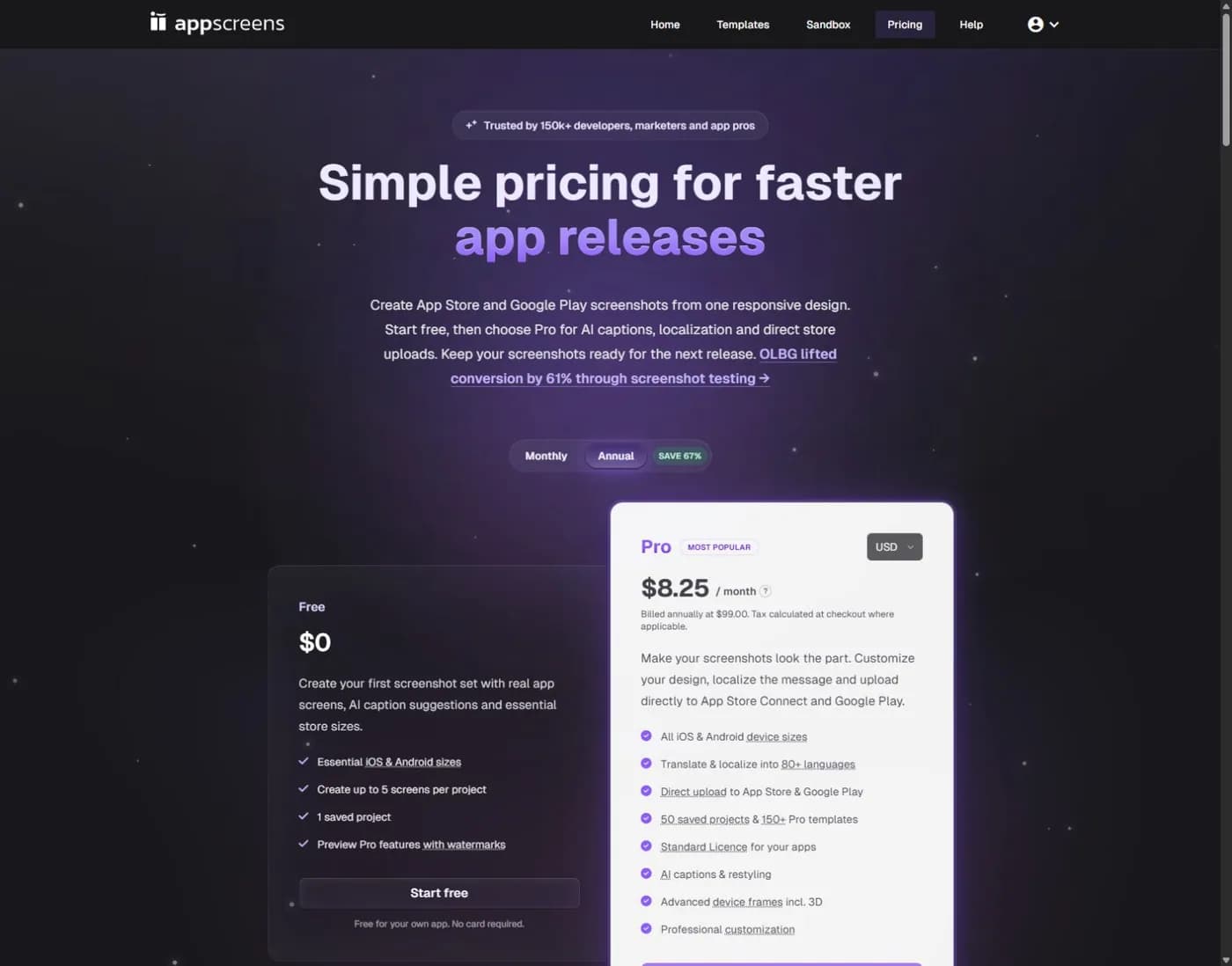
Do not choose Scale merely because you read an older comparison saying Pro stops at 10 languages. The live table now gives both paid plans the full locale range. Client licensing and portfolio limits are stronger reasons to consider Scale.
A store-specific editor is especially worth testing when you keep making the same correction across several outputs. For example, you might change a feature name, replace one UI capture and then need the same change in each locale. Your trial should test that revision, not just the first attractive template.
There is a tradeoff. A tool can make routine work simpler while giving you a different set of layout controls from your existing design file. Check the exact effects you need. Do not assume that every Figma composition can be rebuilt as an editable AppScreens project.
Where Figma gives you more control
Figma is useful when the screenshot set is part of a broader design system. The same type styles, colors, components and illustration assets can support the app, its website and its store listing. That can reduce visual drift between what people see before and after installation.
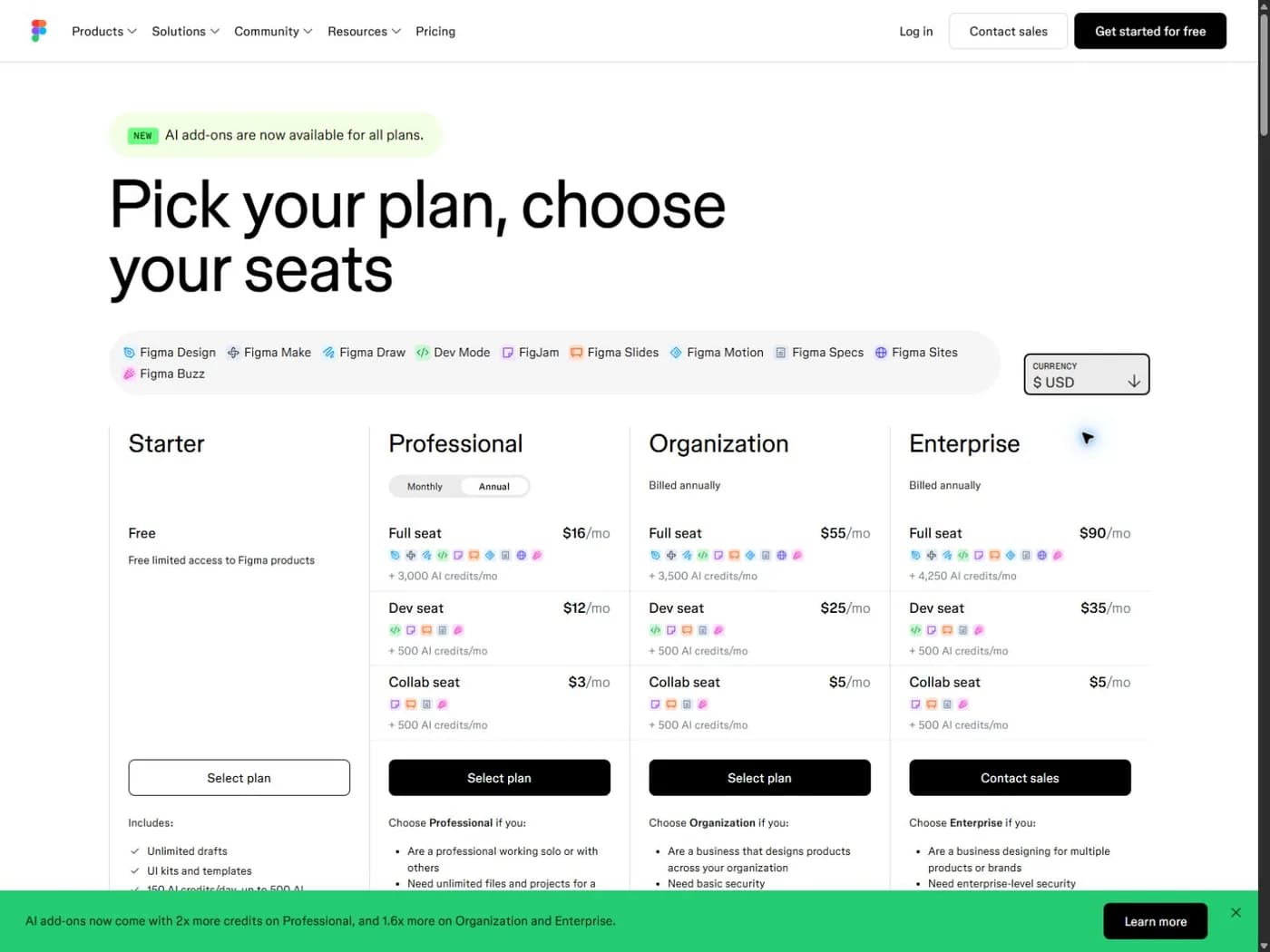
The Figma pricing page describes Starter as free, with unlimited drafts. Paid plans add team and library features. Be careful with seat types: a low-priced collaboration or developer seat is not the same purchase as a Full seat for design work.
Figma's flexibility has a practical cost: somebody must make the system reliable. A file with copied frames and ad hoc text layers can become fragile. A file with clear components, named export frames and one source for each caption can be much easier to update.
If you choose this route, start with our Figma screenshot template and export guide. Keep the template simple enough for the next editor to understand. An impressive file that only its creator can use is a poor handoff.
For localization, decide whether you will use separate pages, components or an approved plugin. Plugin features and permissions belong to that plugin, not automatically to Figma itself. Never treat a community template as a guarantee of current store dimensions or unrestricted asset rights.
Pricing: compare the checkout with the work you already do
At our check, AppScreens displayed annual Pro at $99 and annual Scale at $180, before applicable tax. Those are yearly commitments, not one-month purchases at the displayed monthly equivalent. Its free plan allows one saved project with up to five screens and essential device sizes.
Figma displayed a Professional Full seat at $16 per month with annual billing selected. Twelve months at that rate is $192 per Full seat before applicable tax. Starter may be enough for a solo file. If your team already pays for a suitable Figma seat, the extra software cost of making screenshots there may be zero.
Do not turn those figures into a universal cheapest-tool ranking. A new Figma subscription bought only for screenshots is a different decision from using a seat you already have. Likewise, a release workflow with many languages has different costs from a one-language launch.
Use this small worksheet:
- Write down the software you already pay for.
- Count the additional seats or plans this project needs.
- Separate annual commitments from monthly billing.
- List the manual steps that remain after buying the tool.
- Test one realistic revision before estimating time savings.
A hypothetical example makes the distinction clear. Suppose one workflow takes an extra 45 minutes per release. At an internal planning rate of $40 per hour, that is $30 of work. It is not a measured Figma or AppScreens result. Replace both assumptions with your own trial before using the number to choose a plan.
Test a change request, not just a template
Here is a short evaluation that exposes maintenance problems. Use the same real app capture in both tools. Do not include private customer data. Make one simple portrait image, then ask for four changes:
- Replace the capture with an updated screen.
- Change a two-word headline to a longer benefit statement.
- Add one translated version with different line breaks.
- Export the exact size your current App Store Connect slot accepts.
Record which parts update together and which need manual attention. Can you tell which image is the approved one? Does the text remain readable at listing size? Does a device frame hide an important control?
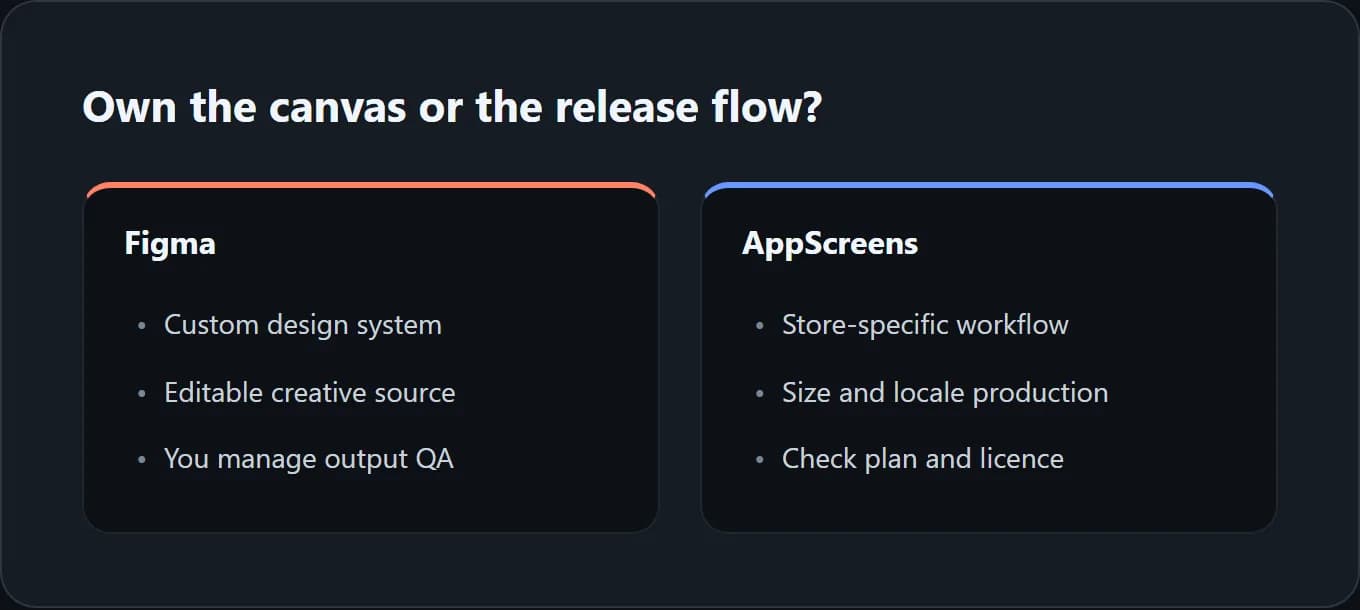
This test also helps avoid a false choice. You may keep original artwork in Figma and assemble store sets elsewhere. That can work, but it adds a handoff. Name the source of truth for captions, captures and final layouts before you combine tools.
If both files contain editable captions, decide which one wins when they disagree. Otherwise, a late translation change can reach one export and miss another. The tool with more features will not solve that process problem by itself.
Sizes and languages multiply the review surface
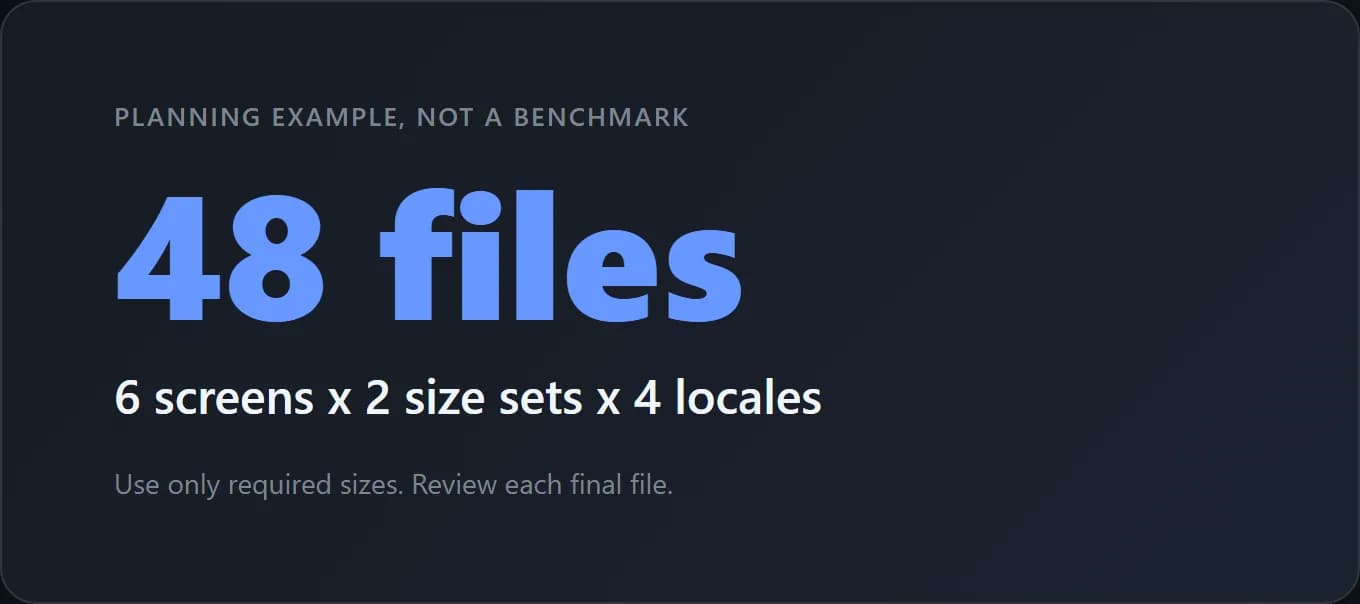
For planning, imagine six screenshot positions, two required size sets and four locales. That produces 48 files to review. It does not mean every app needs two sets, or that every tool charges for 48 exports. It simply describes the surface where mistakes can appear.
First check Apple's current screenshot specifications. Use the actual devices your app supports and the upload slots in App Store Connect. A device-frame name is not enough to prove that the output file has the right dimensions.
Then review each locale as a design, not just a translation. Longer words can force a third line. A right-to-left layout may need more than mirrored text. Prices, units and feature names may differ by market. Our localization guide covers that review in more detail.
Automated resizing is useful when it removes repetitive placement work. It is not a reason to skip checking the edges, captions and underlying UI. For either tool, keep a small release manifest listing locale, size, screenshot order and approval status.
Client work changes the buying decision
An agency should check usage rights before its template library. The AppScreens license page distinguishes work for your own organization from paid client deliverables. Its Extended Licence is the relevant option for client screenshot services. The Standard Licence is not a cheaper substitute for that use case.
With Figma, access to the editor does not settle the rights to every asset inside the file. Check fonts, device mockups, stock images and purchased templates. A client who receives the source file may need their own access to a paid asset or plugin. Clarify that before promising unrestricted editing.
Also ask what the client expects to own. A folder of approved PNGs is different from an editable source system. Include both in the proposal only if you can actually deliver both. For a fuller checklist, see screenshot tools for agencies.
When ScreenFast belongs on the shortlist
ScreenFast, our product, is relevant if the harder problem is choosing a visual direction. You can start with an app URL or prelaunch material and receive a free audit first. Paid generation then produces 10 design directions. The one-time entry option is $9.99 per app at this check.
That is not the same product as an editable Figma component library or AppScreens' store-delivery workflow. The base output is iPhone masters, not a native iPad and Android production system. AI output can need text, visual and factual corrections before use.
Read the ScreenFast workflow if you want help with the starting direction. Keep Figma or a store-specific editor on your list when exact layer control, language production or client source-file handoff is the main requirement.
How we tested and where the evidence stops
We reviewed the public plan tables, licensing pages and documentation on October 17, 2026. We captured AppScreens and Figma's live pricing pages, including the selected billing context. We compared their stated capabilities with a release checklist, not a paid performance trial.
The change-request exercise and 48-file example above are evaluation tools we designed for readers. They are not customer results. We did not connect a production App Store account, measure upload speed or verify every paid feature. Check the current checkout and relevant terms before purchase.
Frequently asked questions
Is Figma free for App Store screenshots?
Figma has a free Starter plan that can support a simple solo design file. Your chosen template, fonts or plugins may have separate limits or costs. Confirm the export dimensions and rights to all included assets.
Is AppScreens Pro limited to 10 languages?
Not on the plan table we checked. It listed 80+ locales for both Pro and Scale. Pro listed 10 apps and 50 saved projects. Those limits describe different things and should not be mixed together.
Can I move a Figma file directly into AppScreens?
Do not assume a lossless editable import. Check the current supported import workflow. You may be able to reuse captures and artwork while rebuilding captions or layouts. Test that handoff before committing a full library.
Which tool is better for agencies?
AppScreens Scale addresses client licensing and larger portfolios. Figma can suit agencies that need editable source files and custom systems. In both cases, verify asset rights, client access and the delivery package rather than choosing by template count.
Which tool will improve my conversion rate more?
There is no reliable universal answer. A clearer message, accurate UI and readable layout can come from either workflow. Measure a specific creative change with suitable store testing; do not treat the software choice as a promised conversion lift.
Can I use both tools?
Yes, if each has a defined role. For example, keep original illustrations in Figma and store-specific assembly elsewhere. Set one source of truth for copy and approval so updates do not diverge between files.