How to Make App Store Screenshots in Canva (2026 Export Guide)
TL;DR
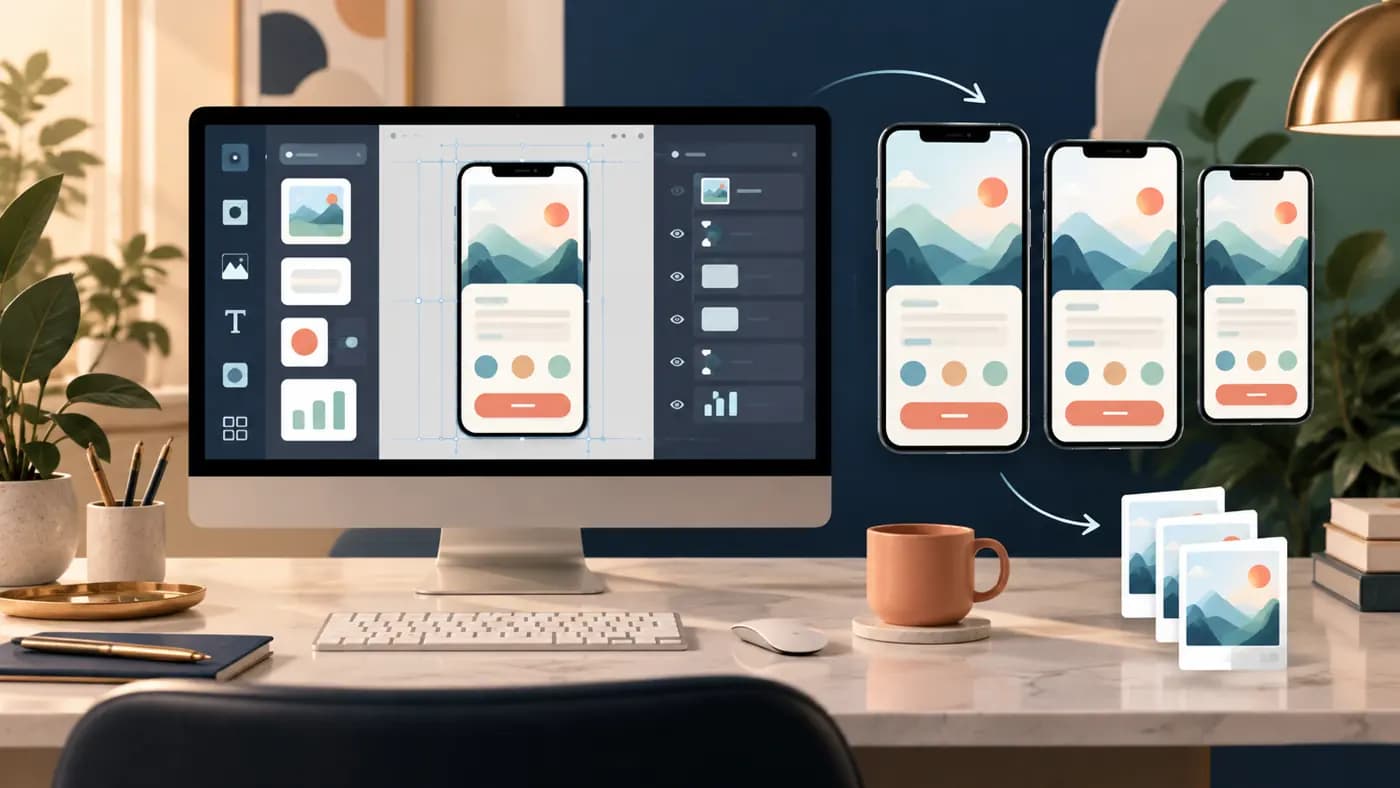
You can make App Store screenshots in Canva without a special template. Start a design at an Apple-accepted pixel size, such as 1290x2796 for the iPhone 6.9-inch class. Use one Canva page per App Store frame, place a real capture of your running app, add a short benefit, and export individual opaque PNG or JPEG files. Check the downloaded pixels and alpha channel before upload. If the app also runs on iPad, make a separate iPad set. A pretty Canva preview is not proof that the final files meet Apple's rules.
This is a hands-on workflow. If you are still deciding whether Canva or Figma is the better editor, use our Figma versus Canva comparison. Here we assume you chose Canva and want files that are clear, accurate, and ready to check in App Store Connect.
Choose the right canvas before picking a template
Apple's screenshot specifications list one to ten screenshots in JPG, JPEG, or PNG. The images may not contain alpha channels or transparency. For the current 6.9-inch iPhone display class, Apple accepts these portrait sizes:
| Canva design size | Apple slot | Use it when |
|---|---|---|
| 1260x2736 pixels | iPhone 6.9-inch | Your source capture and layout suit this exact canvas. |
| 1290x2796 pixels | iPhone 6.9-inch | You want a common portrait master for the set. |
| 1320x2868 pixels | iPhone 6.9-inch | Your device capture or existing design uses this size. |
| 2064x2752 pixels | iPad 13-inch | The app runs on iPad and needs an iPad portrait set. |
Do not choose a random "iPhone story" or social-post template and assume its aspect ratio is accepted. The phone mockup inside a Canva page is only an element; the outer exported image must match an Apple slot. Apple also accepts other device classes and landscape sizes. Check the full table for your supported platforms rather than copying one size from this example. Our App Store screenshot sizes guide explains the device map.
Canva's help on custom sizes and resizing documents entering custom dimensions and downloading a design. The editor interface and plan controls can change, so use the current on-screen custom-size control. You do not need a paid template merely to start with the right pixel dimensions.
Capture the app first, then design around it
Take screenshots from the actual running app on a relevant iPhone or Simulator. Use states a new user can reach. Remove personal data, test accounts, debug banners, and stale prices. If you show a subscription-only feature, label it clearly. Apple's App Review Guidelines say screenshots should show the app in use and accurately reflect its core experience; featured items that need an extra purchase must be clear.
For each source capture, note:
- the device and orientation;
- app version and locale;
- the feature shown;
- whether that feature is free or paid;
- the intended benefit in one sentence.
This small inventory prevents a common release error: a new design gets published with UI from an old build. It also makes localization easier. Do not let a generic stock-phone illustration replace the only evidence of what your app looks like.
Build the frame in layers you can revise
Treat each page as four separable parts: a fully opaque outer background, a genuine capture of the running app, one short benefit line, and comfortable margins around both. The outer background determines whether the eventual file is solid; the app capture proves the claim. A device frame and decorative shapes are optional. If they shrink the UI until the feature cannot be recognized, remove them.
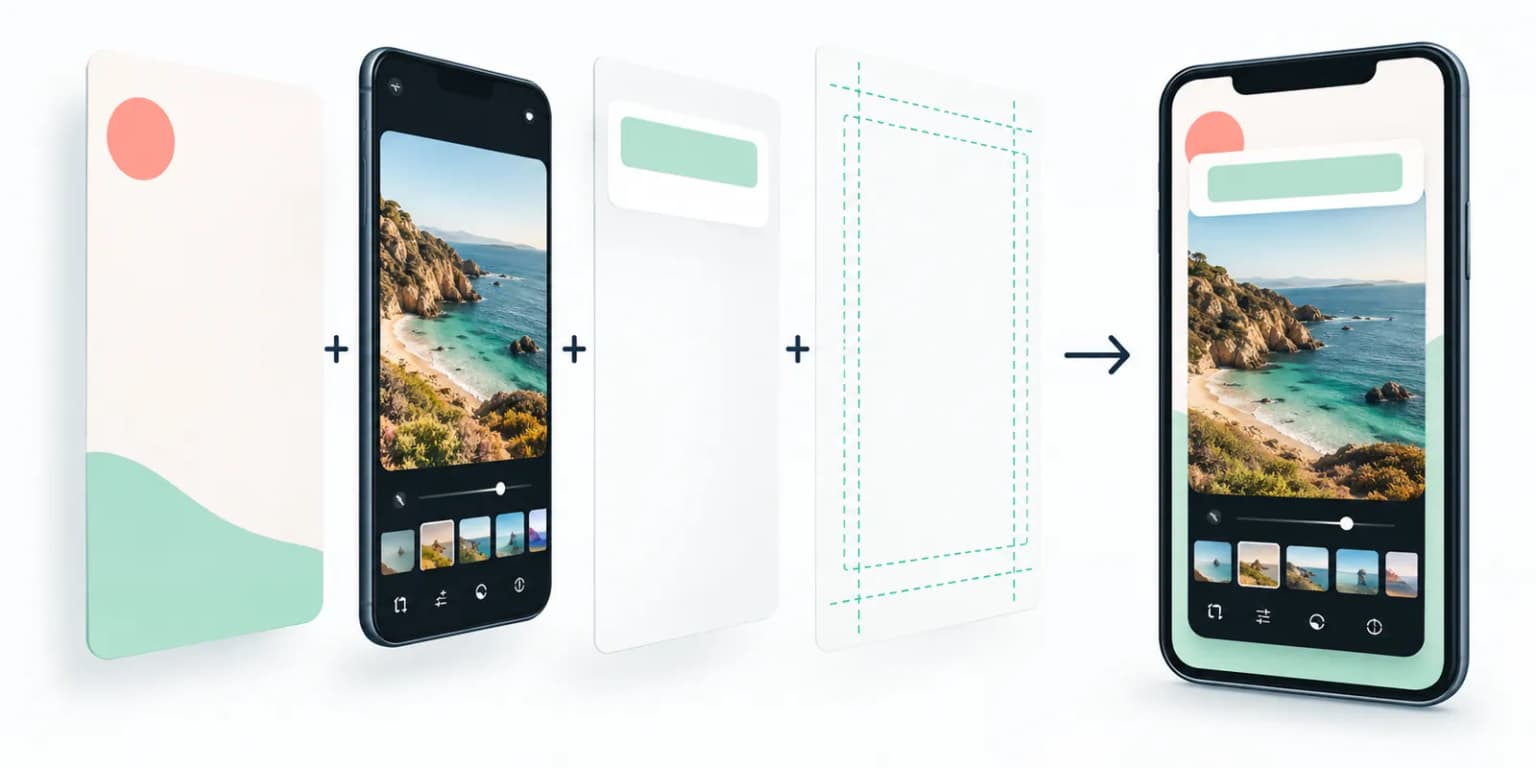
The pictured interface is fictional and illustrates layout, not a Canva template or a shipped app. In your design, retain an untouched copy of the raw capture. If the UI changes next month, you can swap that layer and see whether the headline is still accurate. Do not stretch a portrait screen to fit a landscape mockup, and do not let a background image imply a feature that is absent from the app.
Try a deliberately longer caption before duplicating the page. If it wraps into the phone or forces the text to become tiny, the layout is too brittle for localization. Shorten the message or give the caption more space; do not rely on a last-minute font reduction across every export.
Build one clear message per Canva page
Create the custom-size design. Treat page 1 as the first App Store screenshot, page 2 as the next, and so on. Set the same background, type scale, margins, and device treatment across the set. Change the main message and app screen, not the entire visual language on every page.
Here is a useful five-frame example for a fictional task app:
| Frame | Benefit headline | UI that proves it |
|---|---|---|
| 1 | "Plan today in one view" | A clear Today screen with real tasks. |
| 2 | "Catch tasks as they happen" | The actual quick-add flow. |
| 3 | "See your week ahead" | The real calendar or plan view. |
| 4 | "Stay on track" | A focus or reminder screen the app really has. |
| 5 | "Review what you finished" | The true progress view, if available. |
These are illustrative lines, not tested conversion winners. Replace them with your product's real promise. Keep the headline useful even if the smaller support line cannot be read at search-result size. Apple's search guidance says a rating and up to three screenshots or previews may appear in results, depending on platform and orientation. It does not promise that every user sees exactly three frames.
The first-versus-second screenshot guide helps you choose the message order. The typography guide gives a repeatable thumbnail check. In Canva, zooming out in the editor is a quick preview, but also inspect the final export at a small fixed width.
Export files, not just a good-looking preview
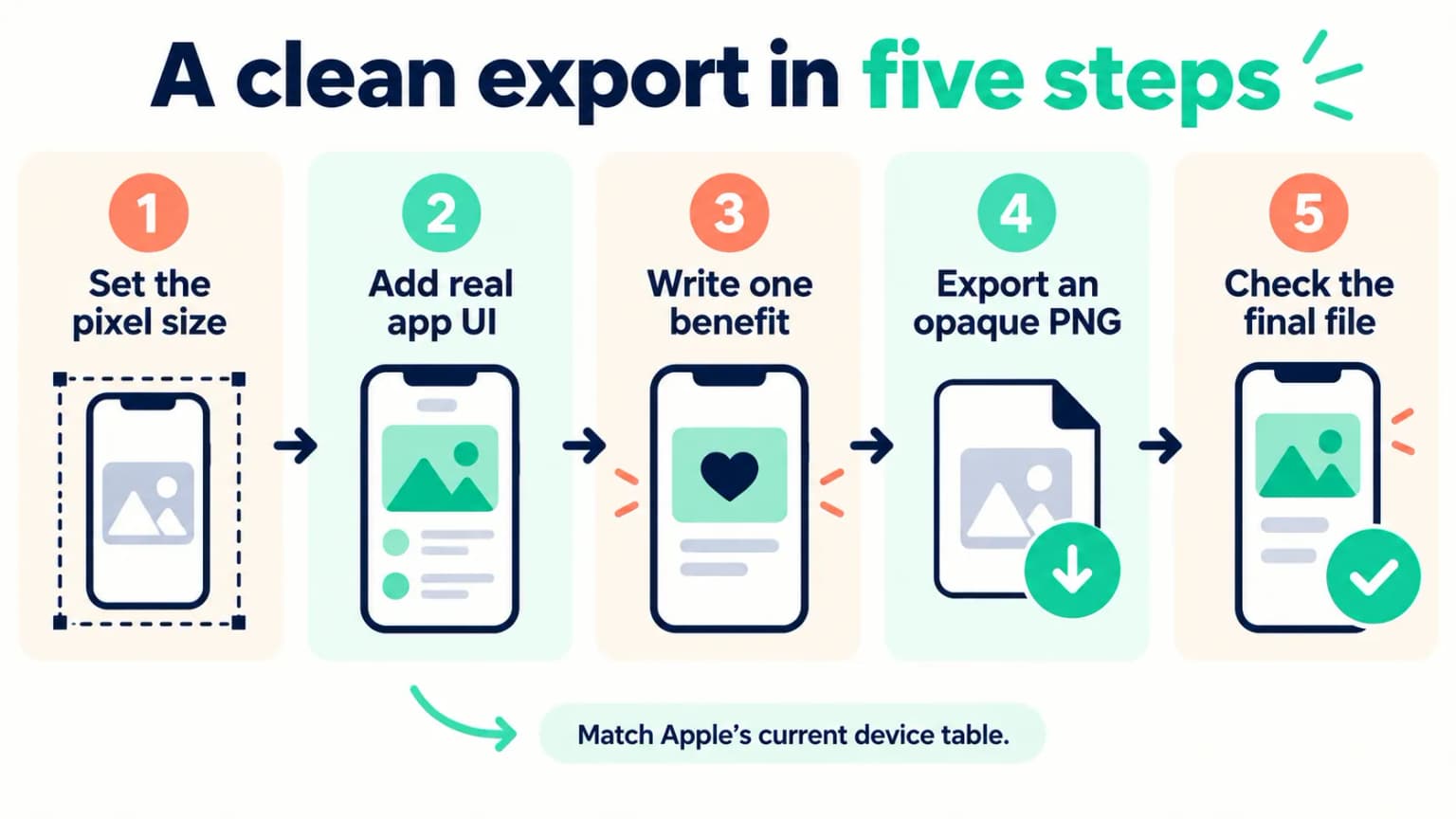
Download PNG or JPEG files at the intended dimensions. If Canva offers a scale option, check it: a 1290x2796 design downloaded at twice its size is a different file. Select individual pages or split a multi-page download so each App Store frame is a separate image. Name them in order, such as 01-main-benefit.png, 02-quick-add.png, and so on.
Before upload, open the downloaded files in an image inspector and check the following:
- Width and height exactly match an accepted size for that device slot.
- Format is actually PNG, JPG, or JPEG, not a renamed PDF or WebP.
- There is no alpha channel or transparency. Use an opaque background; if necessary, flatten or export as JPEG and inspect again.
- Type stays legible when the full image is reduced to a small preview.
- Captured UI is real, current, and not hidden by decoration.
- Files are in the planned order and match the right locale.
Apple does not publish a blanket requirement for a particular DPI or Display P3 setting on its screenshot-spec page. Fix the documented pixel and alpha requirements first. If App Store Connect returns an error, read the specific message rather than changing random export settings. The upload-error guide covers common checks.
Run a second-device and final-file preflight
An iPhone design does not become an iPad set merely because an editor can resize its canvas. The app's iPad UI may use different navigation, density, and content. If your app runs on iPad, capture that interface and rebuild the composition around it. A stretched iPhone image inside a larger page tells the buyer little about the tablet experience.
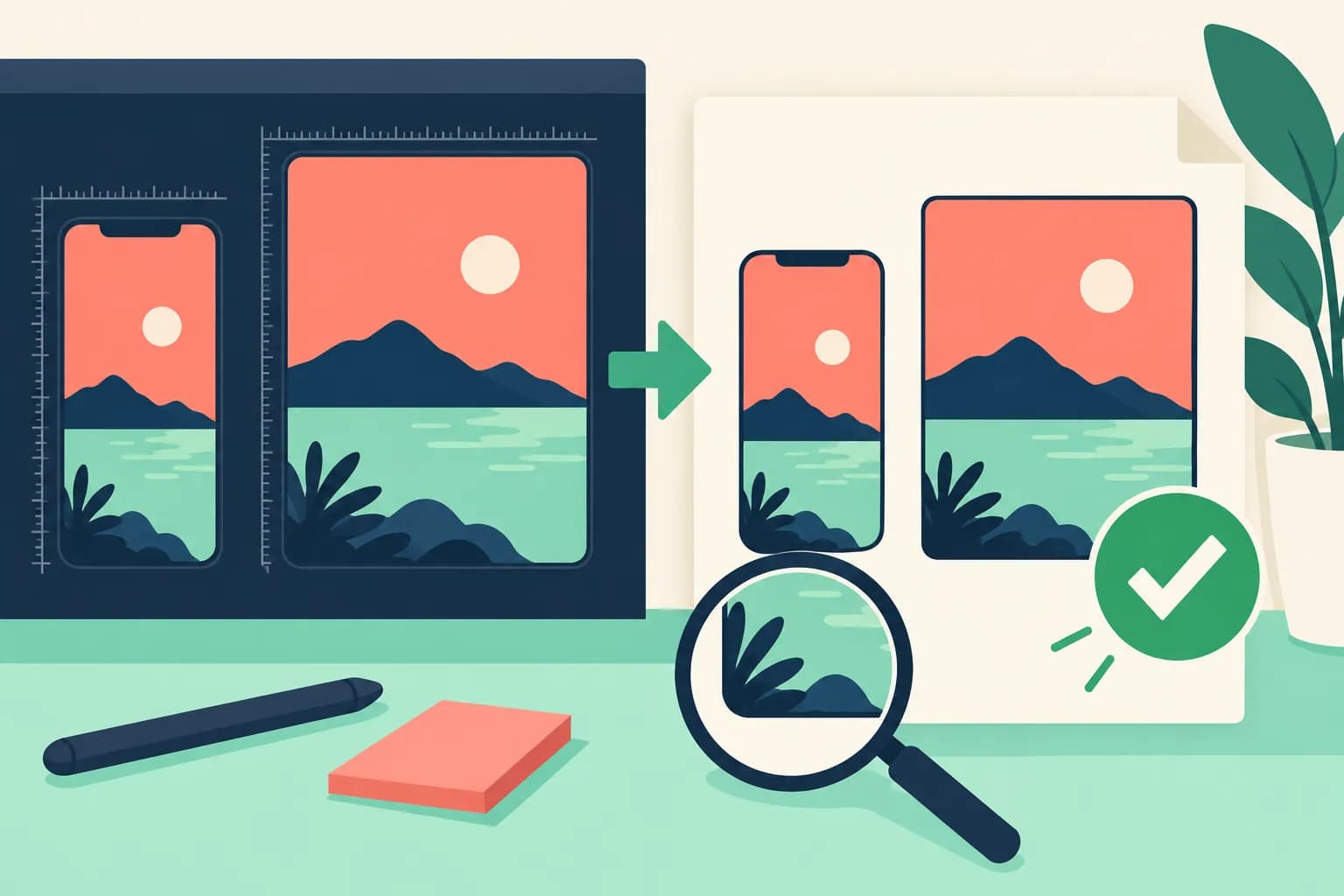
Make a two-row delivery sheet before upload: device well, exact accepted pixel pair, file name, locale, and pass or fail for alpha and readability. Open each downloaded image outside Canva and compare it with the sheet. A correct-looking editor canvas can still lead to an oversized export, a transparent PNG, or a swapped language file. The illustration has no numerical dimensions because Apple's live device table is the authority; the measured values belong in the delivery sheet.
When a Canva template helps, and when it gets in the way
A template can save time on backgrounds, type styles, and device framing. It is useful when its outer page can be set to a current Apple size and its internal phone art can be swapped without distorting your app capture. It gets in the way when you spend more time removing decorative badges than explaining the product.
Check a template for four things before you duplicate it across ten pages: current device shape, editable text, room for genuine UI, and an export size you can verify. A template created for a social post or an old Home Button phone is not automatically wrong, but it may not match the current listing you intend to ship.
If you need pixel-level control and reusable components across many devices, read the Figma template guide. If your problem is finding a direction rather than placing every layer, ScreenFast is our tool and can generate multiple screenshot concepts from an App Store URL or prelaunch screens after its one-time checkout. It does not replace your final copy, device, or export review. Try the screenshot generator only if that is the step you need help with.
Methodology
We checked Apple's live screenshot sizes, formats, no-alpha rule, search presentation guidance, and App Review metadata requirements on 2026-09-24. We checked Canva's official help for custom-size and download controls. The task-app copy table is an editorial example, not a real app or a conversion study. We did not assume that any particular Canva template, subscription plan, or export preset would remain unchanged. ScreenFast's ownership is disclosed above.
The added layer and export visuals are editorial diagrams, not screenshots of Canva's current interface or proof that a template meets Apple's requirements.
FAQ
What Canva size should I use for iPhone App Store screenshots?
Choose a size from Apple's current table for the slot you will upload. For the 6.9-inch iPhone class, 1290x2796 is one accepted portrait option. Apple also lists 1260x2736 and 1320x2868. Check the target device before starting.
Can I upload a Canva PDF?
No. Apple's screenshot specification lists JPEG, JPG, and PNG. Export a separate accepted image file for each frame.
Do I need a paid Canva template?
Not to start a custom-size design. A template may help with layout, but it does not guarantee Apple-ready output. Verify the downloaded dimensions and alpha channel regardless of the template.
Why does App Store Connect reject a PNG that looks opaque?
An image can look solid while still carrying an alpha channel. Apple's screenshot specification forbids alpha and transparency. Inspect the file mode, flatten it against an opaque background if needed, and recheck the exported pixels.
Can I use the same Canva pages for iPhone and iPad?
The story and copy can be reused, but an iPad-capable app needs a separate iPad screenshot set. Reframe the app's actual iPad UI rather than simply stretching an iPhone export.
How many pages should I design?
Apple accepts one to ten screenshots. Use enough frames to explain the core job and key proof. A useful sequence can be shorter than ten; there is no official three-frame minimum.
Should I add a price or "free" badge to the image?
Only if it remains accurate for the target storefront and does not mislead. If a shown feature requires an extra purchase or subscription, make that clear. Store pricing and offers can vary by market and date, so review these claims at every release.
Last updated: 2026-09-24.