Figma App Store Screenshot Template: A Reliable 2026 Export Guide
TL;DR. A Figma App Store screenshot template gives you editable frames and layout components, but you still need accurate device sizes, real app UI, concise copy, and an export check. Apple's current specification accepts one to ten JPG, JPEG, or PNG screenshots with no alpha channel. 1290x2796 remains an accepted large Dynamic Island iPhone size. Apple's current required-size summary names the medium Dynamic Island class. A 13-inch iPad asset is required if the app runs on iPad. Export at 1x from an exact-size frame, inspect the resulting pixels and transparency, and upload a small test set before localizing everything.
Last updated: 2026-10-17. Apple sizes rechecked; the earlier Figma and Community verification limits remain stated below.
Disclosure. ScreenFast publishes this guide and appears in the workflow comparison below. Figma gives more precise editing control; ScreenFast is useful for generating multiple design directions quickly.
What a template saves, and what it cannot do
A useful template contains a frame for each supported platform, reusable caption and background styles, a place for actual app screenshots, and a repeatable export naming system. It cannot know which feature matters to your audience or guarantee an App Store Connect upload will pass. Check whether a community file has current device classes before investing in its layouts.
Three community files to inspect are Max Rudberg's multi-platform template, Harsh Shah's simpler screenshot template, and Median's cross-platform pack. These are starting points, not endorsements of their current frame sizes or licensing. Figma Community file pages were not available to our anonymous live checker on 2026-09-24; open the chosen file yourself and confirm access, license, and content before use. We removed outdated duplicate and download counts that could not be re-verified.
For alternatives outside Figma, see the screenshot generator roundup. If you want exact manual editing, Figma remains a strong choice; a template mainly removes the blank-canvas step.
Apple's current screenshot sizes, without folklore
Use Apple's live screenshot specifications as the upload authority. Its accepted sizes can change. As checked on October 17, 2026:
| Current class | Accepted portrait examples | Planning note |
|---|---|---|
| iPhone with Dynamic Island, medium | 1179x2556 or 1206x2622 | Named in Apple's required-size summary for iPhone. |
| iPhone with Dynamic Island, large | 1260x2736, 1290x2796 or 1320x2868 | Accepted large-class files; inspect required wells and inheritance separately. |
| iPad 13-inch | 2064x2752 or 2048x2732 | Required when the app runs on iPad. |
| iPhone with Home Button, large | 1242x2208 | Still an accepted class; not universally rejected. |
Current names differ from older inch-based template labels. Confirm the upload well for your app rather than treating a historical master-size recommendation as today's complete requirement.
Do not label the 6.5-inch size invalid or call 5.5-inch files "rejected." Both still appear in Apple's table. Conversely, one iPhone export does not replace a required iPad screenshot for an iPad-capable app. See our full sizes reference for platform-by-platform planning.
Apple lists one to ten screenshots in JPG, JPEG, or PNG format and explicitly says images cannot include alpha channels or transparency. It does not publish a general rule that you must use a certain DPI, color profile, or filename version. Pixel dimensions and image mode are the checks to make first.
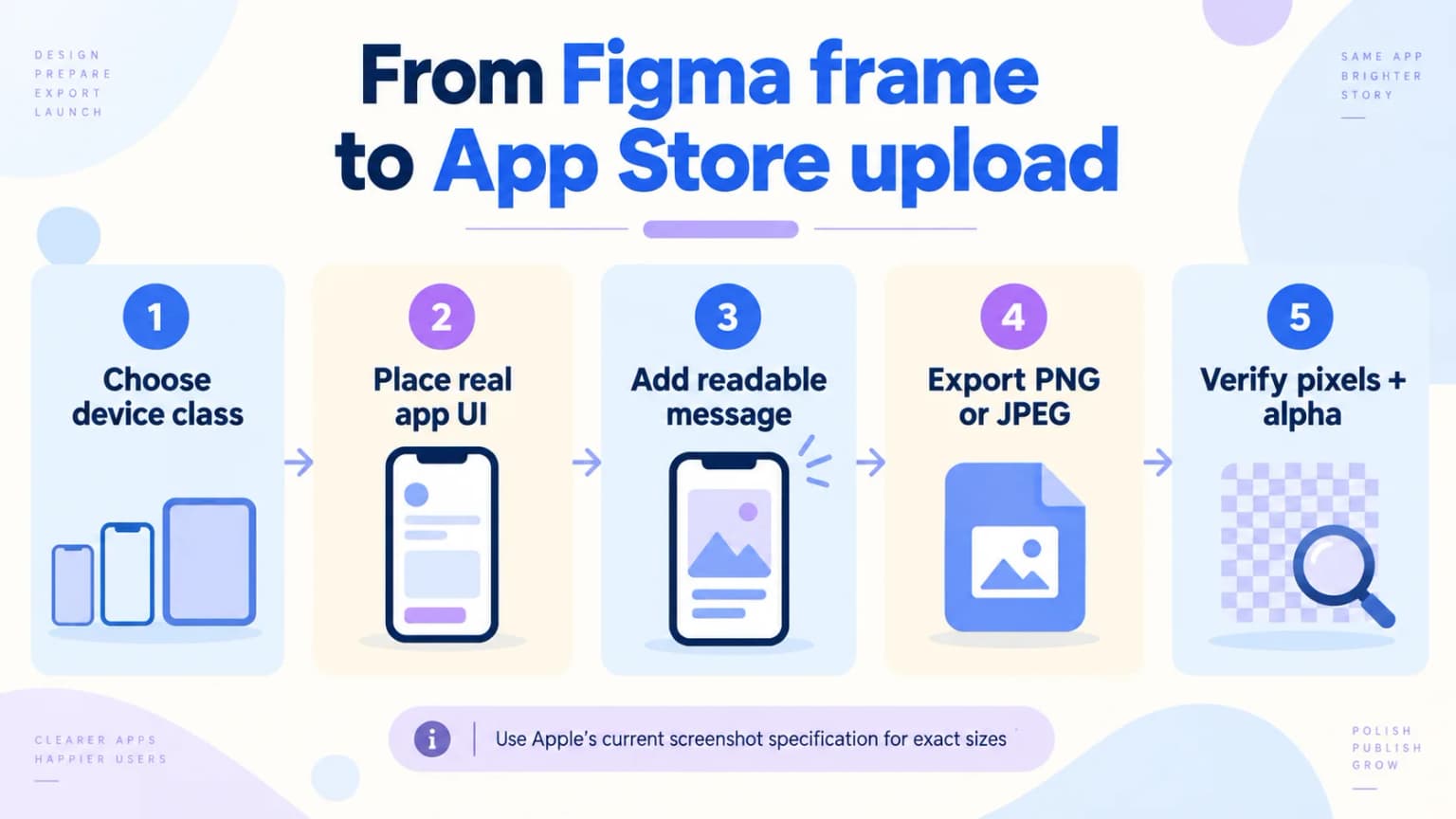
From app capture to an editable Figma set
- Capture genuine app screens. Use Xcode Simulator or a real device and keep the unedited originals. Match the state, text, and pricing that users will actually encounter. Do not fabricate interface elements for a marketing mockup.
- Pick the platform classes. Check whether the release supports iPhone only or iPhone plus iPad. Create a Figma frame at an accepted pixel size for each required class. For example, 1206x2622 matches an accepted medium Dynamic Island portrait size, and 2064x2752 matches a 13-inch iPad portrait size.
- Place the UI and write the promise. Use the captured screen as an image layer or fill, and keep it sharp at the intended crop. Add one clear benefit per frame. A template device mockup is not a substitute for the product UI.
- Check the sequence small. Downscale the first frame to a search-result-like thumbnail and read the headline without zooming. The typography guide offers a reproducible 200-pixel stress test. Keep secondary captions optional.
- Export each outer frame. Figma's export documentation supports exporting frames. Use 1x when the frame already has the target pixel dimensions. PNG or JPEG is appropriate; inspect the actual exported file before upload.
The source image can be brought into Figma by any transfer method that preserves the file you need. AirDrop does not universally convert screenshots to JPEG or sRGB, and the Figma Crop tool does not universally blur images. Judge the resulting pixels, not a blanket rule about a specific import gesture.
A ten-minute export QA checklist
For every file, check:
- Width and height: the actual image dimensions match an accepted row on Apple's table. A 1290x2796 frame exported at 2x will be 2580x5592 and is not the intended slot.
- File type: JPG, JPEG, or PNG, not a WebP or SVG renamed with a PNG extension.
- Transparency: no alpha channel and no transparent pixels. If a PNG contains alpha, flatten against an opaque background or export an appropriate JPEG, then check again. Apple prohibits alpha in screenshot uploads.
- Legibility: the main benefit remains readable in a reduced preview, and important app UI is not covered by decorative type or a device frame.
- Content: screenshot order tells a coherent story, current product features and prices are accurate, and each localization has been reviewed by a fluent speaker.
- Platform: iPad screenshots exist if the app runs on iPad; orientation and size match the selected slot.
On macOS, Preview can show image dimensions; on Windows, image properties or ImageMagick's identify can do the same. A simple file inspection is more reliable than assuming Figma's canvas label equals the exported size. If App Store Connect rejects a file, read the specific error, re-check format, dimensions, and alpha, then test one corrected upload. Do not assume every IMAGE_TOOL_FAILURE is a filename cache problem or that a DPI change is the fix.
Audit a borrowed template before replacing the pictures
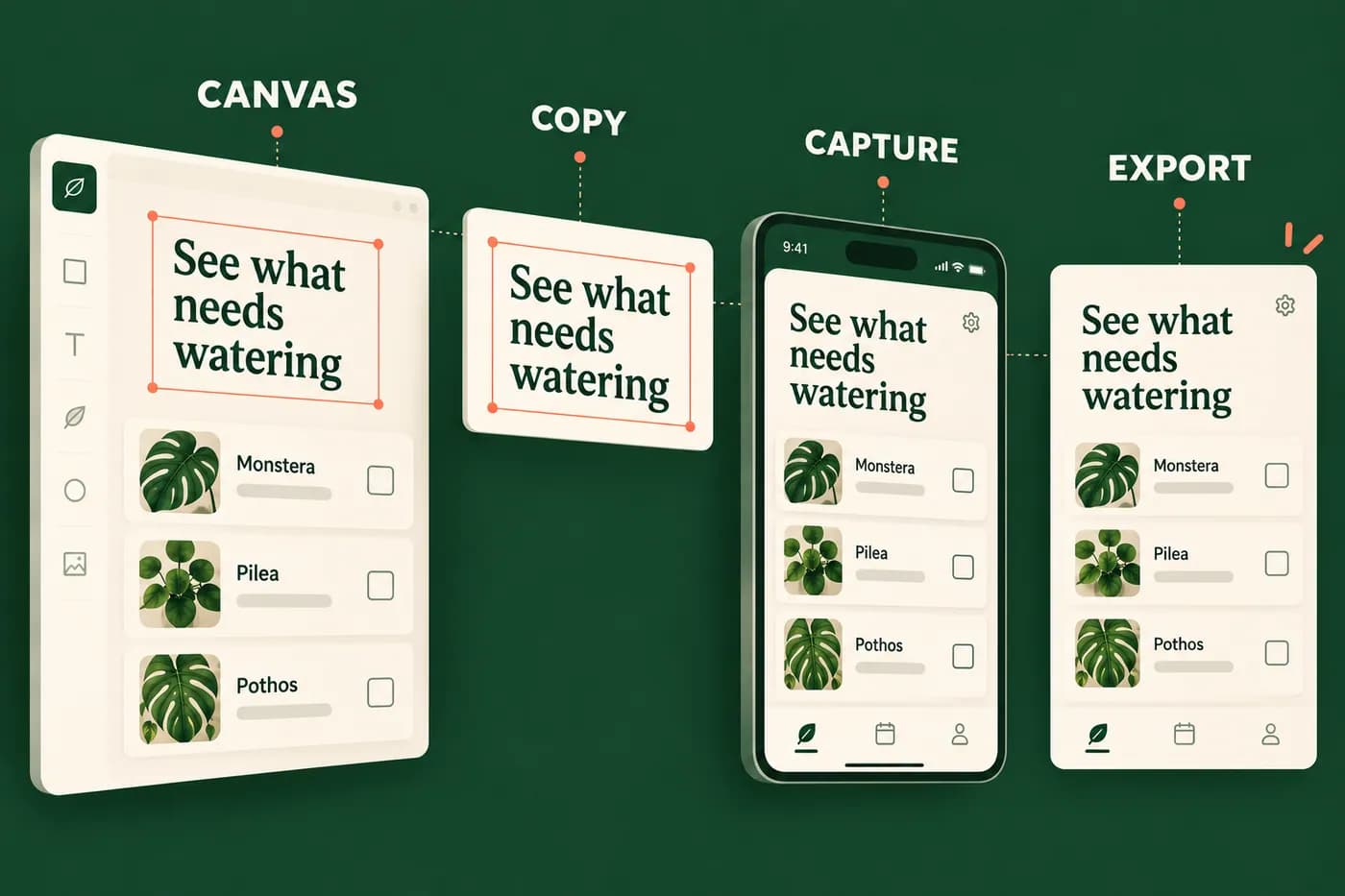
A community file can look complete while hiding work you will inherit. The device label may be old, the headline may be outlined, a font may be missing or the outer frame may export at the wrong scale. Inspect one representative frame before duplicating it into a full release.
Start with geometry. Find the outer export frame and read its width and height. Check the export multiplier separately. A frame's name is just a label; it does not change the pixels. Also inspect whether a background covers the whole frame. A white-looking area is not proof that the downloaded PNG has no alpha channel.
Next, inspect the content structure. Can you edit the headline as text? Is the app capture replaceable without redrawing the scene? Are decorative devices separate from the real UI? If the useful text is flattened into a bitmap, account for rebuilding it before deciding that the template saves work.
| Template item | Question to answer |
|---|---|
| Outer frame | Does its geometry match the intended upload well? |
| Export setting | Will the scale preserve those target pixels? |
| Headline | Is it editable and readable with your actual copy? |
| Capture layer | Can the real app screen be replaced cleanly? |
| Font | Can the maintainer use it under the applicable license? |
| Sample claim | Is it true of your app, or must it be removed? |
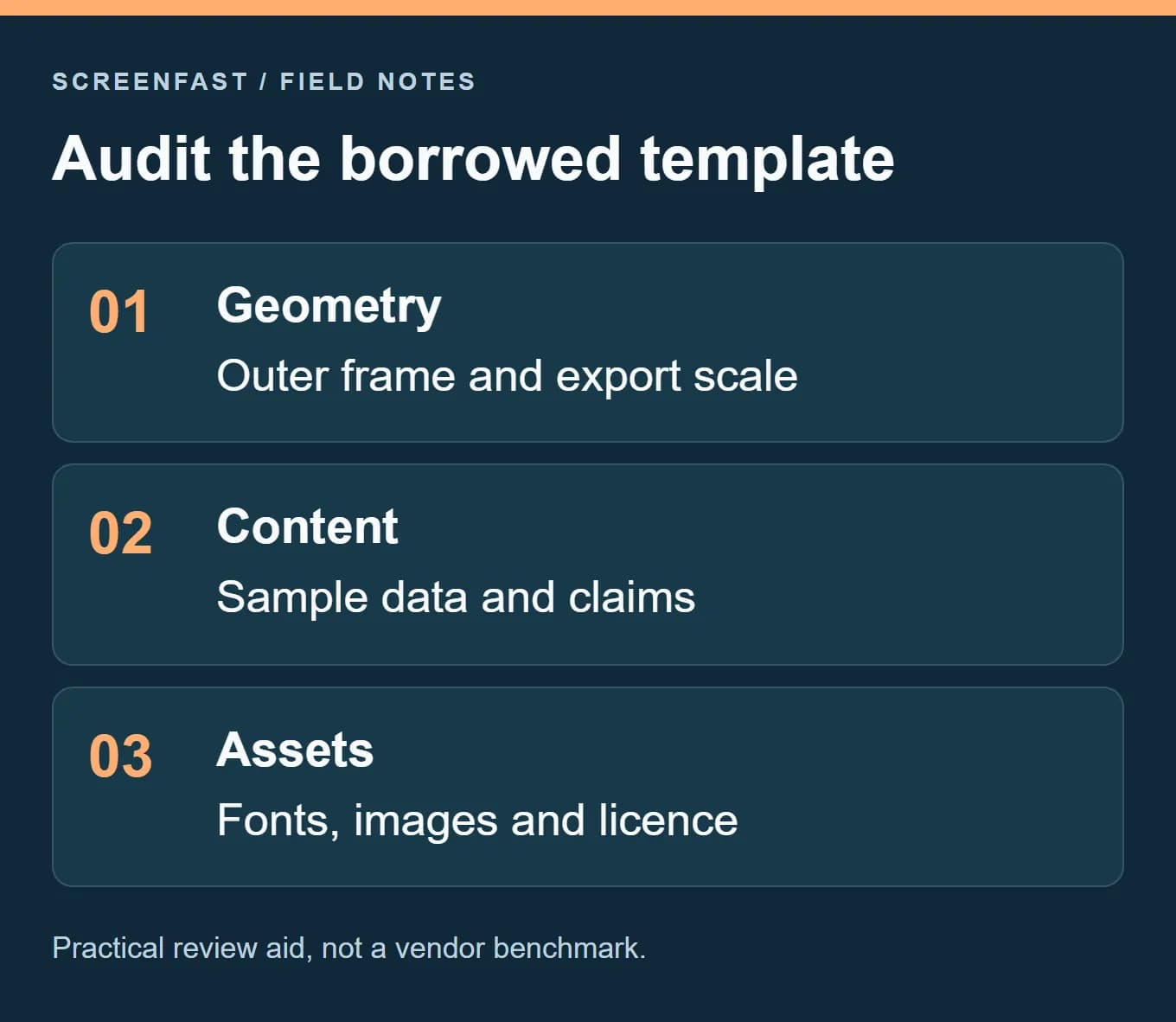
Remove inherited claims, not only placeholder images
A template can contain five-star graphics, a user count, an award or a superlative. Those are content claims, not decoration. Remove them unless you have evidence and permission to use them for your app. A caption such as "Trusted by thousands" cannot become true because it was included in a purchased layout.
Do the same with the app state. Replace sample names, dates, balances and messages with approved demo content. Keep the underlying feature real. A fictional customer name is appropriate for privacy; a fictional product capability is not appropriate as proof.
Check the whole sequence after replacement. The first frame may need a large overview, while a later frame needs a close-up of a specific action. Do not keep the template's crop if it hides the reason someone would use the app.
Keep source dimensions and upload requirements distinct
Apple's current page distinguishes required screenshot classes, accepted pixel sizes and inherited assets. A template can contain a valid large-class iPhone frame without covering the required summary for your app. Use the current upload wells and Apple documentation to decide what you must provide.
For a new source file, name the intended class and numeric dimensions in your project notes. If Apple changes the labels later, the numeric record still explains what you created. Keep iPad work separate when the app supports it. Stretching a phone screenshot does not turn it into a truthful tablet interface.
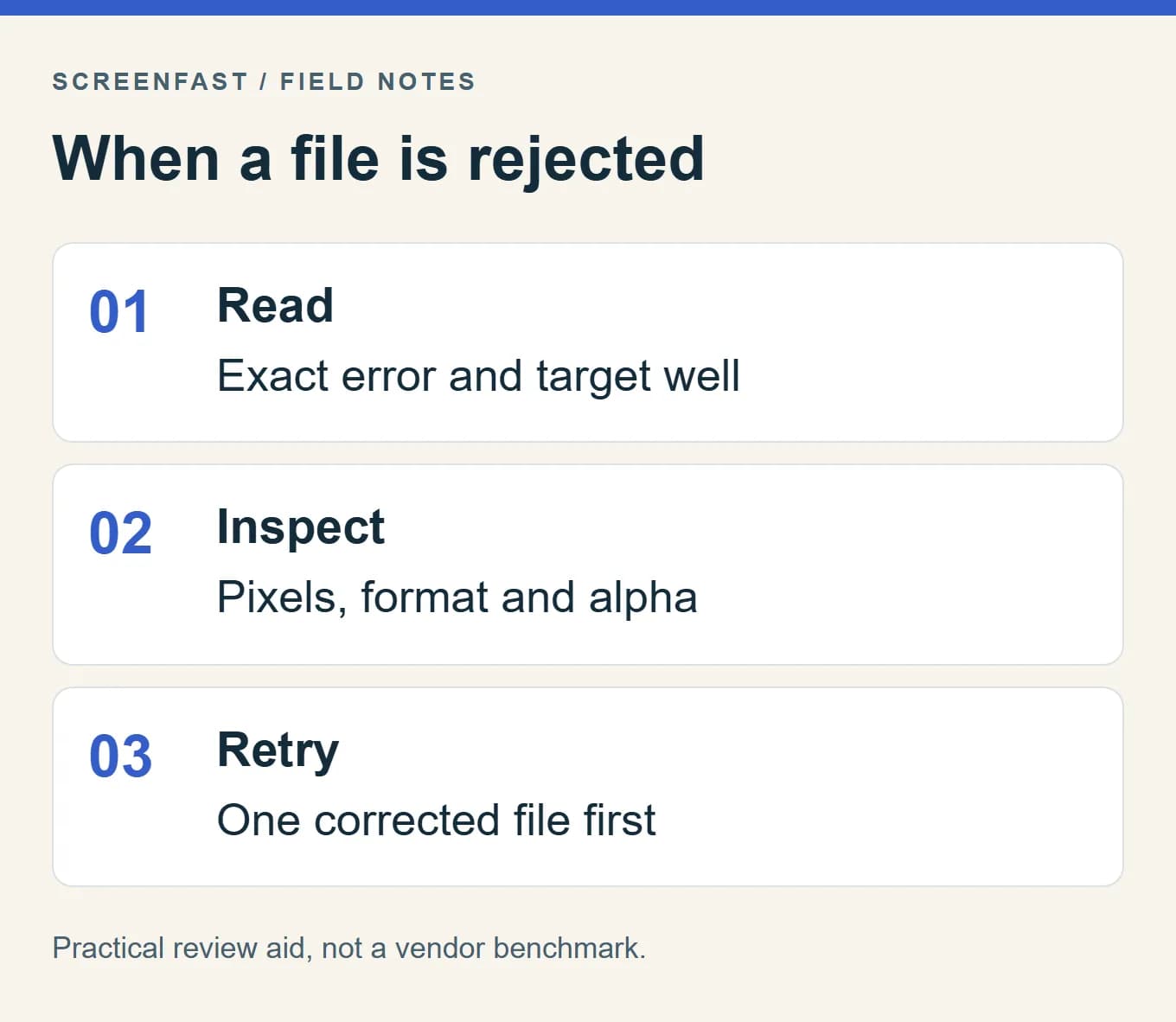
Diagnose one failed file before rebuilding everything
If an upload fails, save the exact error and identify the selected well. Inspect the actual downloaded file for dimensions, format and alpha. Compare it with the corresponding Apple row. Only then change the source or export settings.
A change should have a reason. If the file has the wrong dimensions, fix the frame or multiplier. If it contains alpha, produce an opaque output and inspect it again. If a correctly prepared file remains in processing, investigate the upload state rather than changing random typography or DPI settings.
Try one corrected file before exporting every locale again. Keep the failed file and the corrected one in a small diagnostic folder so the difference is clear. The upload-error checklist covers that next step.
The new layered illustration is conceptual. It is not a verified download from any of the linked community templates.
Figma versus a generator: choose by job
| Need | Figma template | ScreenFast |
|---|---|---|
| Exact placement, wording, and reusable design system | Strong fit; you own the layers and export settings. | Review generated variants; use a manual editor if exact copy is critical. |
| Multiple starting concepts from an app URL or prelaunch screens | You design the concepts yourself. | Generates ten app-specific directions after a one-time checkout. |
| Device and locale QA | Manual, under your control. | Still requires human review of output, claims, localization, and Apple sizes. |
| Cost | Template may be free; your design time is the main cost. | Check the current pricing page; no fixed time-saved promise. |
We do not know a universal "three to four hours" Figma build time or a universal number of minutes per language. The answer depends on source assets, copy quality, editing experience, and how many device classes you ship. For more about visual localization, read the localization workflow. Our generator is one option for exploring directions; Figma is the better fit when final control is the priority.
How we tested
We compared Apple's live screenshot table and format rule with Figma's official frame-export documentation on 2026-09-24. We did not run an App Store Connect upload from a reader's app or benchmark production time across template users. The three Community links were known from the earlier article, but Figma blocked anonymous live verification in this pass, so their current availability and contents are explicitly unverified. We removed claims about forced AirDrop conversion, permanent drag-and-drop rasterization, crop-tool blur, fractional-coordinate one-pixel exports, DPI-triggered rejection, and filename caching because the available primary sources do not establish those as general rules. ScreenFast is ours, as disclosed above.
FAQ
Which iPhone screenshot class should I prepare?
Apple's current required-size summary names the medium Dynamic Island class. Check the required wells and inherited assets for your app. Older inch-based template labels are not a complete guide to the current requirements.
How many App Store screenshots are required?
Apple allows one to ten screenshots for a listed platform slot. Add enough to explain the app, but do not treat a third-party recommendation of three as an Apple minimum.
Why was my Figma PNG rejected?
Check the exact error. Start with actual pixels, file type, and alpha channel. Apple's specification explicitly prohibits transparency; a PNG can contain an alpha channel even if it appears opaque.
Is 1290x2796 the only valid iPhone size?
No. It is one accepted portrait size for the large Dynamic Island class. Apple's current table also lists 1260x2736 and 1320x2868 there, plus other classes.
Can I skip iPad images if I uploaded iPhone images?
Not if the app runs on iPad. Apple's 13-inch iPad slot is required for iPad apps.
Must I use a particular DPI or Display P3 setting?
Apple's screenshot specification identifies pixel dimensions, supported formats, and no-alpha content. It does not set a universal upload DPI or require Display P3. Check color visually on target devices, but do not confuse a preference with a published rejection rule.
Is a free template faster than an AI generator?
It depends on your source files and need for exact control. A template is reusable and editable; a generator can produce multiple directions quickly, but every result needs review. Test one complete set in each workflow if time is the deciding factor.