App Store Connect Screenshot Upload Errors: Fixes (2026)
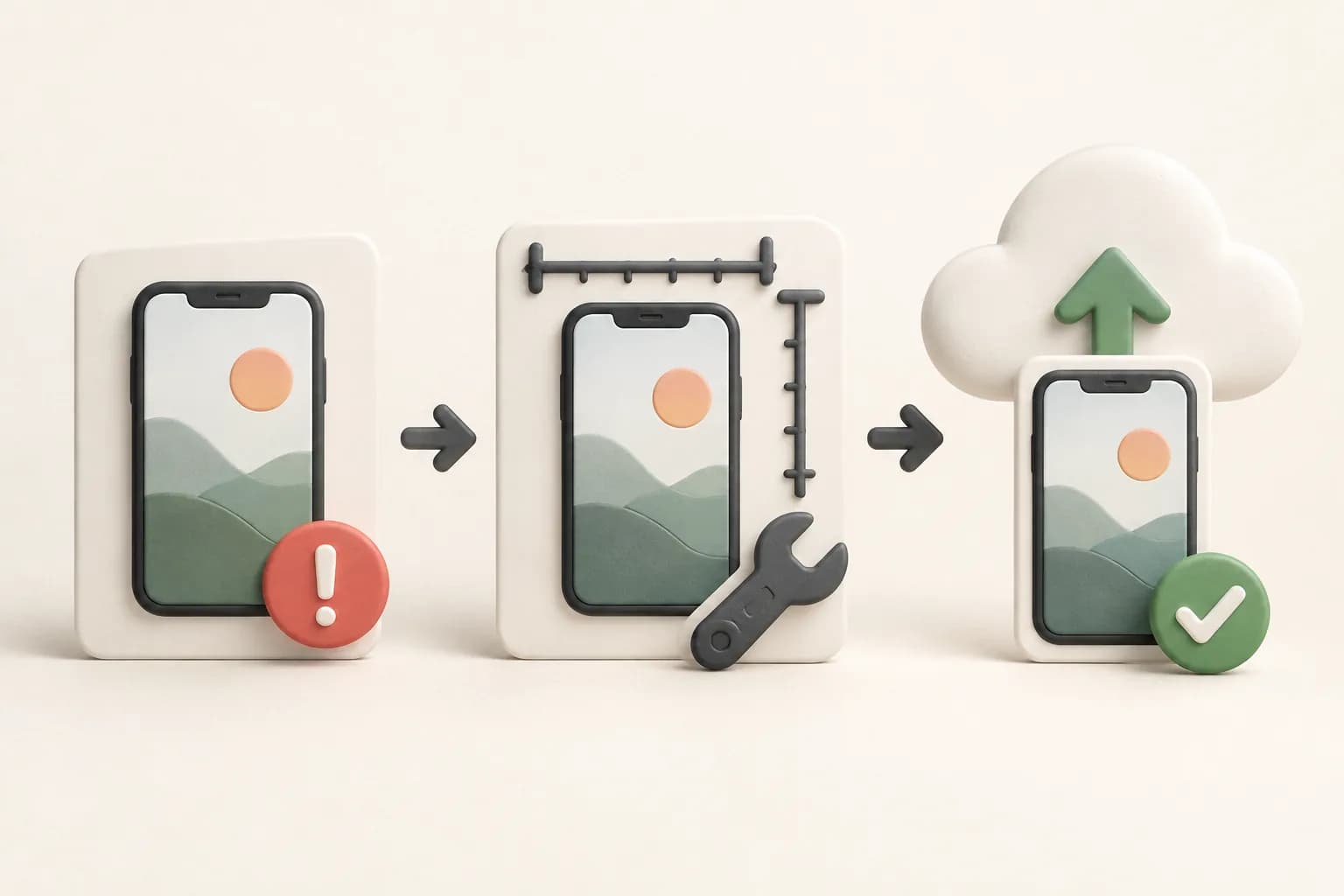
TL;DR. Fix App Store Connect screenshot upload errors in this order: confirm the app version is editable, verify the file is JPEG or PNG with no alpha channel, match an accepted pixel size and device well, then retry a failed processing job cleanly. If you use the App Store Connect API, check the reservation, uploaded byte ranges, checksum, and final asset state separately. IMAGE_TOOL_FAILURE is a generic processing symptom, not a public Apple diagnosis, so do not assume one universal cause.
Last updated: 2026-10-07.
Disclosure. We make ScreenFast, an AI App Store screenshot generator. It can remove several export mistakes, but it cannot unlock a read-only App Store Connect version or repair an Apple processing incident. This guide separates Apple's documented rules from community workarounds.
Start with the failure stage, not the error wording
The same red warning can appear after different failures. A useful diagnosis starts by locating the stage that failed:
- The field is unavailable. The app version is not in an editable status.
- The file is rejected immediately. Format, transparency, dimensions, orientation, or device slot is wrong.
- The file uploads but never completes. App Store Connect processing failed or stalled.
- An API upload fails. A reservation, byte range, checksum, commit, expiration, or processing state needs attention.
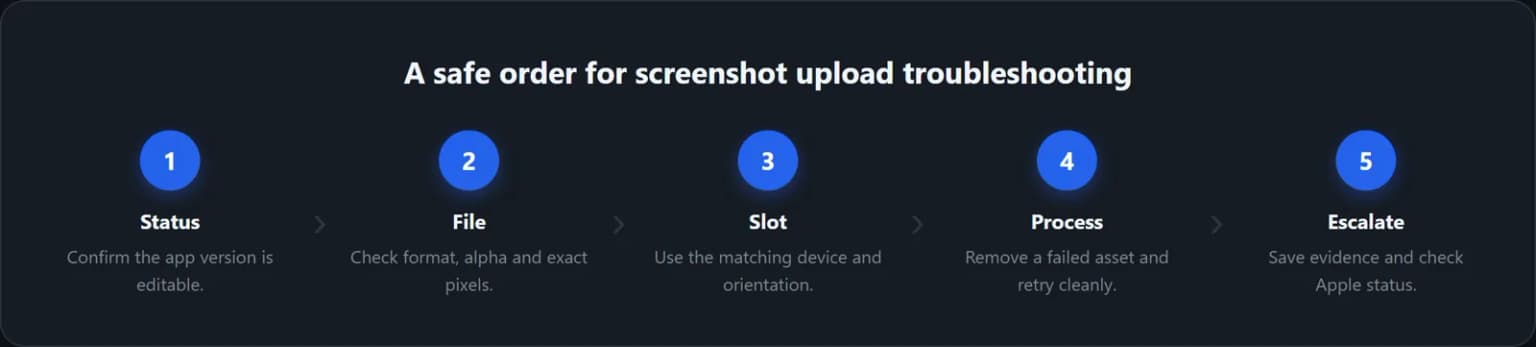
| Symptom | Check first | Safe next action |
|---|---|---|
| Screenshot controls are missing or locked | App version status | Move the change to an editable version |
| File is rejected on drop | Format, alpha, dimensions, target well | Re-export one known-good file |
| Thumbnail shows a warning after upload | Processing state | Remove the failed asset, then retry |
IMAGE_TOOL_FAILURE appears |
Documented file checks, then community reports | Do not treat the label as a root cause |
API asset stays AWAITING_UPLOAD |
Required upload operations | Send every byte range before commit |
API asset becomes FAILED |
Processing errors returned by the API | Delete the asset record and create a new reservation |
"There are still screenshot uploads in progress"
This warning blocks submission even when you are no longer dragging files into the page. It tells you an asset is not ready for submission; it does not, by itself, prove that you chose the wrong dimensions. A visible thumbnail is not a reliable check that every upload in every language and display well has finished.
Use a small, reversible test:
- Keep the original exported files. Note the app version, language, display target, and time of the failed upload.
- Open Media Manager and inspect the affected localization and device wells. Look for incomplete or failed placeholders, not just the main preview strip.
- Check Apple's Developer System Status before changing your files. A green status page cannot rule out an account-specific problem.
- If the interface lets you remove a failed placeholder, remove only that failed asset after preserving its source. Upload one verified, opaque JPEG or PNG to the correct well. Confirm it finishes before restoring the rest of the set.
- If placeholders cannot be removed, or the warning persists with valid files, contact Apple Developer Support. Include the version, locale, display target, timestamp, error text, and a screenshot of the stuck state. Do not include API secrets.
Do not delete a working localized set or recreate an app record as a first response. Changing browsers can test a local session problem, but it cannot guarantee that a stuck server-side asset will clear. There is no documented universal waiting period that guarantees recovery.
For API-based uploads, use the documented asset lifecycle to distinguish reservation, transfer, commit, and processing. A successful transfer request does not mean the final asset is ready. The API section below explains those checks without assuming this warning has one cause.
1. Confirm the app version is editable
Apple documents five statuses in which screenshots and app previews can be uploaded:
- Prepare for Submission
- Invalid Binary
- Rejected
- Metadata Rejected
- Developer Rejected
If the version has already been submitted and approved, Apple says you must create a new version to update its screenshots. A missing delete button or locked screenshot section can therefore be normal lifecycle behavior, not a broken upload.
Check the status shown beside the platform version before changing files or browsers. If the status is not editable, re-exporting the same image will not solve the problem. Apple's current upload instructions list the editable statuses and the exact navigation path.
2. Check count and file format
Apple accepts one to ten screenshots in .jpeg, .jpg, or .png format. A WebP, HEIC, TIFF, PDF, or design-source file does not match the documented screenshot formats.
Run a small isolation test:
- Create one screenshot in an accepted format.
- Give it a simple local filename.
- Upload it to the correct device well.
- Wait for that file to finish processing before testing the rest of the set.
This does not prove that batch uploads are defective. It reduces the number of variables. If one known-good file works, compare its export settings with the rejected files instead of changing the whole listing.
Keep a copy of the file that worked. Name it clearly. Use it as your control sample. If a new file fails, test one change at a time. Start with file type, then size, then the target slot. This takes a few extra minutes, but it makes the next error easier to trace. Do not replace a working set with ten untested files at once.
Do not use a screenshot error article as the source for every size. Apple updates device families. Keep the live Apple screenshot specifications open, and use our App Store screenshot sizes guide for a readable table and scaling explanation.
3. Remove alpha channels and transparency
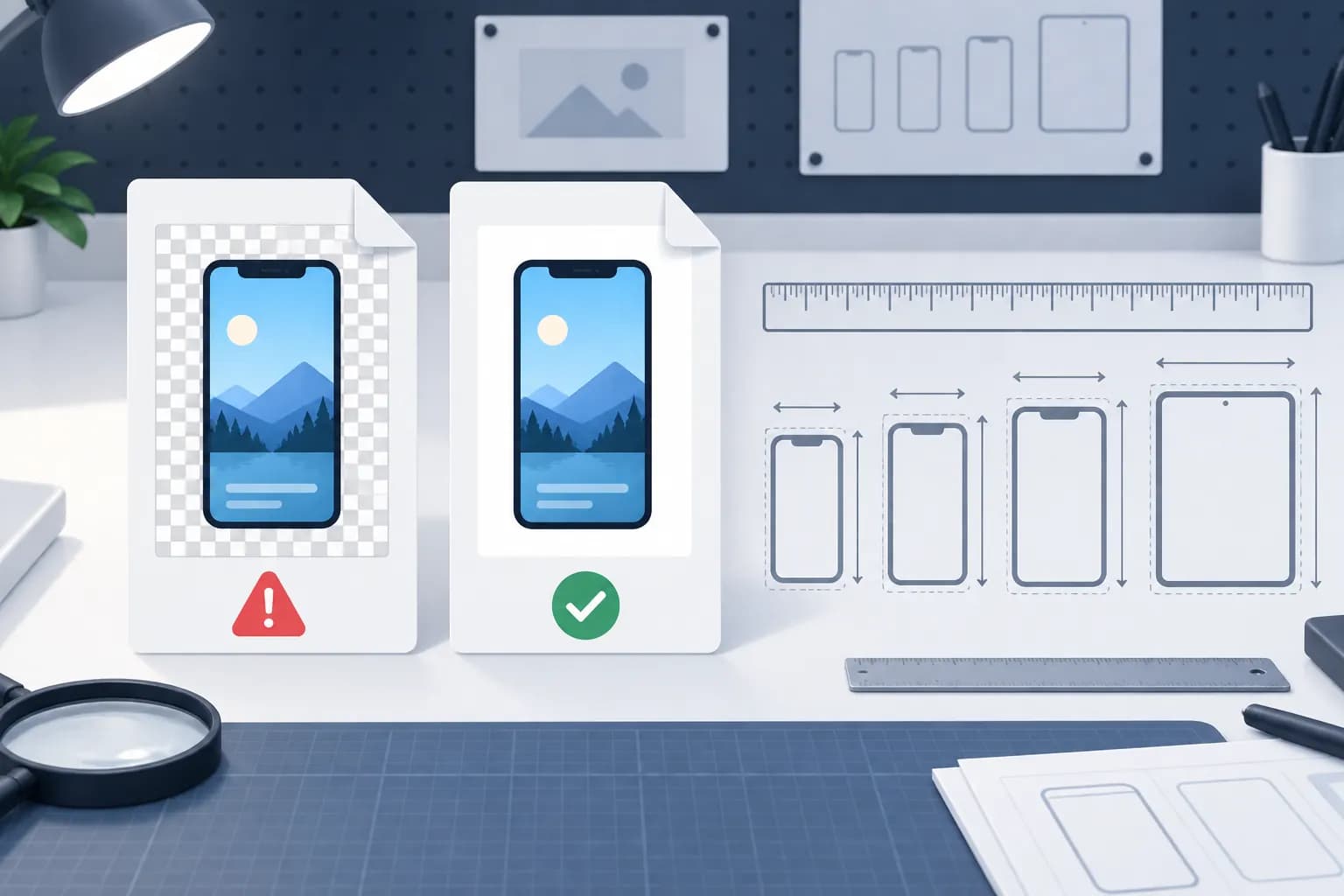
Apple's specification is explicit: screenshots cannot include alpha channels or transparency. A PNG can look fully opaque while still carrying an alpha channel, so a visual preview is not enough.
A safe diagnostic is to flatten the artwork onto a solid background and export a new file. JPEG does not support transparency, which makes a JPEG export useful for isolating an alpha problem. If JPEG works and the original PNG does not, inspect the PNG export settings before uploading the full set.
Do not confuse screenshot validation with app icon validation. Errors such as ITMS-90717 refer to an App Store icon in the uploaded app bundle, not a screenshot asset in the product-page editor. Fix the asset named by the error rather than applying an icon solution to every image.
4. Match an accepted pixel size and the correct well
App Store Connect validates screenshot dimensions against the accepted sizes for each display target. An image can have the correct aspect ratio and still fail because its pixel dimensions do not match an accepted pair.
For iPhone with Dynamic Island (large display), formerly the 6.9-inch class, Apple's table includes:
- 1260 × 2736 pixels
- 1290 × 2796 pixels
- 1320 × 2868 pixels
The matching landscape sizes reverse width and height. Apple's current required-size summary names the medium Dynamic Island display; it accepts 1179 × 2556 or 1206 × 2622 portrait images. Check the required wells and inherited assets in Media Manager rather than assuming a large-size set is always sufficient. The current screenshot size guide explains the renamed classes. Apple also lists separate accepted sizes for other iPhone families, iPad, Mac, Apple TV, Apple Vision Pro, and Apple Watch.
The target well matters too. A valid iPad image does not become an iPhone screenshot because its aspect ratio looks similar. In Media Manager, verify both the device family and orientation before troubleshooting the file itself.
Apple can scale the highest-resolution screenshots to smaller devices when the app interface is the same. The upload page says to provide the highest-resolution required set, then add device-specific assets in Media Manager only when you do not want scaled versions. For an app that runs on iPad, the required iPad assets remain a separate obligation.
Inspect one suspect file before another upload
If App Store Connect rejects a PNG that looks opaque, inspect the file. This Pillow snippet reports its format, size, and transparency. It does not edit the file. Run it on the exported image.
from PIL import Image

with Image.open("candidate.png") as image:
    has_alpha = "A" in image.getbands() or "transparency" in image.info
    print("format:", image.format)
    print("pixels:", image.size)
    print("alpha or transparency:", has_alpha)
If has_alpha is true, flatten the design onto a solid background. Export and check the new file. Compare image.size with Apple's screenshot specifications. Then select the matching device well. A file can pass these checks yet fail during processing. This visual is an editorial diagram, not an App Store Connect capture.
5. Handle processing failures as a separate problem
An upload and a completed screenshot are not the same event. Apple receives the file, then validates and processes it. A thumbnail warning after transfer means the investigation has moved from transport to processing.
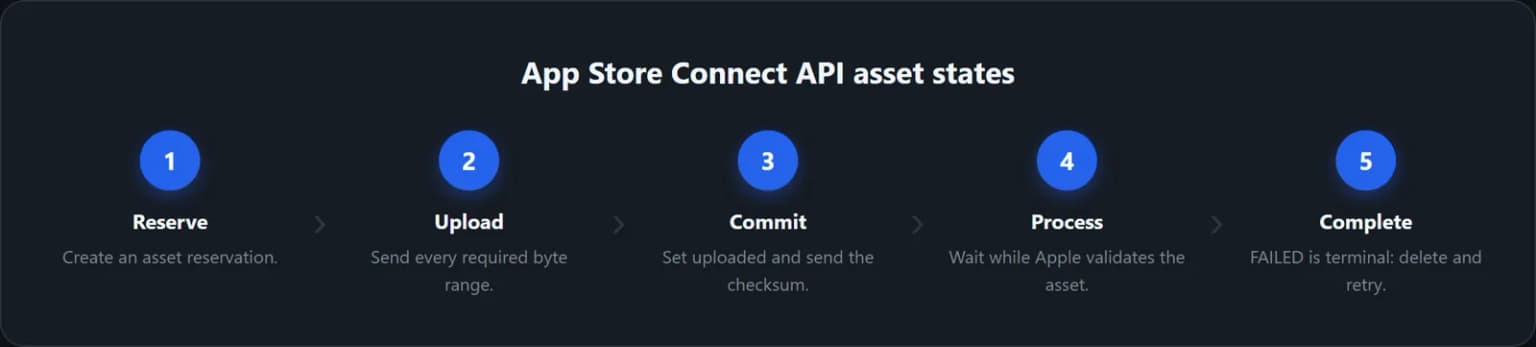
The public API documentation makes this lifecycle clearer than the browser UI:
- an asset reservation is created;
- one or more upload operations send the bytes;
- the upload is committed;
- App Store Connect validates and processes the asset;
- the asset ends in
COMPLETEorFAILED.
Apple describes FAILED as a terminal state. For an API upload, review the error information, delete the failed asset record, and begin again with a new reservation. In the browser UI, the practical equivalent is to remove the failed screenshot when the interface allows it, then upload a newly exported copy.
Before repeating several uploads, check Apple Developer System Status. If App Store Connect is experiencing an incident, repeated file changes can obscure the original evidence without fixing the service.
What IMAGE_TOOL_FAILURE does and does not tell you
IMAGE_TOOL_FAILURE appears in Apple Developer Forums reports about screenshot processing. Apple does not publish a public mapping that says this label always means alpha, color profile, filename, dimensions, or batch size.
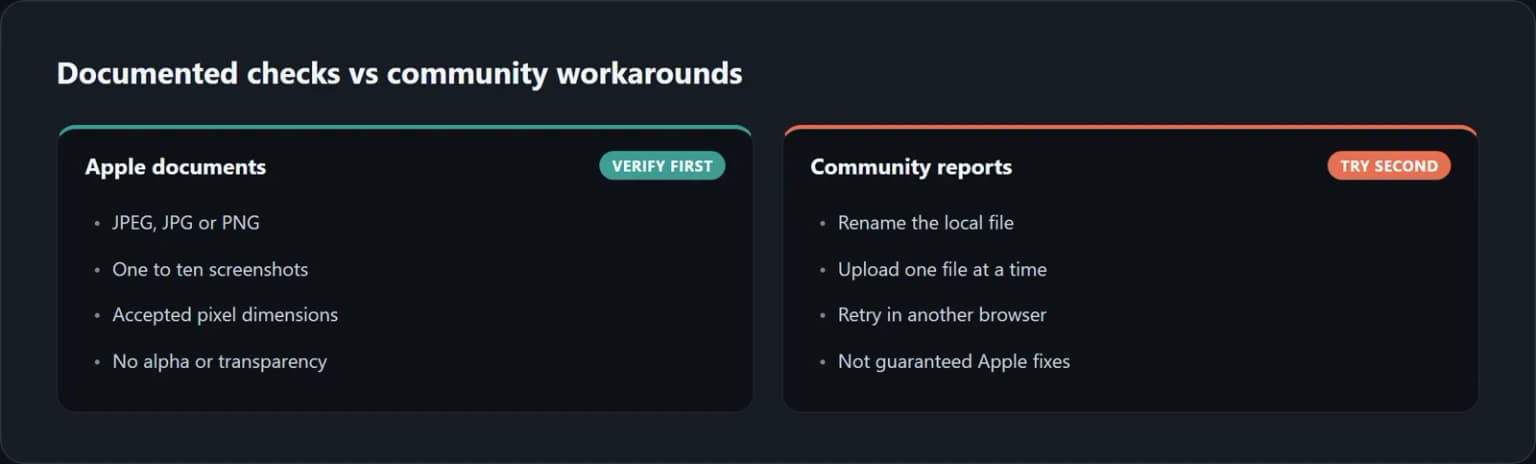
Treat it as a generic processing symptom. First run the documented checks:
- accepted JPEG/JPG/PNG format;
- one to ten screenshots;
- no alpha channel or transparency;
- accepted pixel dimensions;
- correct device and orientation well;
- editable app version status.
If those checks pass, the Apple Developer Forums thread contains user-reported workarounds such as renaming the local file, re-exporting it, uploading one image at a time, or trying another browser. These are troubleshooting experiments, not guaranteed Apple rules. Save the original file and error evidence before testing them.
This distinction matters. The old version of this guide described a hidden alpha channel, a non-sRGB profile, and a batch race as the near-universal causes. Apple's public documentation does not support that level of certainty, so those claims have been removed.
App Store Connect API upload errors
Teams using the API, CI, or a third-party uploader have more failure stages than a drag-and-drop upload.
The reservation expires
Apple says upload URLs are time-limited. The exact expiry is carried in the Expires parameter of each upload URL. In general, Apple recommends finishing within a week of creating the reservation. If it expires, delete the reservation and start again.
A byte range fails
Large assets may be divided into multiple upload operations. Before commit, failed parts can be resent using their supplied method, URL, headers, length, and offset. Do not create a second asset merely because one part lost its connection.
Commit fails
The commit marks uploaded as true and supplies the MD5 checksum of the complete source file. App Store Connect compares the bytes received with the file size from the reservation. Missing ranges, a mismatched size, or an incorrect checksum must be fixed before processing can succeed.
Processing fails after commit
After commit, the asset is processed asynchronously. UPLOAD_COMPLETE is not the final success state. Wait for COMPLETE. If the asset becomes FAILED, Apple instructs you to inspect the returned error, delete the asset, and create a fresh reservation.
Apple's Uploading Assets to App Store Connect documentation is the primary source for this API workflow.
A five-minute recovery sequence
Use this order when App Store Connect screenshots are not uploading:
- Record the evidence. Save the exact message, app version status, device well, filename, dimensions, and time.
- Confirm editability. Stop if the version status does not allow screenshot changes.
- Create one clean test file. Use JPEG or PNG, remove alpha, and export at one current accepted pixel size.
- Use the matching well. Confirm device family and orientation in Media Manager.
- Upload only the test file. Wait for processing to finish.
- If processing fails, remove and retry. Check Apple System Status before changing more variables.
- Try community workarounds last. Rename, re-export, upload singly, or change browser, one experiment at a time.
- Escalate with useful evidence. Include the app ID, timestamp, status, display target, exact dimensions, format, and screenshot of the error. Do not send private account or customer data in a public forum post.
For a broader preflight, combine this flow with the App Store listing optimization checklist and the common screenshot mistakes guide.
Prevent the next upload failure
Create one export preset per required display target and keep it versioned with the source artwork. Before release, check:
- file extension and actual file format;
- width and height in pixels;
- alpha or transparency;
- orientation;
- device well;
- localization;
- truthful, current app UI;
- editable App Store Connect status.
Keep a single known-good screenshot as a control file. When a new export fails, test the control in the same well. If the control also fails, the problem is less likely to be the latest design change.
If raw captures are the issue, the iOS Simulator screenshot workflow explains repeatable capture and export. If the problem begins after design, compare the final pixels with the source capture rather than assuming the template preserved the required size.
Where ScreenFast helps, and where it does not
ScreenFast creates iPhone-focused screenshot designs from an App Store URL or uploaded screens. The current generation output uses a 1290 × 2796 canvas and a flattened Web delivery workflow, reducing manual canvas and transparency mistakes before you prepare the final store asset.
It does not upload directly to App Store Connect, unlock version metadata, create required native iPad sets, or guarantee that Apple will process an asset. Review every headline, app screen, dimension, and export before submission. Start with the ScreenFast screenshot audit when the design and export step is the bottleneck, not when App Store Connect itself is unavailable.
How we tested
We rechecked the upload warning, support path, and current screenshot specifications on October 7, 2026 using Apple's current screenshot specifications, upload instructions, App Store Connect API asset workflow, and Developer System Status. Documented requirements and lifecycle states are presented as Apple rules. IMAGE_TOOL_FAILURE workarounds are labeled as reports from an Apple Developer Forums thread, not as official root-cause guidance. The new local inspection snippet checks file properties but cannot diagnose every Apple processing failure.
We removed the old claims that nearly every failure comes from four causes, that App Store screenshots have a documented 10 MB cap, that Display P3 is categorically rejected, and that one-file uploads fix an Apple batch race. Those claims were not supported by the current primary documentation.
Frequently asked questions
Why is my App Store Connect screenshot not uploading?
First determine whether the field is editable. Then verify the accepted file format, absence of alpha or transparency, exact pixel dimensions, orientation, and device well. If transfer completes but processing fails, remove the failed asset and retry after checking Apple System Status.
What does IMAGE_TOOL_FAILURE mean?
It indicates that App Store Connect did not process the screenshot successfully, but Apple does not publish one universal cause for the label. Run the documented file and status checks first. Treat filename, single-upload, and browser changes as community workarounds.
Can App Store screenshots contain transparency?
No. Apple's current screenshot specifications state that images cannot include alpha channels or transparency. Flatten the image before upload.
Which screenshot formats does App Store Connect accept?
Apple lists JPEG, JPG, and PNG. It allows one to ten screenshots per supported device size and localization.
Why are my screenshot fields locked?
The app version may not be in an editable status. Apple lists Prepare for Submission, Invalid Binary, Rejected, Metadata Rejected, and Developer Rejected as statuses that allow screenshot uploads. After approval, create a new version to update screenshots.
Does Apple require every iPhone screenshot size?
Not when the interface is the same. Apple says the highest-resolution required screenshots can scale down to smaller device sizes. Use Media Manager when you need custom screenshots for another size or localization. Apps that run on iPad still need the appropriate iPad assets.
What should an API client do when an asset is FAILED?
FAILED is terminal in Apple's asset workflow. Read the error information, delete the asset record, and create a new reservation. Before commit, individual failed upload parts can be resent instead.