How to A/B Test App Store Screenshots with PPO
TL;DR
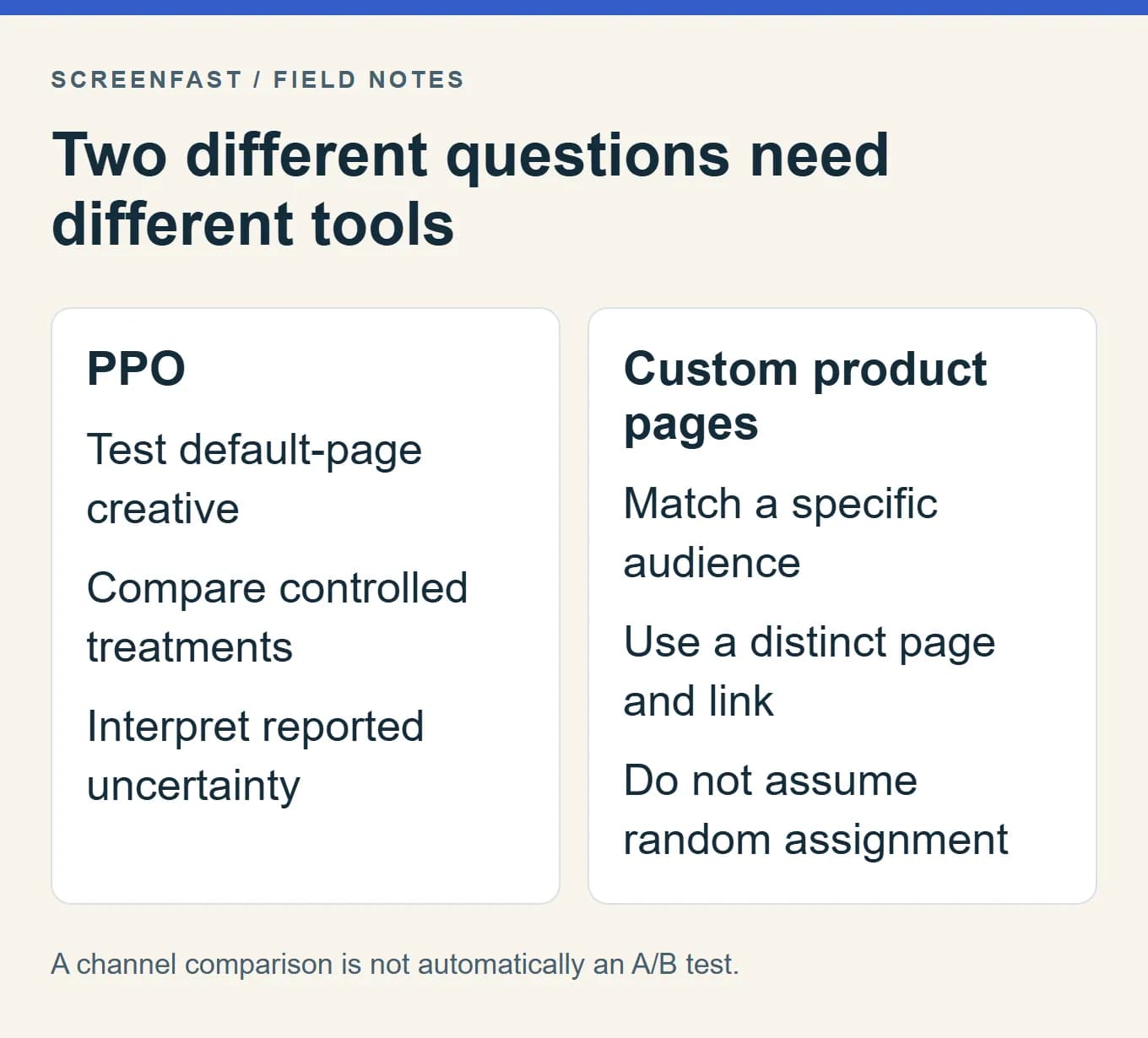
To A/B test App Store screenshots, use Product Page Optimization (PPO) for the default product page, define one clear creative question and compare a controlled treatment with the original. Custom Product Pages serve a different purpose: matching a page to a particular audience or destination. They are not PPO treatments.
Apple supports up to three treatments, but you do not have to use all three. The app must be eligible, the test assets must pass review and the result may remain inconclusive. Neither a fixed two-week schedule nor a certain number of installs can guarantee a useful answer.
Choose the right kind of comparison
PPO changes the assets shown to assigned groups within a test. A custom product page gives you a separate product-page variant for a specific message or audience. Comparing one page visited by loyal newsletter readers with another visited by cold advertising traffic does not isolate the creative: the audiences differ too.
| Your question | Appropriate starting point | What not to assume |
|---|---|---|
| Does a different first-frame message help the default listing? | PPO screenshot treatment | The highest early percentage is the winner |
| Does a campaign need a matching product-page story? | Custom product page | Its visitors are randomly comparable with another channel |
| Can people understand the first two screenshots? | Qualitative comprehension review | A preference poll measures App Store conversion |
| Does the new gallery work after launch? | Release-level monitoring | Before/after movement proves causation |
Apple's PPO overview says tests are not available for custom product pages. Keep the setup and interpretation separate. The CPP-versus-PPO guide covers the broader choice.
Write a hypothesis someone else could review
Start with a suspected comprehension problem, not a preferred color. "The first frame does not show what users can make" is more useful than "orange should convert better." Connect the proposed change to an observable difference in the page.
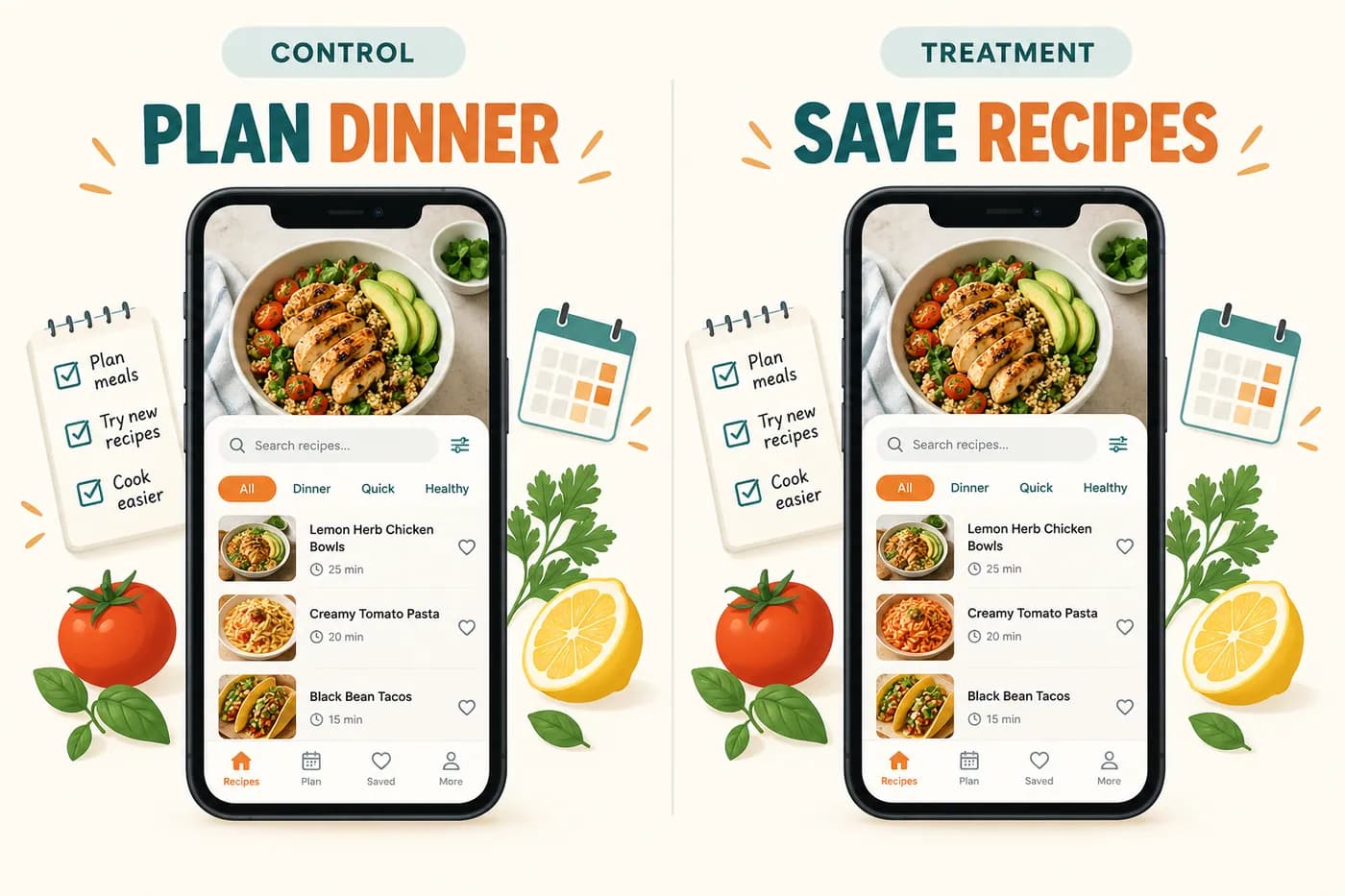
A fictional recipe app might test whether a planning message or a saving message better matches its audience. Keep the app interface, background, crop, gallery order and other captions unchanged. Change only the first headline. This does not prove the words are the only possible influence, but it gives the result a clear interpretation.
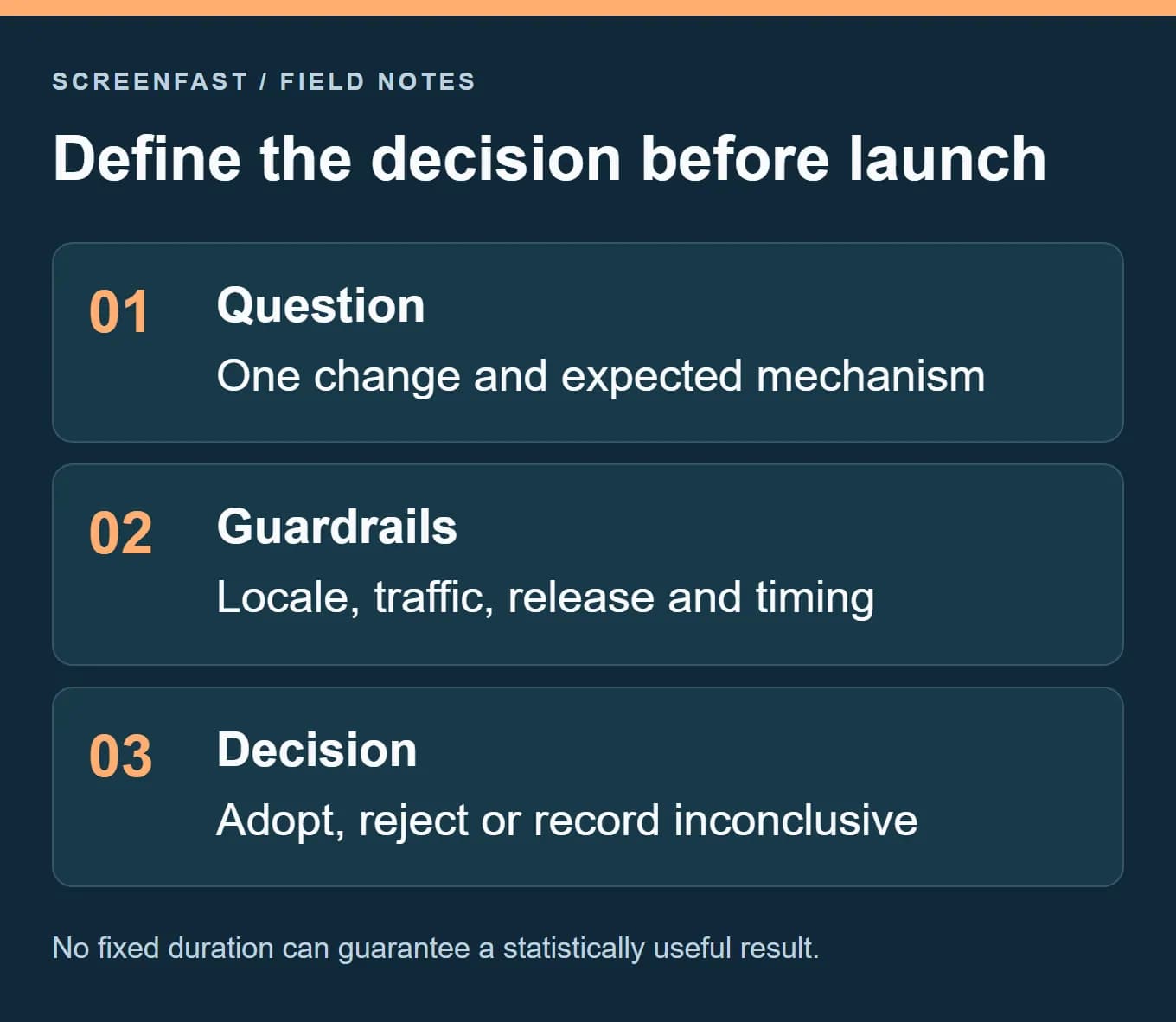
Write down four items before creating the treatment:
- The current problem: what is unclear or missing?
- The change: exactly which file or element differs?
- The expected mechanism: why might a visitor understand the app better?
- The decision: what would make you adopt, reject or leave the result inconclusive?
Avoid stating the hypothesis as a guaranteed lift. "A clearer outcome may help" is testable. "This new layout will increase installs by 20%" is an unsupported forecast unless it is explicitly a planning assumption, not a claim about expected performance.
Choose the smallest useful treatment set
One original plus one treatment is often easier to interpret than filling every available slot. More treatments divide the available traffic and create more creative combinations to review. Use additional treatments only when each answers a meaningful question and your expected traffic can support the comparison.
Do not change the icon, all captions, the background and the screenshot order at once if your question concerns only the first headline. A whole-gallery redesign can be a valid package test, but the conclusion is about that package. It cannot tell you that one color or one sentence caused the observed difference.
For an order test, keep the same files and swap their positions. For a copy test, preserve the layout so that line wrapping does not introduce an unintended second change. If the new headline becomes much longer, either design a matched treatment or state that the test includes both wording and composition.
Use the first-versus-second screenshot guide for a position-swap example. Use the design-pattern guide when you deliberately want to compare broader visual directions.
Create a test record before opening App Store Connect
Give the experiment a readable identifier, such as recipe-first-headline-en-v1. Keep the original assets, treatment assets and a short change log together. Record the app version, locales, start date, intended traffic allocation and any known campaigns running during the experiment.
| Record field | Fictional example | Why it matters |
|---|---|---|
| Question | Planning versus saving promise | Keeps the interpretation narrow |
| Changed asset | First screenshot headline | Makes accidental extra changes visible |
| Unchanged assets | Icon, preview, remaining screenshots | Defines the control conditions |
| Locale | English localization selected in setup | Prevents an accidental cross-language comparison |
| Release context | No planned pricing change | Helps identify confounding events |
| Outcome options | Adopt, retain original, inconclusive | Avoids forcing a winner |
Do not put private customer data into test screenshots. Use a consistent demonstration account so that differences in names, dates or content do not distract from the intended creative change. Check paid-feature labels and product accuracy before the treatment is submitted.
Prepare eligible assets and start the test
Confirm that the app is in the required distribution state and that your role can manage the test. In App Store Connect, select the app, open Product Page Optimization and create the experiment. Set the treatment count, localization choices and traffic allocation using the current interface.
Upload the intended treatment screenshots and compare each one with the archived original. Check the exact device class, pixel dimensions, order, format and absence of alpha channels. An upload error is a file or workflow problem, not evidence that the design idea is bad. The screenshot sizes reference covers the file checks.
Apple's run-a-test instructions require metadata approval before the test runs. If the assets need review, the interface prompts you to submit them. Record the actual running date rather than counting the review period as exposure time.
Check the live status after starting. A saved test, a submitted test and a running test are different states. Do not announce a result before the treatment has received traffic, and do not assume a review submission has already started the experiment.
Decide how long to run without inventing a universal rule
Apple's operational guide says a test runs for up to 90 days unless you stop it earlier. That is a product limit, not a recommendation that every test needs ninety days. It also does not mean fourteen days will be enough.
The useful duration depends on exposure, the size of the observed difference and uncertainty. Small changes with little traffic are hard to distinguish from noise. A test that includes a weekend, a holiday or a campaign can still be informative, but you need to understand what audience it represents rather than calling any particular weekday universally safe.
Set a review cadence before launch. During the test, check for broken assets, accidental metadata changes and obvious setup errors. Avoid making a decision merely because the treatment briefly leads on the first day. Repeatedly checking the page is not the same as receiving more evidence.
If a release changes the feature shown in the screenshot, product truth takes priority. Do not keep a misleading treatment running for statistical neatness. Record the intervention and treat the old result as limited by the change.
Read the result, not only the biggest percentage
Apple's PPO analytics documentation describes conversion estimates, relative lift, confidence and result states. A treatment can be collecting data, performing better, performing worse or likely to be inconclusive. The report's uncertainty matters as much as its point estimate.
For a fictional arithmetic example, a change from 4% to 5% is one percentage point, or 25% relative lift. Those are two descriptions of the same difference, not two separate gains. Neither calculation says whether the experiment gathered enough evidence to trust the difference.
Keep the baseline consistent when discussing the result. If you change the comparison baseline in the interface, explain that in the record. Do not copy a relative-lift number into a case study without stating what it was compared against and over what period.
An inconclusive result does not prove the designs are identical. It means the available test did not support a clear decision under the reported conditions. You can retain the clearer or easier-to-maintain set for editorial reasons, but label that as a product decision, not as a statistically demonstrated winner.
What to do when traffic is too low
First, reduce unnecessary complexity. If three subtle treatments are splitting a small audience, a future test with one meaningful contrast may be more practical. Do not restart a test repeatedly just to make a noisy result look cleaner.
Use qualitative review for questions it can answer. Show the first frame to a person who does not know the app and ask what they think it does. Show the next frame and ask what new information it adds. Record misunderstandings, not just which image they prefer.
A small comprehension review can reveal illegible text, an unclear promise or an interface that looks like a different category. It cannot supply an App Store conversion rate. Likewise, a Reddit poll measures responses from that group under that presentation, not randomized install behavior on the store.
If a screenshot contains a factual error or unreadable text, fix it without waiting for an A/B test. Experiments help choose between plausible alternatives; they are not a prerequisite for removing a known defect.
Apply a treatment and preserve what you learned
Before applying a successful treatment, inspect the chosen assets once more and confirm they remain accurate for the current build. Save the result, date range, baseline and treatment files. Then use the current App Store Connect action to apply the treatment to the default page.
Monitor after adoption, but do not expect the exact test lift to repeat indefinitely. The incoming audience, release mix and campaigns can change. A later decline does not automatically invalidate the experiment, and a later increase does not prove the treatment caused all of it.
Write a short conclusion: what question was tested, what changed, what the report supported and what remains unknown. This is more useful for the next release than a folder named winner-final-final. Revisit the hypothesis when the product or audience changes, not because a universal ninety-day retest schedule demands it.
Where ScreenFast fits
ScreenFast, our own product, generates ten design directions after checkout. Use it to explore candidates, then choose the small number that fits your test question. Do not upload three unrelated concepts and claim that the experiment isolated typography.
Review generated UI, text and claims before testing. AI artwork can introduce errors, and a valid export size does not prove the message is accurate. The ScreenFast workflow guide covers selection, cropping and final-file checks.
Methodology
We checked Apple's PPO setup, run and analytics documentation on October 17, 2026. The recipe-app examples and conversion arithmetic are fictional teaching examples. We did not run a new PPO experiment or measure a customer lift for this article.
Apple's operational run guide is the basis for the 90-day limit stated here. Some analytics help text discusses broader scenarios; verify the controls actually available in your account rather than assuming you can extend a stopped test or test an unsupported field.
Frequently asked questions
Are Custom Product Pages the same as PPO?
No. PPO tests default-page creative; custom pages serve distinct messages or audiences. Apple says PPO tests are not available for custom product pages.
Must I use three treatments?
No. Use the number needed to answer your question. One clear treatment may be easier to interpret than several subtle alternatives on limited traffic.
Is fourteen days enough for a screenshot test?
Not necessarily. Duration alone does not establish reliability. Review the available exposure, result status and uncertainty.
Can I restart a test after stopping it?
Apple's run guide says a stopped test cannot be restarted. You must create a new test if you want to run those treatments again.
What does an inconclusive result mean?
It means the test did not support a clear difference under its conditions. It does not prove equality or justify claiming a winner from the highest point estimate.
Should I test an obviously broken screenshot?
No. Correct factual errors, unreadable text and invalid files directly. Use an experiment to compare credible alternatives, not to justify leaving a known defect live.
Bottom line
Make the question clear before making the treatment. Preserve the original, change what you intend to test and accept that the answer may be inconclusive. A useful experiment improves your decision record even when it does not produce a winning chart.
Last updated: 2026-10-17.