Can You Update App Store Screenshots Without a New Build?

TL;DR
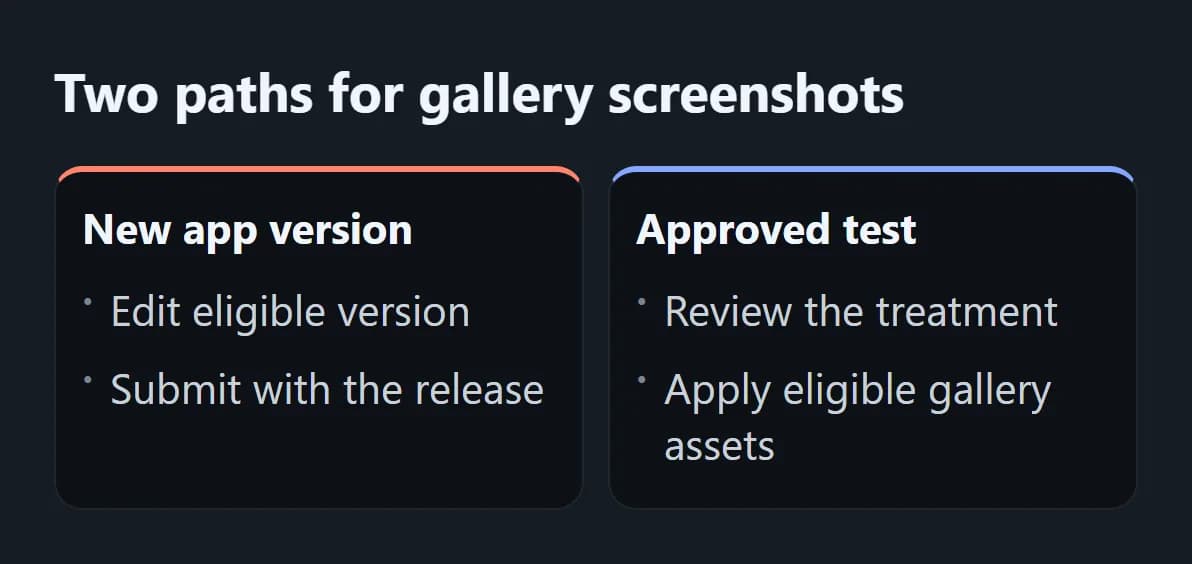
You can update App Store screenshots without a new build in one case: apply an approved Product Page Optimization test variant to the default page. The test must be eligible. You cannot edit an approved gallery as if it were a draft. The header and search have a separate route.
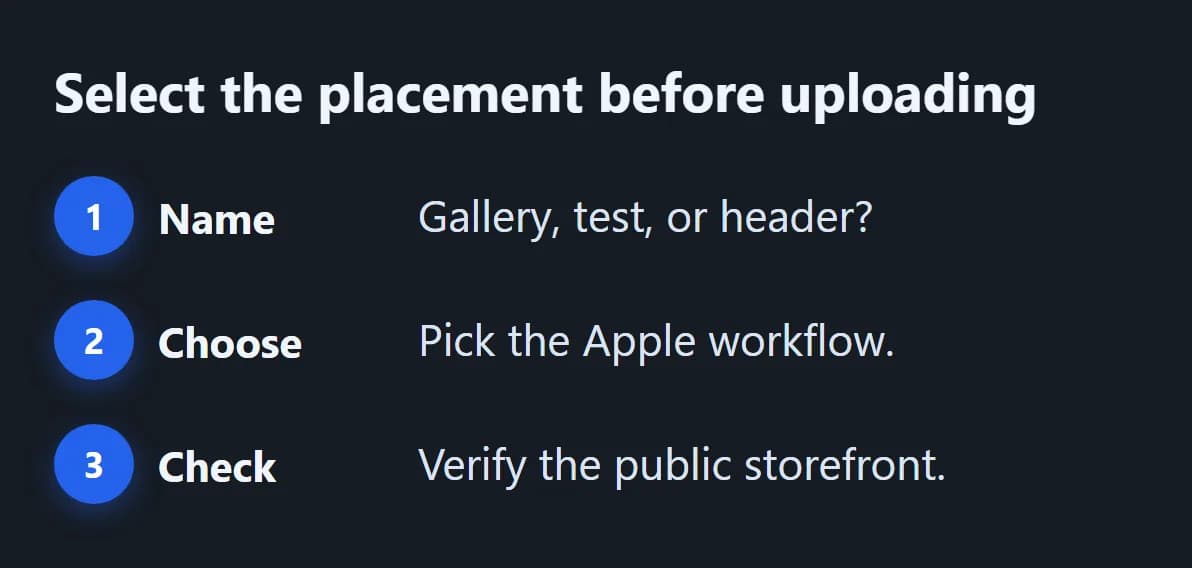
Identify the placement before touching the files
The word "screenshot" is not specific enough for a release ticket. Ask which surface is wrong:
| Surface | Normal change path | What the change does |
|---|---|---|
| Default screenshot gallery on an editable version | Upload to the appropriate size and locale for that version | Sets the media for that release |
| Default gallery on the current live version | New version, or approved eligible Product Page Optimization treatment applied to original page | Changes the ordinary listing gallery |
| A Custom Product Page | Manage the selected page and follow its review flow | Changes that separate page, not the default gallery |
| Product page header or search creative | Use approved Asset Library creative in the relevant placement if eligible | Changes header or search art, not the gallery |
Apple's upload instructions say that after the app is approved, direct gallery updates need a new version. Do not give a teammate the instruction "replace screenshots in Connect" without saying which version and device tab you mean.
Use the new version when the product changed
If a card shows a feature that will not exist until the next release, ship the new art with that version. Capture the release candidate rather than an experimental branch. Upload it under the correct device and locale, then check the order. If the app is already in review, decide with the release owner whether the issue warrants a change to that submission. Do not withdraw a review submission for a routine cosmetic tweak without understanding the cost.
Before replacing a set, keep the approved originals. Record the app version, date, locale, size group, and any custom order in a text file. If a screenshot is in position one in one language and position three in another, capture that difference intentionally. It may not be recoverable just by looking at the files after a release.
Use a screenshot-only test when the app stays the same
If the UI and feature are already live and you want to test a different framing, read Apple's test submission instructions first. Apple permits tests without alternate icons to go through review independent of a new version. It also documents how to apply a treatment to the original product page.
This is not a way around App Review. The new assets still need review. Apply a test variant and Apple copies the screenshots and app previews. It does not copy the alternate icon. Apple says you cannot undo the action. Save the old set. If you need to put it back, use a path Apple allows. Set a rule for reading test results before you apply the variant. Approval means you can use the art. It does not mean the art will perform better.
Keep Asset Library and Custom Product Pages separate
Apple's asset management guide describes replacing approved header and search creative for a live version without submitting a new version. That rule applies to the named placements. It does not unlock the existing screenshot gallery for direct editing. Confirm the selected placement and preview the change there.
A Custom Product Page is another separate surface. It can show a variant for a specific campaign. If the problem is what visitors see on the default listing, publishing a custom page does not resolve it. Compare the intent of each workflow in our Custom Product Pages vs Product Page Optimization guide.
Before announcing that the refresh is live
Open the public product page on a real device set to the intended locale. Check the default page separately from a campaign link. Verify the first two cards, the device family, and whether a video sits before the gallery. Confirm a second client or storefront if the screenshot appears stale. Keep one release note with the actual observed result, not just a screenshot of a successful upload. For several languages, compare the tools for maintaining locale-specific screenshot sets before the next batch.
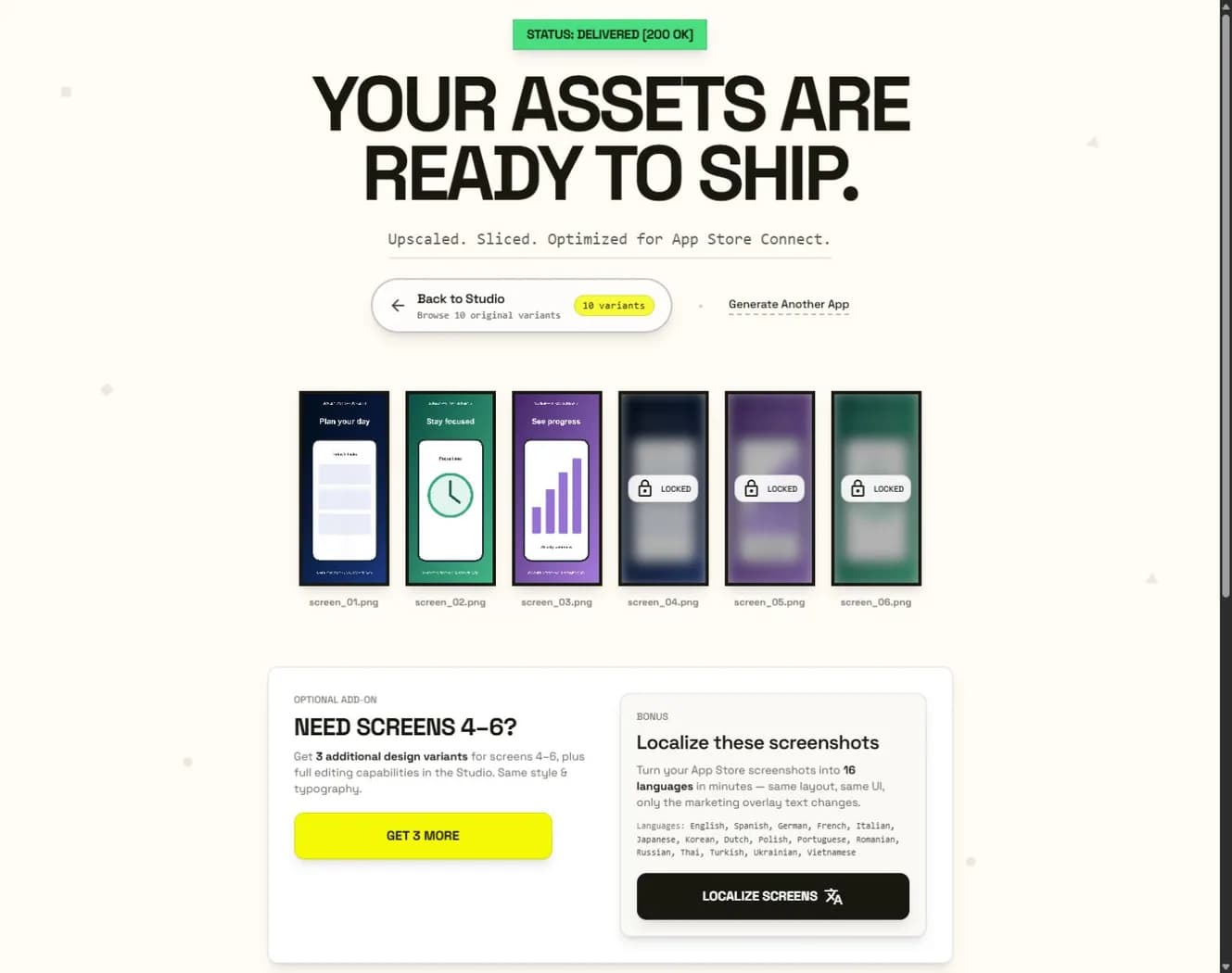
Synthetic ScreenFast QA project. This shows a finished local export, not an upload or a review decision from Apple.
Three cases to route before you open Connect
The current gallery has an old menu label. The app already ships the correct label. Take a fresh shot from the live app. If you have a new release close at hand, add that shot to the new version. If the listing needs a change before then, check your app's test access and plan a screenshot-only test. Decide if the fix is worth a separate review path. Do not tell a teammate to edit the live version's media directly.
The next build adds a feature. The proposed lead card shows that new feature. Hold the card for the release where the feature goes live. Capture it in a build that matches what users will get. Avoid testing a screenshot that claims the live app can already do it. If the new feature only ships in some locales or to some users, note the limit while planning the copy and capture.
The screenshot gallery is fine, but the header art is wrong. Find out which header or search placement shows the issue. Check your Asset Library and the placement's rules. Use the Apple path for replacing that creative with an approved asset if it is available. Do not launch a gallery experiment to fix a header. After publishing, inspect the named placement, not just the first gallery slot.
A change request the next person can use
Write the goal as a single observation. For example: "The first iPhone screenshot for the English default page should show the current search view." Add the current app version and the locale. Then add the route, such as a new version or an approved test variant. Attach the exact candidate file. Mark which files stay unchanged. Put the old approved export in a separate folder.
Use three review stages. The first asks whether the image matches the app today. The second checks file size, order, and the chosen target in Connect. The third checks what a visitor can see. These are separate dates in a release log. A file can be complete on Tuesday, approved later, and still not appear on the device used for the check. Note which of those states is true.
If you see different results, compare the default listing and a direct custom page link. Then check the device family and storefront. Start from one known result. For example, if a phone shows the new art but an iPad shows the old set, check which size groups each received before redoing the upload. An apparent delay may be the old art in another group or locale. Do not call it a cache until you have checked those inputs.
Keep the result separate from the reason for the change
A typo fix and a test of a new headline are different jobs. The typo fix is done when the correct card can be seen in the right place. A test needs a stated question. If the new art changes the first feature, copy, and style at once, you can learn whether the bundle worked. You cannot learn which part caused any change. For a simple test, keep most of the gallery fixed and change the thing you want to learn about.
If the team ran a test, keep a note of which variant was used and what was applied. Record what Apple showed at the point of the decision. Avoid claims like "the first card raised installs" if the test changed several cards or the outcome was not clear. If you did not run a measured test, call the work a listing refresh. This is still a valid thing to do when the old gallery is no longer accurate.
Don't let a failed file drive the release route
If the upload error repeats, make one clean test file from the same source. Change one thing at a time. Rule out a bad format before making a new app version. Keep the old gallery until you know you have the right replacement.
If an upload gets rejected, read the error and check the device group and file first. Export a clean image using an accepted size. Check the pixels from the real PNG, not the canvas label in your editor. Use a test version or a new release because it matches the asset you need to change, not because the first file failed. The wrong route can turn a simple PNG correction into a release delay.
How we tested
We checked three Apple guides: gallery upload, test review and use, and creative asset changes. We checked the ScreenFast export with a test project. We did not send a new test to Apple or apply one to a store page. If your files are rejected, use the upload error guide before you choose a different route.
Frequently asked questions
Can I reorder screenshots in the approved version directly?
Treat reordering the live gallery as an edit of that gallery. The safe path is an eligible version change or a reviewed test workflow, not a hidden edit button.
Can a screenshot-only test go to review on its own?
Apple allows tests without alternate icons to be submitted independently. Check account roles, app eligibility, and the instructions for your current state.
Will applying a test treatment change my app icon?
No. Apple applies its screenshot and app preview assets. Change the default app icon in the next app version.
Is an approved Asset Library item a gallery screenshot?
Not in the header/search workflow. Those are separate placements and do not replace media in the ordinary gallery.
Will Apple approve images generated by a tool automatically?
No. Verify that the images show the real app in use, and follow Apple's file and review guidance.
Bottom line
Choose the update route before making files. Write down the exact target and locale. If you need new concepts for a live iPhone listing, review the ScreenFast process or start with the current listing's free audit.
Last updated: November 21, 2026.