iOS Simulator App Store Screenshots: Exact Workflow (2026)
TL;DR. Run your real app in an iPhone Simulator, prepare a representative screen, clean the status bar, and save a PNG with Cmd+S or xcrun simctl io booted screenshot. Check the actual pixel dimensions against the current App Store Connect device well before designing the final gallery. A 6.9-inch set can cover smaller iPhone displays through scaling; an iPad app needs its own iPad screenshots. Simulator is excellent for capture, but inspect the result on a physical device before submission.
Last updated: 2026-09-23.
Disclosure. We make ScreenFast, an AI App Store screenshot generator. It does not capture screens from the Simulator (this article shows you how to do that yourself); it only fits the later framing step, and we say so plainly. Every Apple-related claim is verifiable in Xcode or on developer.apple.com.
The short answer: Cmd+S at the 6.9-inch master
Run your app on a Simulator device whose native pixel size is accepted by the target App Store Connect well. The iPhone 16 Pro Max and 17 Pro Max are examples in Apple's 6.9-inch group. Press Cmd+S to save a PNG to the Desktop, then inspect its actual dimensions. The captured frame is a source image, not automatic proof that a later edited tile will meet the upload rules.
Everything below is the detail that makes those screenshots actually pass review and look professional.
The exact Simulator capture workflow
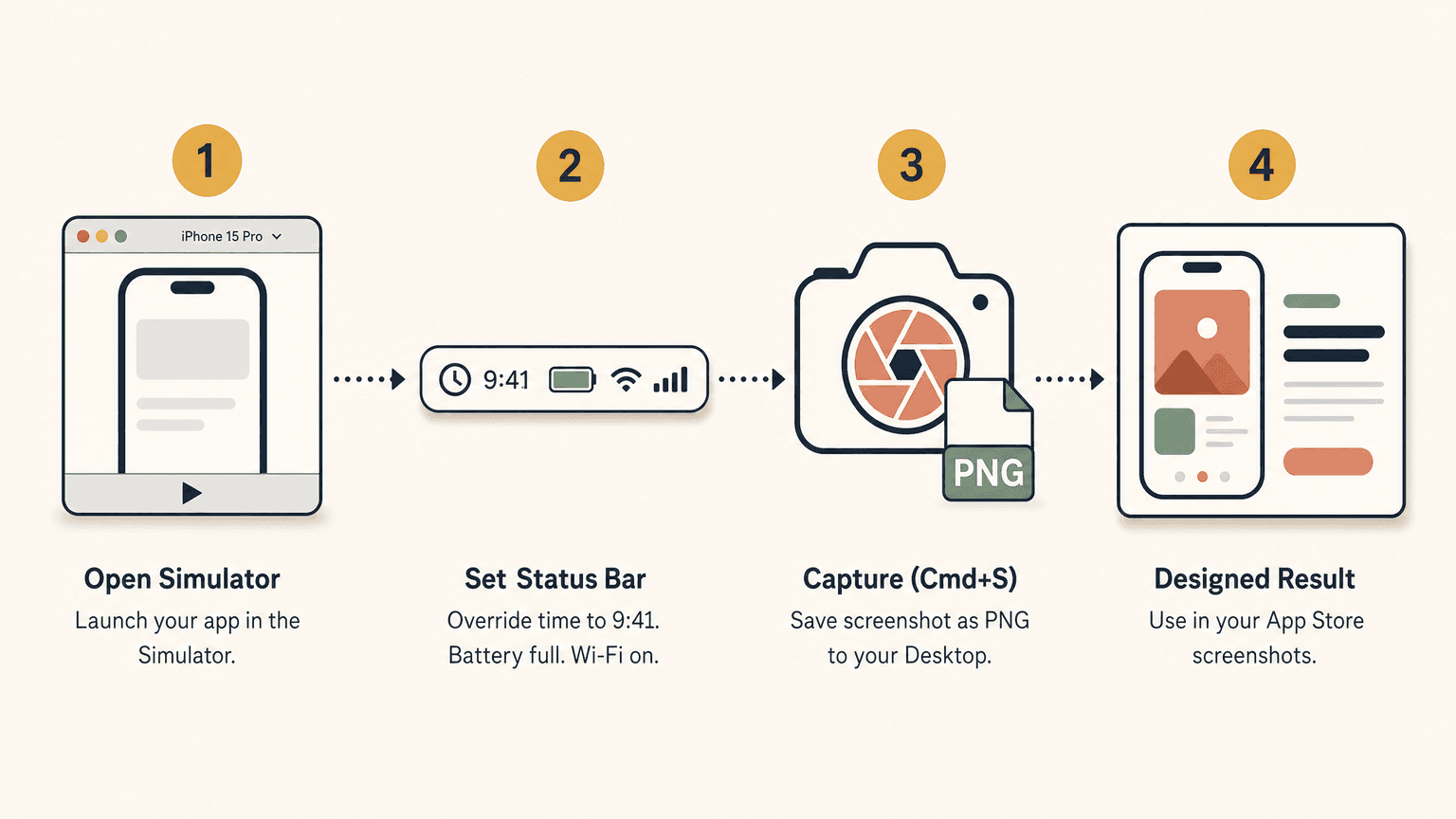
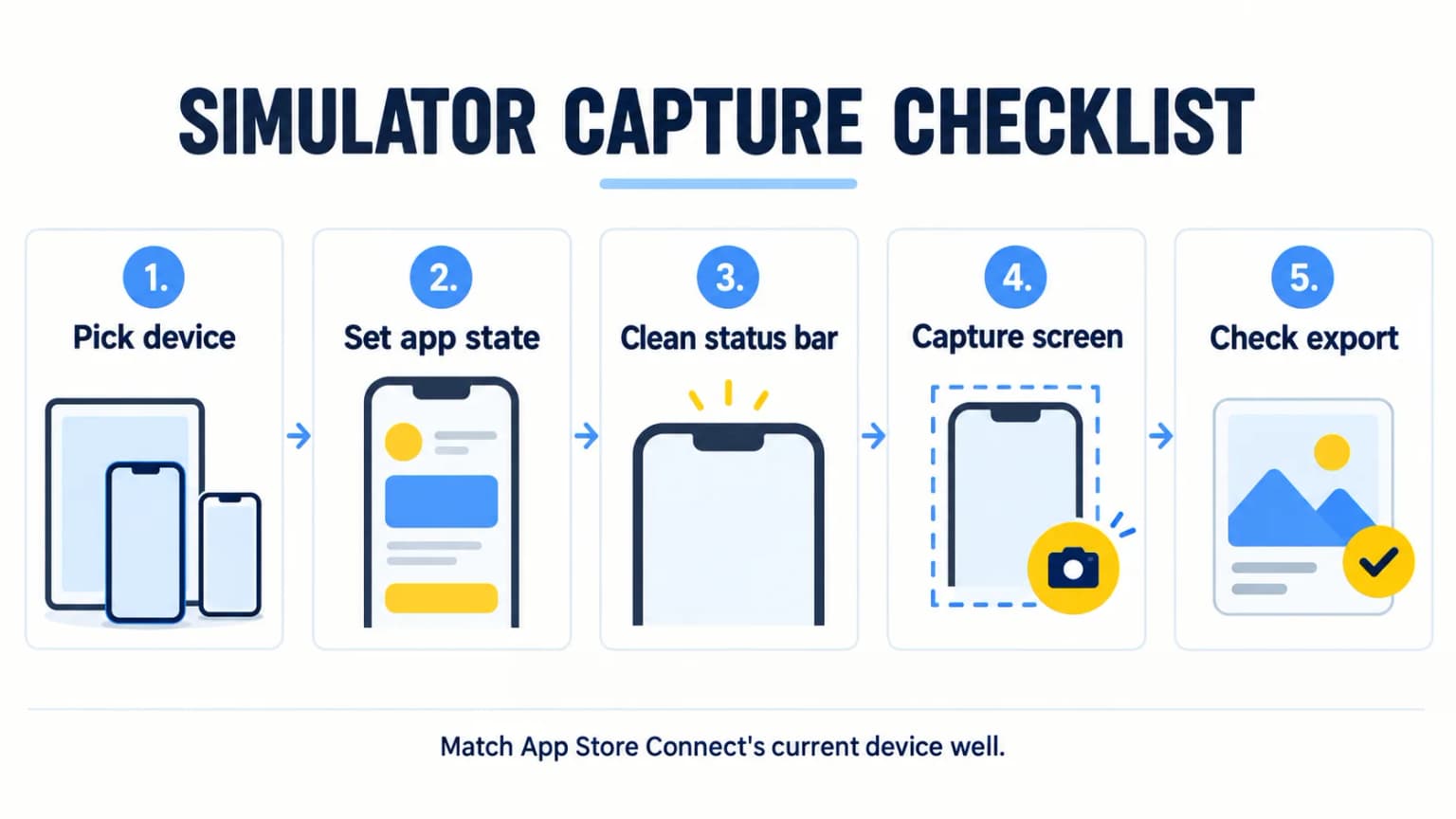
- Boot a matching simulator. In Xcode, pick a device and orientation supported by your app, then match its screenshot to an accepted size in Apple's current table. A 6.9-inch iPhone is a convenient source for many iPhone sets, not the only permitted source.
- Navigate to the screen you want. Get the app into a populated, active state: a filled dashboard, a completed result, real-looking content. Avoid empty states, loaders, and the launch screen.
- Capture with Cmd+S. In Simulator, choose the current screen-capture item in the File menu or press Cmd+S. Check where the PNG was saved in your version of Xcode.
- Capture headlessly when scripting. For automation or CI, use the command line instead:
xcrun simctl io booted screenshot ~/Desktop/screen-01.png
booted targets the currently running simulator. This is the same capture, scriptable.
- Capture a few distinct options. Apple allows one to ten screenshots per device well and localization. Capture more raw options if you need them, then keep only frames that explain a distinct feature or benefit.
Clean the status bar: the 9:41 override
An inconsistent status bar can distract from the app. A 9:41 override is a common presentation choice, not an App Store requirement. Use it only if it makes your set more consistent.
Set it with one command before you capture (introduced in Xcode 11 / iOS 13):
xcrun simctl status_bar booted override \
  --time "9:41" \
  --dataNetwork "wifi" --wifiMode active --wifiBars 3 \
  --operatorName "" \
  --batteryState charged --batteryLevel 100
To reset the status bar back to normal:
xcrun simctl status_bar booted clear
One caveat: this changes only the visual status bar. It does not change the time your app reads from Date(). If your app shows its own clock or date, prepare that state separately. Run xcrun simctl status_bar booted help against your installed Xcode if a flag differs.
Which size to capture: match the device well
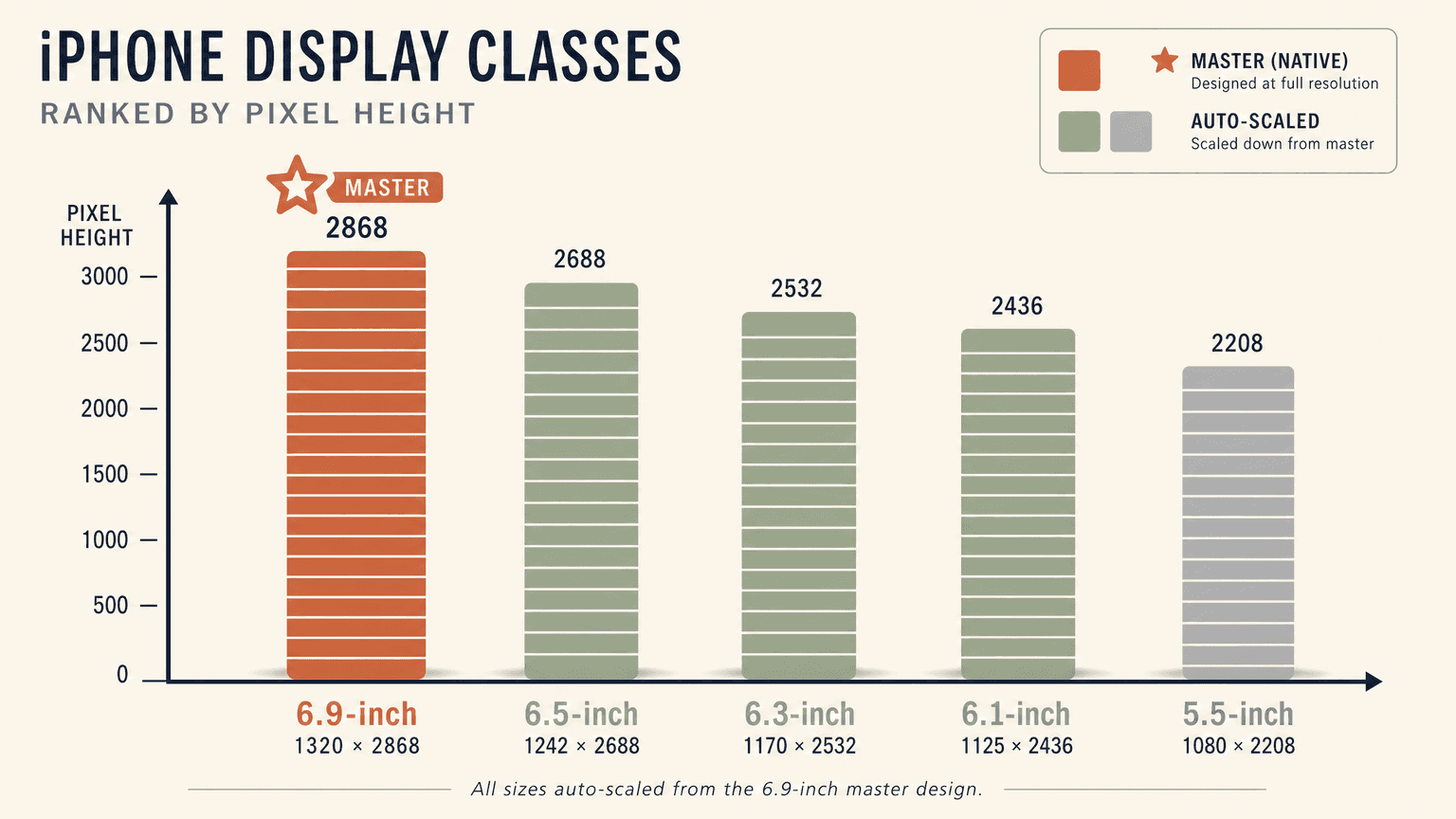
Apple's live screenshot specification lists accepted pixel dimensions by display group. The 6.9-inch group is a practical master because App Store Connect can scale it for several smaller iPhone groups. If you do not provide a 6.9-inch set, Apple also lists the 6.5-inch group as required for iPhone apps. Do not call one exact pixel size universally mandatory.
| Display class | Example simulator | Portrait pixels | Notes |
|---|---|---|---|
| 6.9-inch iPhone | iPhone 17 Pro Max / 16 Pro Max / 15 Pro Max | 1260x2736, 1290x2796, or 1320x2868 | Useful source set for scaling to smaller iPhones |
| 6.5-inch iPhone | iPhone 11 Pro Max / XS Max | 1284x2778 or 1242x2688 | Required if a 6.9-inch set is not provided |
| 6.1-inch iPhone | iPhone 14 / 13 | 1170x2532 | May be filled by scaling from a larger accepted set |
| 13-inch iPad | iPad Pro 13-inch | 2064x2752 or 2048x2732 | Required separately if the app runs on iPad |
The three 6.9-inch pixel pairs are alternatives, not a size range you should resize to by guesswork. Capture at the native size of your selected device, then verify the output and any designed export with sips -g pixelWidth -g pixelHeight screen-01.png on your Mac. Apple accepts JPEG and PNG screenshots without an alpha channel. Check the current specification and the exact well in Media Manager; our size guide gives more device context. If your iPad layout differs, capture the real iPad interface rather than stretching an iPhone design.
Validate the exported tile, not just the raw capture
A design tool may change dimensions, orientation, color, or transparency after capture. Open the final file and verify width, height, format, and alpha again. Inspect every locale at phone size: long captions can clip, a language can need more room, and a device frame can make the actual UI too small. If an upload fails, compare the rejected file to the selected App Store Connect device well before rebuilding the whole set. The upload error guide separates documented file rules from editor-specific workarounds.
For a video walkthrough of the basic capture, Take a Screenshot of the Xcode Simulator Running Your App shows the Cmd+S step on screen.
From raw screen to store-ready tile
A raw simulator capture is not a finished App Store screenshot. It is a bare UI frame with no headline, no device frame, and no design. The store screenshots that convert add a benefit caption, a clean background, and usually a device frame.
You have three honest paths from raw screen to finished tile:
- By hand in Figma. Full control, a few hours per set. The Figma template guide covers the exact setup and the export gotchas (alpha channel, sub-pixel sizing) that get screenshots rejected.
- With a generator. Disclosure, because this is where our tool fits: ScreenFast audits raw simulator screenshots (prelaunch upload) or a live App Store URL for free, then generates 10 design directions after the $9.99 one-time checkout. It does not capture from the Simulator, which is the part this article taught you to do yourself; it handles the framing and caption layout afterward, the same job as a dedicated iPhone screenshot maker. Review the output before submission. See the AI App Store screenshot generator.
- Plain simulator output. A valid option when the actual interface explains the value clearly. A designed variant might do better or worse; test it instead of assuming a lift.
Write the captions yourself, lead with a benefit, and keep the headline short.
Automating it: fastlane snapshot and shell scripts
If you ship often or localize, capturing by hand every release gets old. Two automation routes.
fastlane snapshot drives UI tests to capture screenshots across every device and language automatically, then assembles them. You write snapfile configuration and UI test code that navigates to each screen, and fastlane runs the whole matrix. It is the standard for teams shipping many locales.
A shell script around xcrun simctl is the lighter option. Boot a device, apply the 9:41 status bar override, run xcrun simctl io booted screenshot for each screen, and loop over device UDIDs. This is enough for a solo dev who wants repeatable captures without the full UI-test investment.
Both produce raw screens. You still frame and caption them afterward.
Why screenshots matter: the conversion case
Apple says the first screenshots may appear in search results when no preview video is shown, so the first frame deserves a clear focal point. That is a placement fact, not proof of a universal conversion uplift. Compare a plain capture with a designed variant through Product Page Optimization when your app is eligible. Read the conversion measurement guide before comparing unlike metrics, and use the prelaunch checklist for the full submission flow.
How we tested
We checked Apple's Simulator capture documentation and current screenshot specification on 2026-09-23. The former is an archived guide, so confirm menu labels and flags in your installed Xcode. The latter governs current accepted sizes, formats, and scaling. We did not run Xcode on a Mac for this revision; the command examples should be tested in your local environment. ScreenFast is our product and serves the design stage, not capture.
FAQ
How many App Store screenshots should I upload?
Apple allows one to ten per device well and localization. Use enough to explain distinct value; there is no evidence-based universal best count.
Do I need separate screenshots for iPhone and iPad?
Yes if your app supports iPad. The iPhone 6.9-inch set does not cover iPad; you upload a separate 13-inch iPad set (2064x2752 or 2048x2732).
What happens if I only submit one screenshot size?
App Store Connect can scale an accepted 6.9-inch set for smaller iPhone classes. Check the result in each device preview; iPad still needs its own accepted set if the app runs on iPad.
How do I get the clean 9:41 status bar in Simulator screenshots?
Run xcrun simctl status_bar booted override --time "9:41" --batteryState charged --batteryLevel 100 --wifiBars 3 --operatorName "" before capturing, and xcrun simctl status_bar booted clear to reset.
What format and dimensions should App Store screenshots be?
JPEG or PNG, no alpha channel or transparency, at an accepted size for the target device well. The native pixel dimensions depend on the selected Simulator device; do not label 1320x2868 the universally sharpest or required size.
Can I use the same screenshots for Google Play and the App Store?
Not directly. The aspect ratios and size requirements differ, and Google Play allows promotional framing the App Store does not. Re-export per store.