AI App Icon Generator for iOS (2026): Generators vs Resizers, Compared
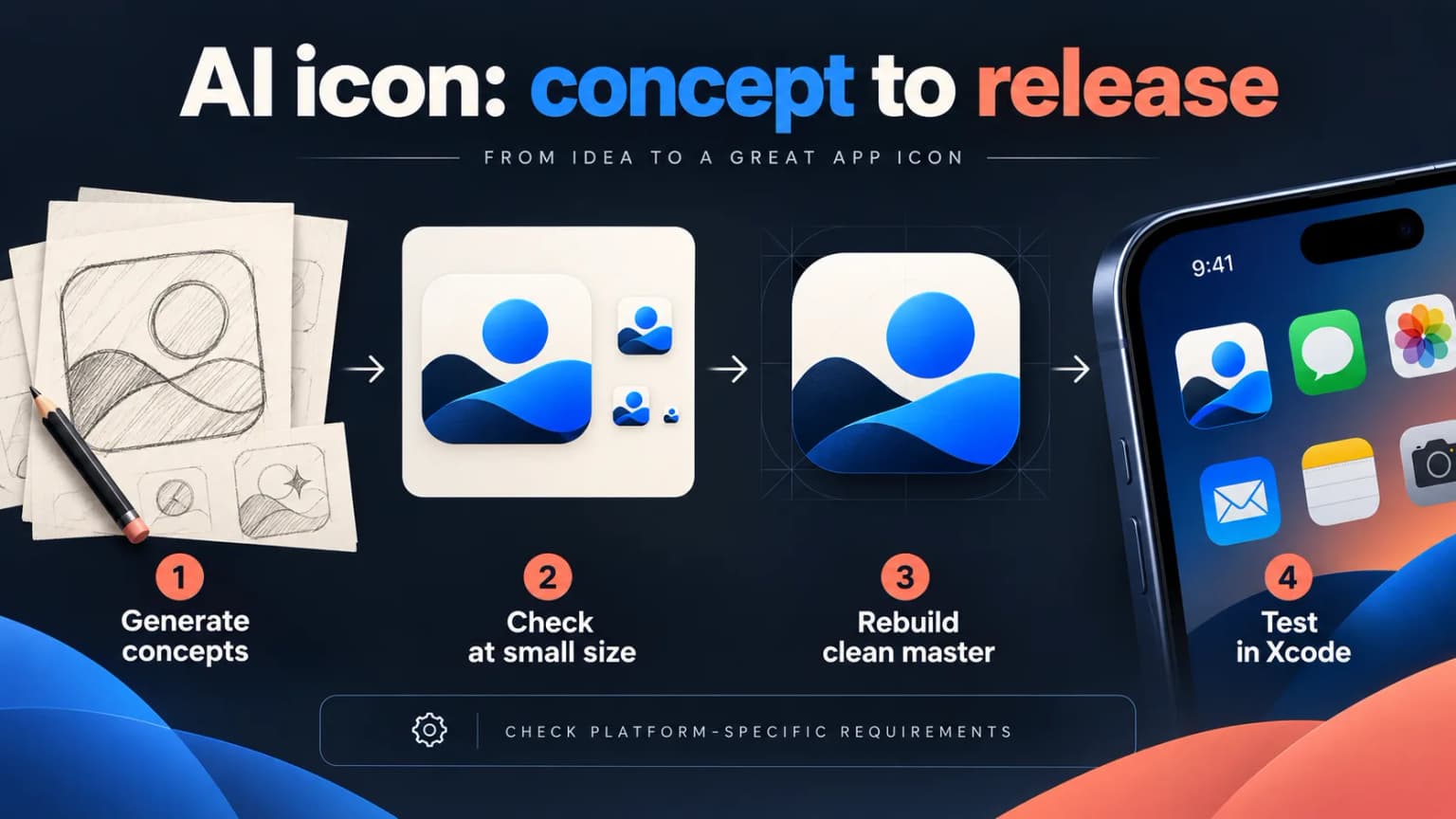
TL;DR. An AI icon generator creates artwork; a resizer packages existing artwork. For a standard iOS asset catalog, Xcode can derive icon sizes from a single 1024x1024 master, so you may not need a separate resizer. Generate several concepts, check the mark at Home Screen size, clean up an opaque square master, and test it in Xcode. Icon Composer is an optional workflow for layered appearances. Verify vendor features and prices on their current pages before paying.
Last updated: 2026-10-17.
Disclosure. ScreenFast's icon generator is in this roundup, and ScreenFast is our tool. We position it by intent, not as the winner. The generator-vs-resizer breakdown below is the honest map of the category regardless of which tool you pick.
Generators vs resizers: choose the job you need
Search results mix tools that create artwork with tools that package an existing image. Choose the job before comparing plans.
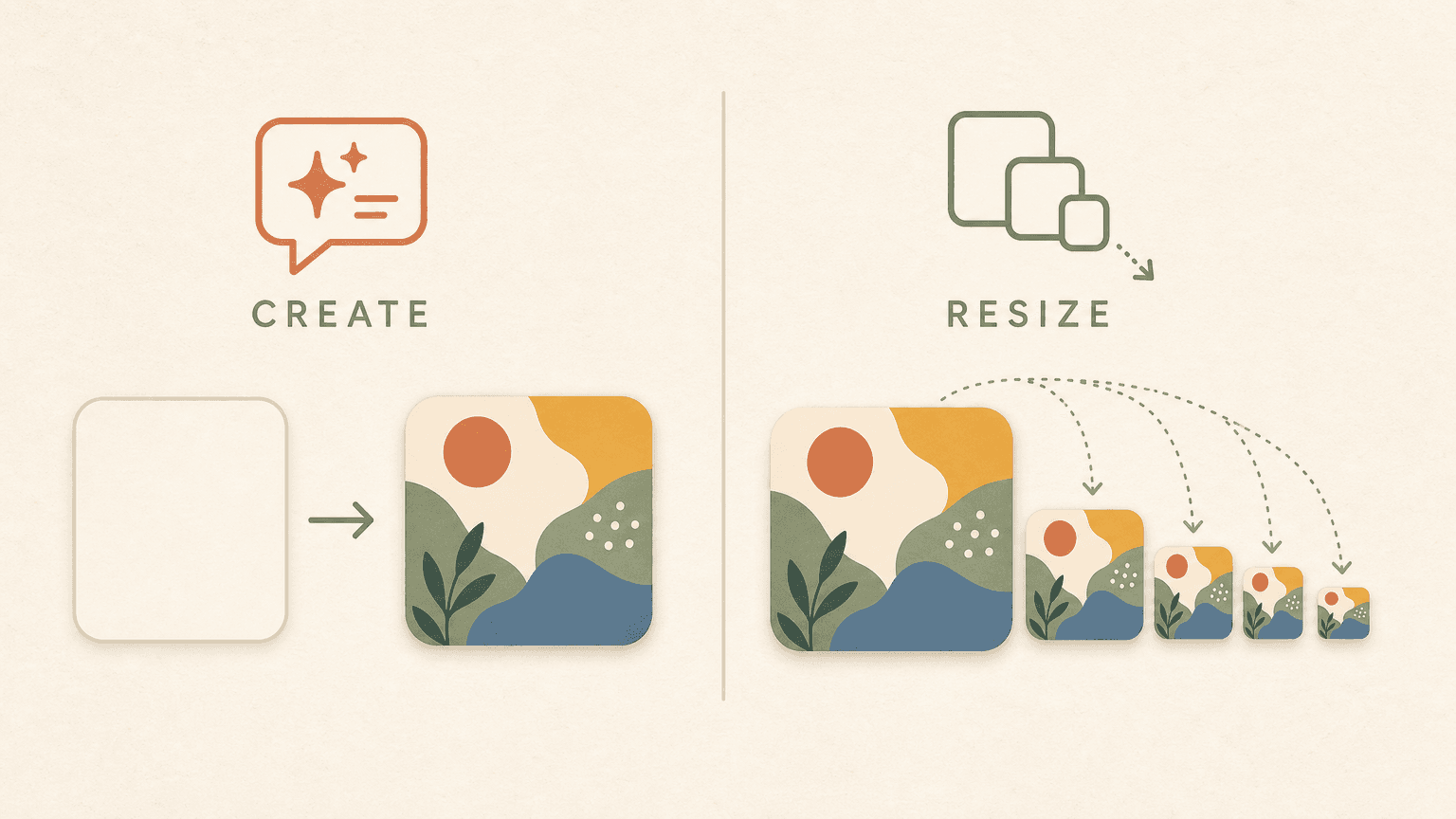
There are two completely different categories of tool wearing the same label:
AI generators create original artwork from a text prompt. You type "a minimalist fox head, flat, warm orange," and you get art. Recraft, IconikAI, RapidNative, Canva's App Icon Crafter, and LogoAI live here, along with general tools like Midjourney that people repurpose for icons.
Resizers and packagers take one 1024x1024 master you already designed and slice it into every size the platform requires. They generate zero art. Appicon.co, MakeAppIcon, and AppIconMaker.co live here.
The trap is picking the wrong tool for your situation. A pure generator gives you art but not necessarily an Xcode-ready asset. A pure resizer creates sizes but no original art. In a modern single-size Xcode catalog, many iOS developers need art and a clean master, not a separate resizing service.
IconikAI markets both concept creation and an Xcode package. If that is the deciding feature, verify a current sample export in your actual project rather than treating a vendor comparison as independent evidence.
For a standard single-size iOS asset catalog, a separate resizer is often optional.
Apple's 2026 app icon spec: 1024, single size, and Icon Composer
This section follows Apple's Human Interface Guidelines and Apple's Xcode documentation.
Start with a 1024x1024 iOS master. This guide focuses on iOS. Other Apple platforms and layered icon workflows have their own requirements, so do not reuse a single cross-platform size table without checking your target in Xcode.
A single-size asset catalog can be enough. Apple's Xcode guide describes the single-size option that generates variants from a master icon. Check the actual asset-catalog setting in your project, especially if it predates that default. A third-party resizer is not inherently required for a normal iOS AppIcon set.
Do not pre-round the corners. Supply unmasked artwork and let the system apply the intended shape. Check the current platform guidance rather than painting rounded transparent corners into a flat master.
Separate background and foreground rules. A layered icon needs a full-bleed opaque background; foreground layers can use transparency. Do not confuse that workflow with a standard opaque flat iOS master.
Color space: sRGB is the baseline, with Display P3 supported for wide-gamut color.
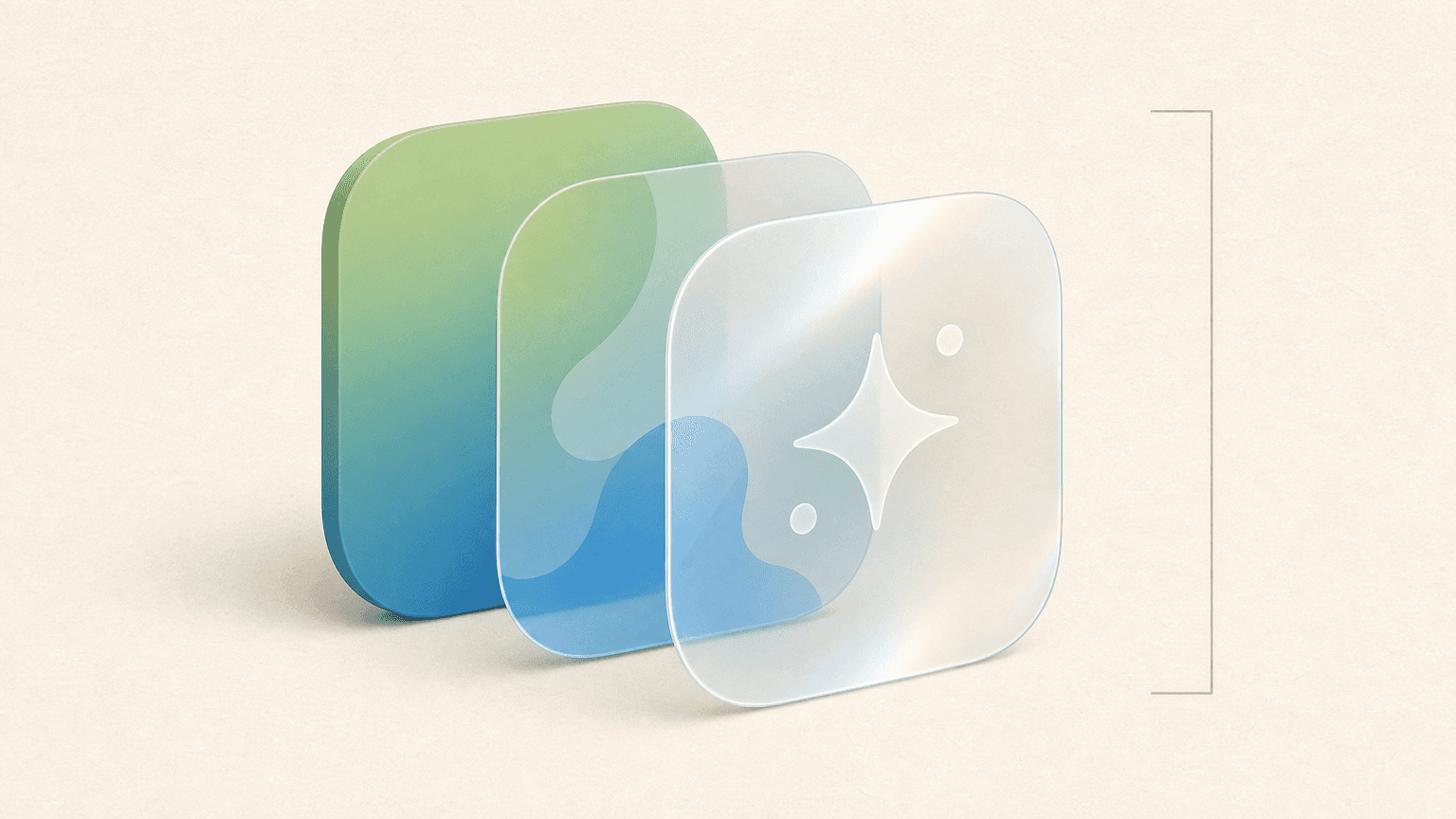
Layered appearance. Apple's system can apply lighting and depth effects to authored layers. Avoid baking those effects into each layer; preview the composition in Icon Composer.
Icon Composer is another authoring path. Apple's Icon Composer guide covers layered assets and appearance previews. Use it if you want that treatment; do not assume a flat icon is rejected simply because layered icons exist.
The practical takeaway: a clean, flat 1024x1024 PNG is a useful starting point. If you want a layered look, plan and export the layers separately for Icon Composer; importing a flattened PNG cannot recreate depth that was never authored.
Tool examples, grouped by workflow
Pricing moves fast and several vendor pages were login-walled or JavaScript-rendered during research, so treat the dollar figures as starting points and confirm on each vendor's own page before paying. Sources are listed in How we tested.
AI generators (make the art)
Recraft (recraft.ai). A visual-generation option for exploring icon concepts. Verify its current plan limits and available export formats on the vendor page; the former version of this article quoted a daily free quota and monthly price we cannot guarantee.
IconikAI (iconikai.com). Markets both concept generation and iOS packaging. Treat its export claims as vendor claims until you download a sample, inspect the package, and confirm it matches your Xcode project.
RapidNative (rapidnative.com). Offers a text-to-icon workflow with iOS guidance. Confirm the downloaded file's dimensions and alpha status; do not assume it exports a complete asset catalog.
Canva App Icon Crafter (canva.com). An icon concept workflow inside Canva. Export the actual image and inspect it; we could not live-verify its app page or current pricing in this update.
LogoAI (logoai.com). A brand-oriented concept tool. Check the current download format, resolution and usage rights; this guide does not establish that its export is a complete Xcode asset set.
Resizers and packagers (slice your art into sizes)
Appicon.co (appicon.co). A packaging workflow for artwork you already have, not an AI art generator. Check current platform output and terms before using its files.
MakeAppIcon (makeappicon.com). A size-packaging service for an existing design. Verify its current delivery method and output rather than relying on older descriptions of its ZIP or email flow.
AppIconMaker.co (appiconmaker.co). A resizer/packager, not an original-art generator. Verify the current signup and pricing terms on its own site.
ScreenFast's icon tool: where it fits (and where it does not)
ScreenFast (our tool) includes a free AI app icon generator. Here is the honest scope, no inflation.
It is a generator, not a resizer. You describe the icon, it produces 4 concepts per run, and you export a 1024x1024 PNG master. It is free to start with usage limits rather than an unlimited free tier, and there is no watermark. A login is required before generating.
For the Xcode step, download the 1024 master and import it into the AppIcon asset catalog configured for single size. If you want layered output, use the icon concept as a reference and create separate layers before using Icon Composer.
Where it does not fit: if you already have finished art and need only legacy-sized files, a resizer may be more suitable. ScreenFast addresses concept generation rather than packaging an existing icon.
If your real bottleneck is App Store screenshots rather than the icon, that is the main ScreenFast product. See the 2026 screenshot generator roundup for that side.
Write a prompt that survives a small icon
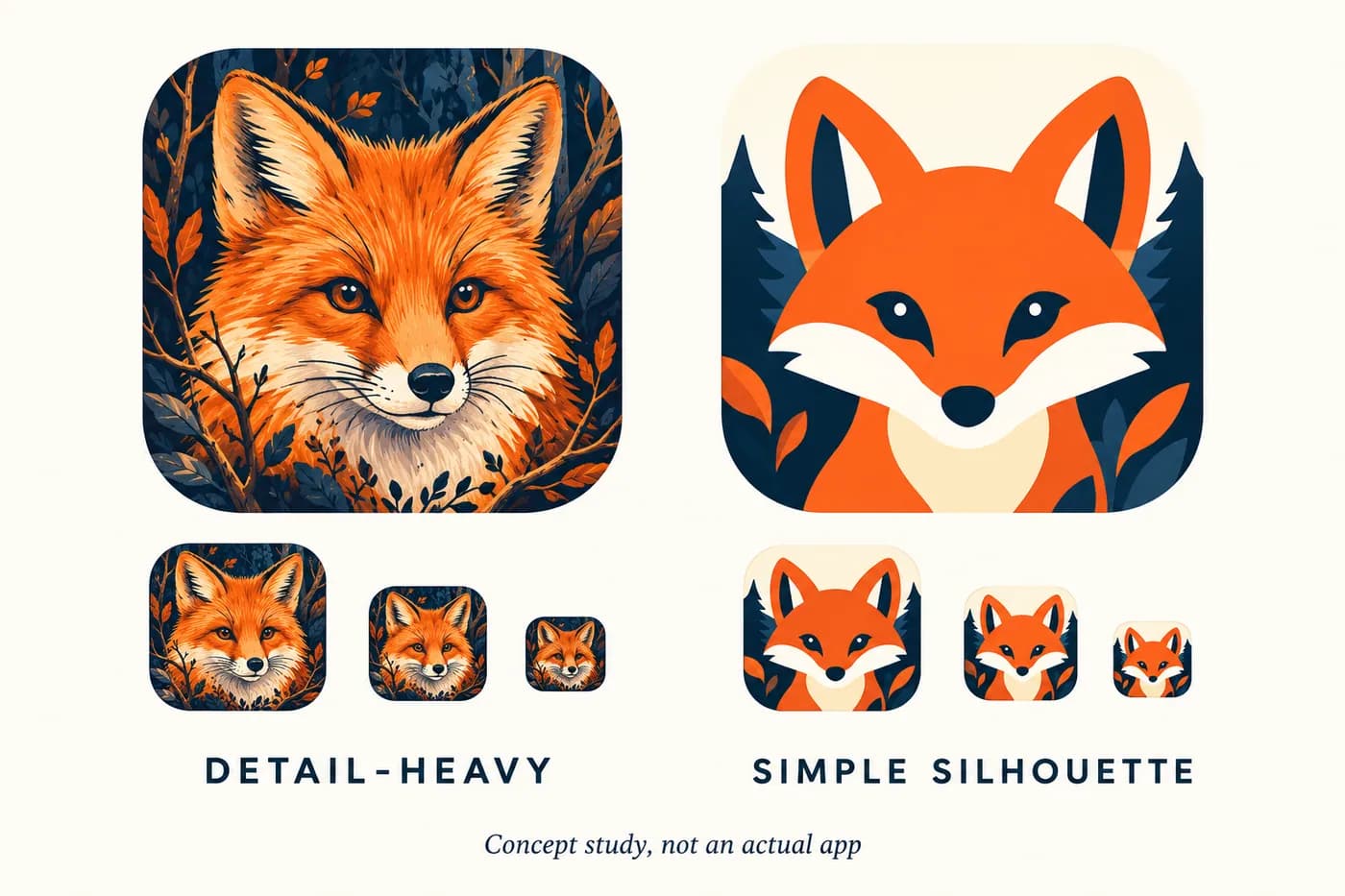
An icon prompt needs a subject, silhouette and contrast plan, not a list of fashionable effects. For a fictional outdoor app, try: "One bold fox-head mark, two clear ears, warm orange on a dark navy field, no letters, no tiny fur detail." Ask for several distinct silhouettes before polishing a favorite.
Do not use another app's recognizable mark as the brief. Check the provider's current rights and commercial-use terms, then keep the prompt and source artwork. A generated image is not a trademark clearance or proof that the design is unique.
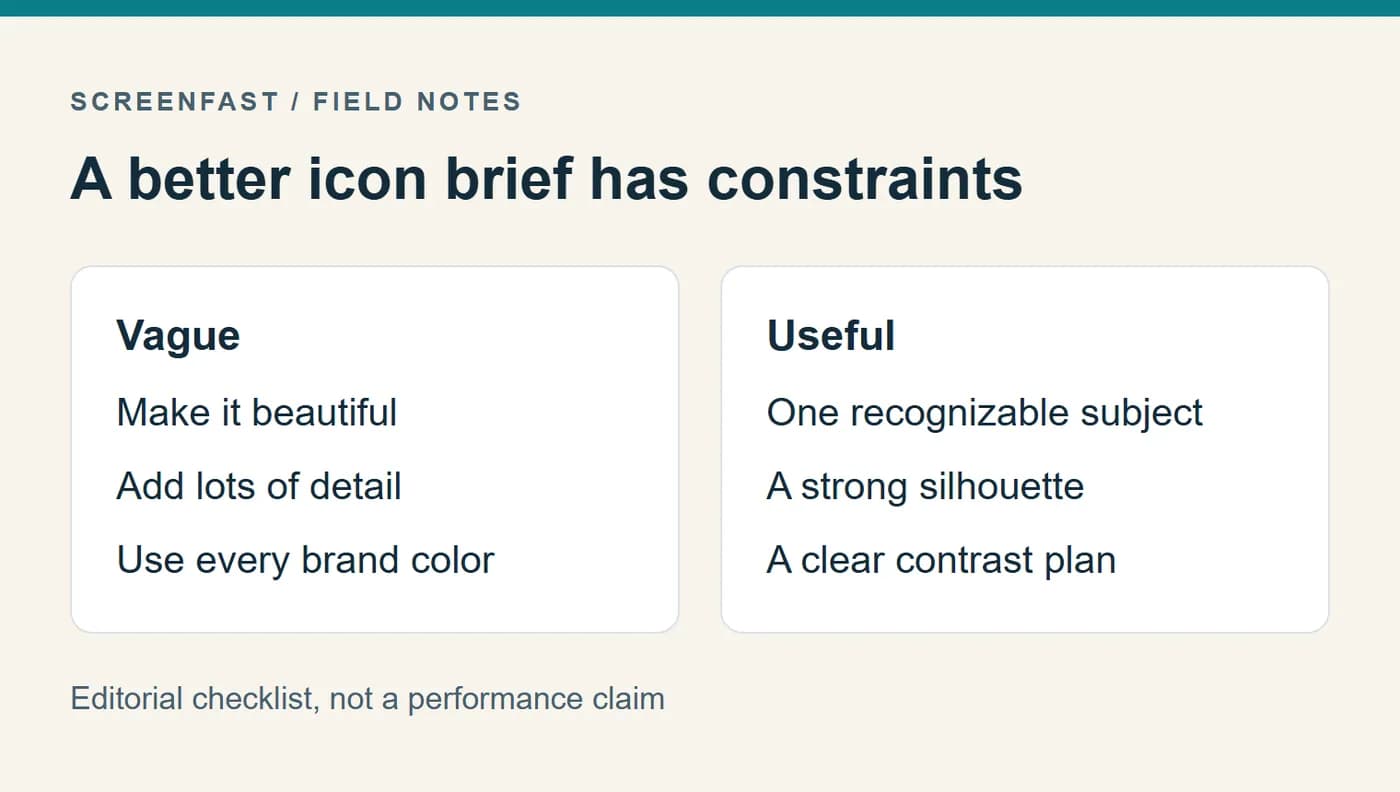
Compare candidates at full size and at a small viewing size. The fox illustration above is a concept study, not a shipped icon. Its purpose is to show how detail competes with recognition. Do not infer that its rounded preview shape belongs in the exported source.
Export checks before the Xcode handoff
These trip up first-time submitters regardless of which tool made the art.
Alpha channel and transparency. For the standard flat iOS icon, export a full-bleed opaque square and verify the file mode. Layered Icon Composer assets follow their own authoring workflow. An AI tool's on-screen preview is not proof that the downloadable PNG is opaque.
Pre-applied rounded corners. Do not round the corners yourself. Apple applies the mask. Keep a square, unmasked source and inspect the actual system rendering.
Color appearance. Preview the final icon on the target device in light, dark, and tinted contexts where relevant. Avoid assuming a color profile alone guarantees a consistent appearance.
Tiny-size legibility. A complex AI illustration that looks gorgeous at 1024 can turn to mush at 40 px on the Home Screen. Preview your icon small before you commit. The best icons are one strong shape, not a detailed scene.
Layered vs flat for iOS 26. A flat PNG is still accepted, but on iOS 26 a flat icon will not get the full Liquid Glass depth that layered icons get. If that look matters to you, author layers in Icon Composer.
A ten-minute icon QA drill
Start with the full-size file. Is the icon square? Is the mark clear? Does the art touch the edges by design? Check that the background is solid. Do not rely on a checkerboard preview. Open the file in an image tool and inspect its color mode.
Now shrink it to the size you see on a phone. Can you name the shape at a glance? If not, remove detail. Keep one focal point. Avoid thin lines. Do not put a long word in the mark. Compare it with icons from the same app category, but do not copy a rival's design.
Place the icon on both a light and a dark Home Screen. Check how it looks next to real apps. A vivid mockup on a white page can hide a weak silhouette. Test the actual asset in Xcode. Do not judge only the AI preview. If the catalog shows a warning, fix that warning before launch.
Keep your source file. Save the prompt and any manual edits. This makes the next icon update repeatable. If you plan a layered version, save the foreground shape on its own layer. A flat PNG cannot bring those layers back later.
Keep a reproducible icon handoff
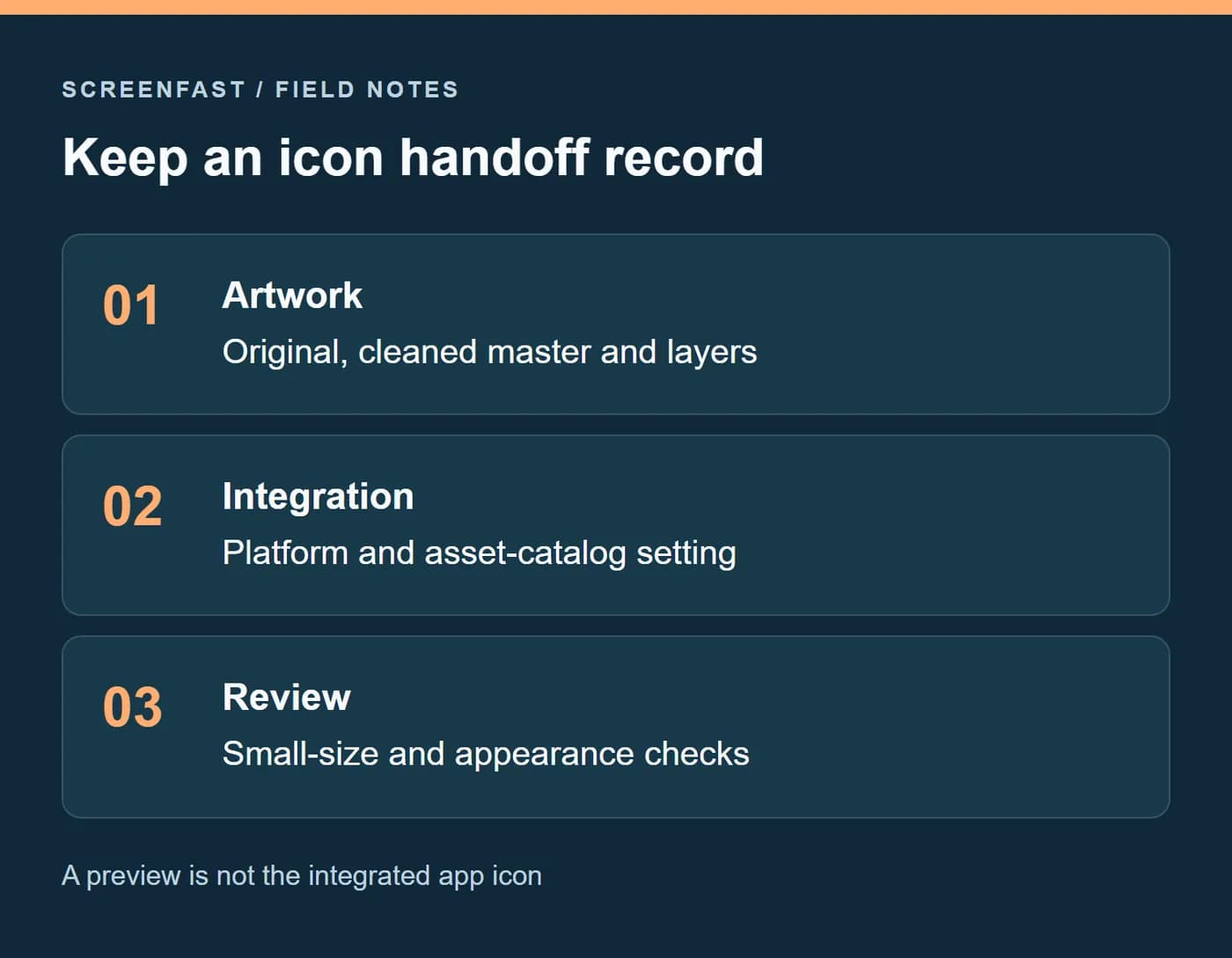
Save the original generation, the cleaned master and any separate layers. Record the intended platform, appearance variants, license check and Xcode asset-catalog setting. Reopen the actual exported file before handing it to a developer. A preview thumbnail and a correctly integrated app icon are different deliverables.
How to pick: a decision guide for indie iOS devs
A short flow, not a ranking.
- You need original art and a fast iOS icon: use a generator to explore concepts, then clean up a 1024x1024 opaque master and check your Xcode asset-catalog configuration.
- You already have finished art and just need every size: inspect Xcode's single-size setting first; use a resizer if your project or delivery process actually needs separate files.
- You want the full iOS 26 Liquid Glass look: generate or design your layers, then assemble them in Apple's Icon Composer. Inspect the layered file and the result in your actual Xcode project.
- You want one tool for art plus the Xcode set: Check a tool that explicitly offers both, and verify a sample export before relying on it.
- You are building a brand, not just an app icon: LogoAI or Canva, because you will reuse the mark beyond the icon.
Tools compared at a glance
| Tool | Type | AI art | Free tier | 1024 master | Xcode set | Notes |
|---|---|---|---|---|---|---|
| Recraft | Generator | Yes | Check vendor | Check export | Check vendor | Concept exploration |
| IconikAI | Generator/packager claim | Yes | Check vendor | Check export | Verify downloaded package | Do not rely on marketing copy alone |
| RapidNative | Generator | Yes | Check vendor | Check export | Not confirmed | iOS-oriented guidance |
| Canva Crafter | Generator | Yes | Check vendor | Check export | Not confirmed | Canva workflow |
| LogoAI | Generator | Yes | Check vendor | Check export | Not confirmed | Brand/logo-oriented |
| Appicon.co | Resizer | No | Check vendor | Input artwork | Check output | No original art |
| MakeAppIcon | Resizer | No | Check vendor | Input artwork | Check output | No original art |
| AppIconMaker.co | Resizer | No | Check vendor | Input artwork | Check output | No original art |
| ScreenFast (ours) | Generator | Yes (4 concepts) | Free with limits | 1024 PNG | Via Xcode | No watermark; login |
How we tested
The tool list classifies each vendor by its described workflow. We did not rerun hands-on exports for every third-party product on 2026-10-17, so current prices, quotas, and packaging features are not presented as verified facts. Check the vendor and inspect a sample download before relying on it for a release.
Apple specifications are quoted from the live Human Interface Guidelines app icon page and the Xcode configuration docs, including the single-1024 default, the no-alpha and no-pre-masking rules, and the Icon Composer / Liquid Glass changes for iOS 26.
ScreenFast's public icon page describes four concepts and a 1024x1024 master. We did not generate a live product output as part of this editorial check. Third-party tools remain workflow examples, not verified plan recommendations.
For a video walkthrough of the iOS 26 layered-icon workflow in Apple's Icon Composer, iOS 26 Liquid Glass App Icons: Design and Add to Xcode by NDC (July 2025) covers it end to end.
FAQ
What is the difference between an app icon generator and a resizer?
A generator creates original artwork from a prompt (for example, Recraft, RapidNative, or ScreenFast). A resizer packages artwork you already have into different dimensions. In a single-size Xcode workflow, a separate resizer may not be necessary.
What size does an iOS app icon need to be in 2026?
The master is 1024x1024 px, square, PNG, no transparency, with corners left unrounded (Apple masks them). Per Apple's Xcode docs, a single 1024x1024 image now auto-generates all other iOS sizes, so you do not need to export every size manually.
Do I still need a resizer tool for the App Store icon?
Often not for a standard iOS project using Xcode's single-size asset catalog. Older projects and other target platforms may differ, so inspect the AppIcon settings instead of assuming either route.
Can AI app icons get rejected by Apple?
An icon can fail technical or content review. For a standard flat iOS icon, check opacity, full-bleed artwork, dimensions, and Apple's current design and review guidance. We found no Apple rule that automatically rejects art merely because AI helped create it, but that is not a guarantee of approval.
What is Icon Composer and do I need it?
Icon Composer is Apple's tool (introduced with Xcode for iOS 26) for building layered "Liquid Glass" icons with specular highlights and translucency. You need it only if you want the full iOS 26 layered look. A flat 1024 PNG still works without it.
What is the best free AI app icon generator for iOS?
Try a current free tier from a generator that actually creates original art, then compare the downloaded image at full and small sizes. ScreenFast's generator offers limited free use. For resizing existing art, first check whether your Xcode project already supports a single-size master.
Should I use Midjourney or a dedicated icon tool?
A general image tool can create concepts, but you still need to inspect the exported file and integrate it in Xcode. A dedicated tool may offer useful presets or packaging. Compare the actual output and current terms rather than assuming either category guarantees compliant assets.
If you are still mapping out everything before submission, the pre-launch checklist and App Store screenshot sizes in 2026 cover the rest of the asset stack.