App Store Screenshot Copywriting: 20 Caption Examples That Convert
TL;DR. The words on your first one to three screenshots carry almost all the conversion weight, so write them as outcomes, not feature labels. Keep the headline 2 to 6 words (under about 30 characters) and lead with a benefit. This guide gives 20 copy-paste caption examples sorted by app category, maps each to one of five reusable formulas (Outcome Promise, Never-Again, Finally, Specific-Number, Identity), gives a per-language trim table, and explains what Apple actually allows.
Last updated: 2026-06-27.
Disclosure. We make ScreenFast, an AI App Store screenshot generator. It is relevant only at the very end (rendering your finished caption into screenshots), not as a copywriting tool, and we say so plainly. Every Apple rule below is cited to developer.apple.com, and we flag which stats are well-sourced versus directional.
What screenshot captions are (and why the first three carry the load)
A screenshot caption is the short text overlay on each App Store screenshot, usually a bold headline plus an optional supporting line. It is not your app description. It is the one or two lines a browsing user actually reads before deciding to install.
The reason captions matter so much is attention drop-off. Per picc.co, about 70% of users never scroll past your first screenshot, only around 9% scroll through all of them, and roughly 60% decide to install within 5 to 7 seconds. So almost everyone sees screens 1 through 3, and almost nobody sees the rest. Your strongest copy belongs on the first frame, and your first three captions have to tell a complete story on their own.
The single most repeated principle across every source is benefit over feature. "Save 2 Hours Daily" beats "Task Automation." "Track your workouts effortlessly" beats "Workout tracker app." Write the result the user gets, not the mechanism your app uses to deliver it.
The 5 reusable caption formulas (verb + benefit)
Most high-converting captions fit one of five patterns. Learn these and you can write a caption for any screen in seconds.
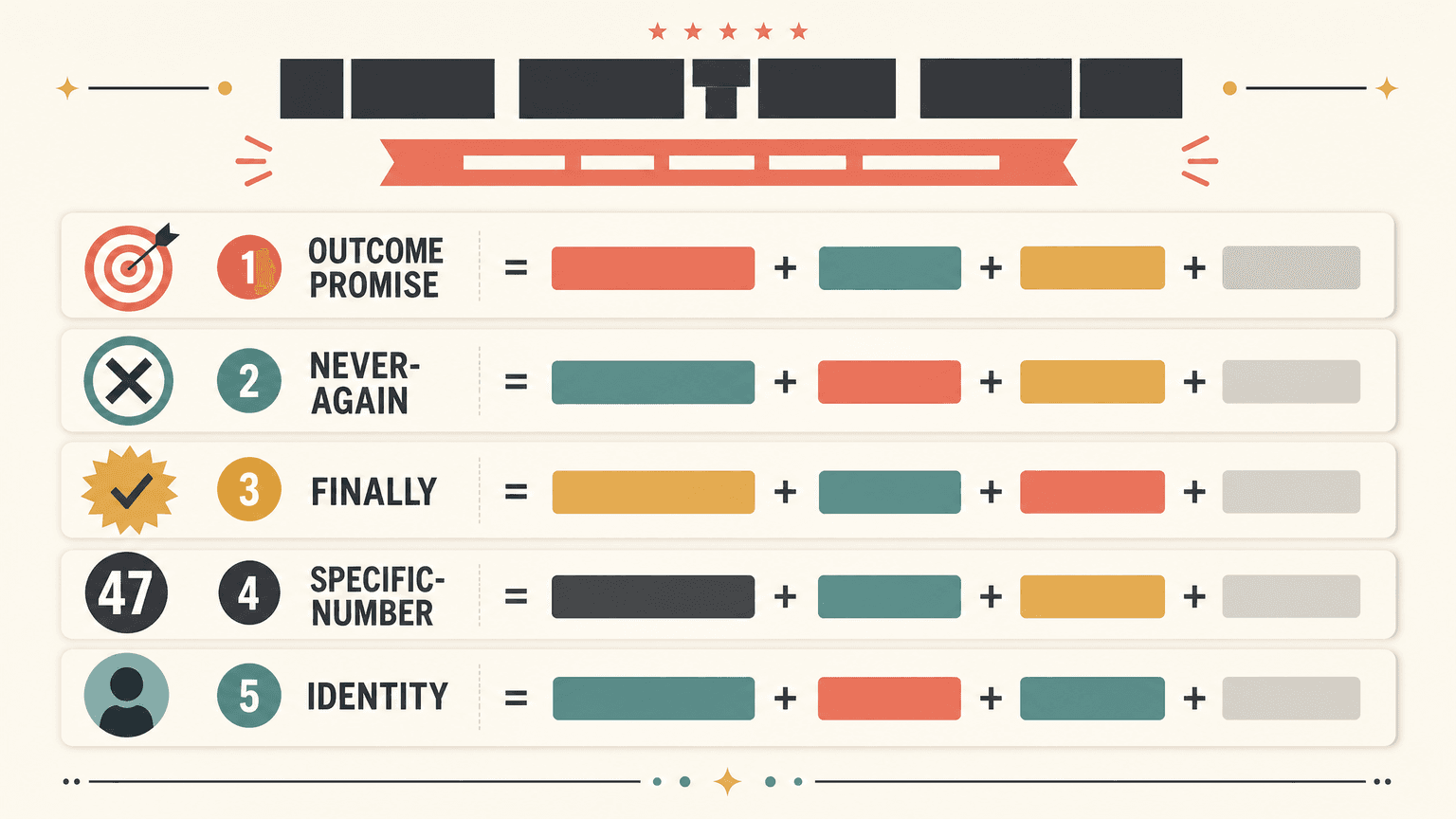
| Formula | Structure | Example | Best for |
|---|---|---|---|
| Outcome Promise | [Desired result], effortlessly / [Result] in [timeframe] | Track your workouts effortlessly | Fitness, productivity, finance |
| Negative Resolution (Never-Again) | Never [pain point] again | Never feel dehydrated again | Health, habit, reminder apps |
| Finally | Finally, [hard thing] is easy | Finally clear your to-do list | Productivity, planning |
| Specific Number | [Number] [things] in [timeframe/action] | Save 2 hours every week | Automation, finance, learning |
| Identity Statement | Built for [specific audience] | Built for busy parents | Niche, community, B2B apps |
The five-formula set is published by screenshototter.com, the most on-topic source we found, and the compact "Verb + Benefit + Result in 3 to 5 words" framing comes from picc.co. The power words that recur across guides: Free, Instant, Easy, Proven, Guaranteed. The words to avoid: vague adjectives like "powerful," "amazing," and "best," which say nothing a skeptic believes.
20 caption examples by app category
These are illustrative, author-curated examples mapped to the five formulas, not captions with per-caption A/B numbers behind them. The named-app captions are attributed; treat the rest as templates to adapt.
Fitness and health
- Track your workouts effortlessly (Outcome Promise)
- Never miss a workout again (Never-Again)
- Save 2 hours of meal planning a week (Specific Number)
- Built for runners who hate spreadsheets (Identity)
Productivity and tasks 5. Finally clear your to-do list (Finally) 6. Capture any thought in one tap (Outcome Promise) 7. Plan your whole week in 5 minutes (Specific Number) 8. Never lose a note again (Never-Again)
Finance and money 9. Track, budget, split. Done. (community example, attributed to medium.com/@abijith.b) 10. See where every dollar goes (Outcome Promise) 11. Save $200 a month, automatically (Specific Number) 12. Built for freelancers, not accountants (Identity)
Sleep, calm, and wellness 13. Sleep better, feel better (Calm, via picc.co) 14. Stress less (Headspace, via picc.co) 15. Sleep soundly (Headspace, via picc.co) 16. Never lie awake again (Never-Again)
Learning and creativity 17. The fun, free way to learn a language (Duolingo, via picc.co) 18. Stunning photos in one tap (Outcome Promise) 19. Learn a new word in 60 seconds (Specific Number) 20. Pick up right where you left off (Outcome Promise)
Notice the pattern: every caption names a result. None of them names a feature. That is the entire game.
Caption length: words, characters, and the order of your 20
Length is a hard constraint, not a style choice. The consensus across screenshototter, screenshotwhale, and appsnapai: headline 2 to 6 words, supporting line 8 to 12 words. Strataigize reports that top-stacked, sub-30-character headlines outperform bottom captions by 15 to 25% in most A/B tests. Write at roughly a fifth-grade reading level with active verbs.
Order matters as much as wording. The dominant framework is Value, then Usage, then Trust across screenshots 1 to 3: lead with the single biggest benefit, then show how it works, then prove other people rely on it. Put your strongest caption on screenshot 1, because nearly everyone sees screens 1 to 3 and only about 9% scroll further. For the deeper case on which slot does what, see first vs second screenshot.
How To Create Great App Store Screenshots from Business of Apps is a solid supporting walkthrough on turning these captions into a designed set.
Caption length by language (the per-language trim table)
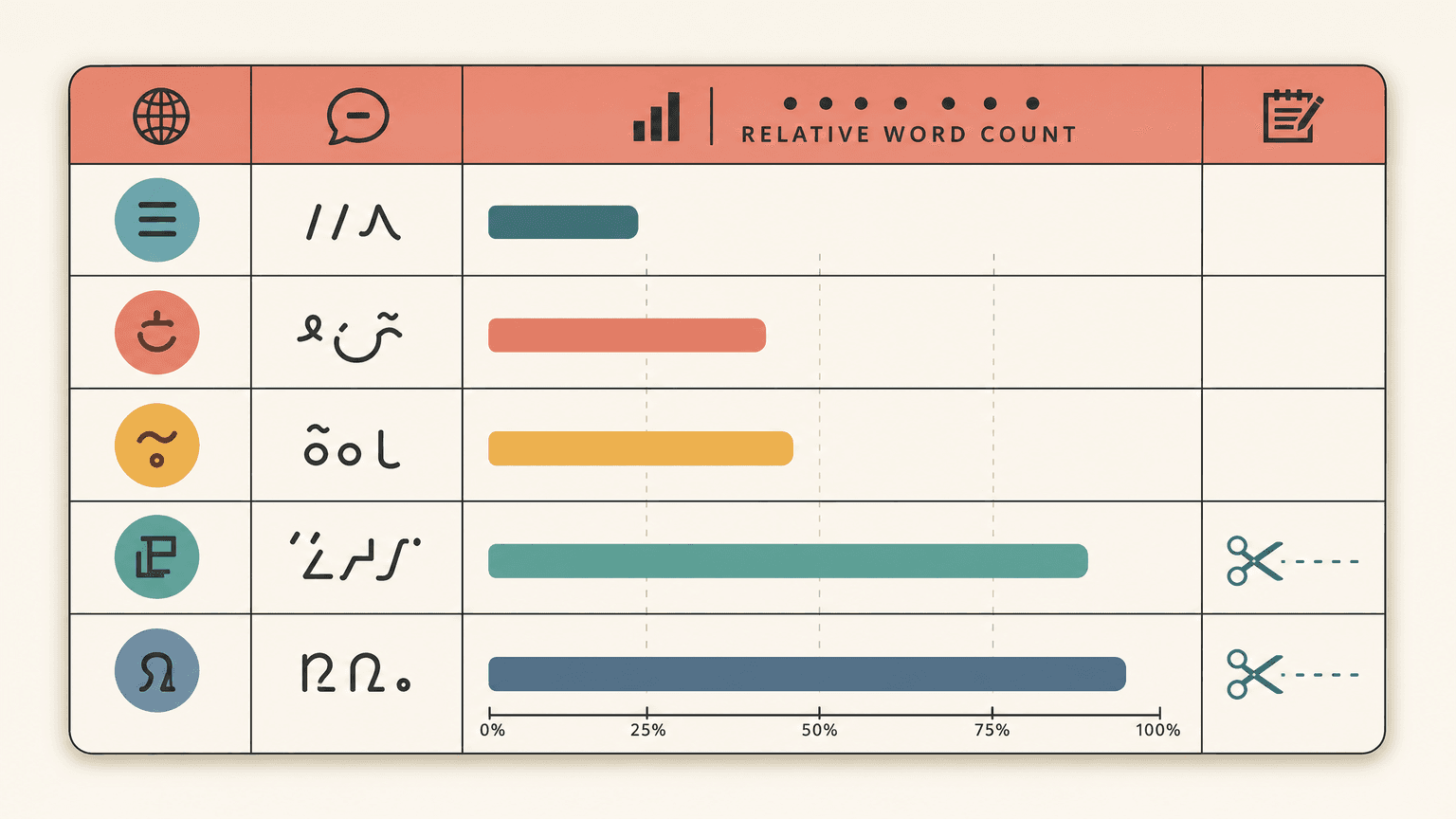
If you localize, the words change length and your tidy 2-to-6-word headline can break the layout.
Apple gives you 10 screenshot slots per localization, and the advice across apptweak, splitmetrics, and sommo is to fully localize the caption copy, not just machine-translate it. picc.co reports a 15 to 40% conversion improvement in non-English markets from localized screenshots.
The practical trim rules (these come from general localization knowledge, not from the SERP sources, so treat them as directional):
- German and Russian text typically runs about 30% longer than English. Cut a word or two from the headline so it still fits on one line.
- French and Spanish run moderately longer; usually one fewer word is enough.
- Japanese and Korean are often shorter, so you can sometimes add specificity.
- Arabic and Hebrew are right-to-left and need layout-aware placement, not just a translated string.
For the full localization workflow (text metadata is a separate job from the screenshot images), see localizing App Store screenshots.
What Apple allows (and the 2025 "Apple reads your screenshot text" debate)
Two rules to respect, both from Apple's App Review Guidelines.
First, screenshots must show the app in use. Apple expects real in-app UI, not title art, login screens, or splash pages. Overlay text and graphics are allowed, but the screenshot has to depict actual functionality.
Second, do not promise what you cannot show, and do not mimic Apple's own UI or fake ratings. Overlay copy claiming a feature the screenshot does not demonstrate is a known App Review rejection trigger.
Then there is the fresh 2025 debate worth knowing about. Appfigures published a teardown arguing Apple's algorithm now reads the text inside your screenshots for ranking, which would make caption copy both a conversion lever and an ASO keyword surface. The honest counter: ConsultMyApp and APPlyzer tested 64 screenshot-derived phrases across 8 apps in June 2025 and found the ranking evidence weak and inconsistent. The reasonable position for now: write captions for humans and conversion first, treat any OCR-indexing benefit as a possible bonus, and do not keyword-stuff your screenshots.
How we tested (methodology and honest caveats on the stats)
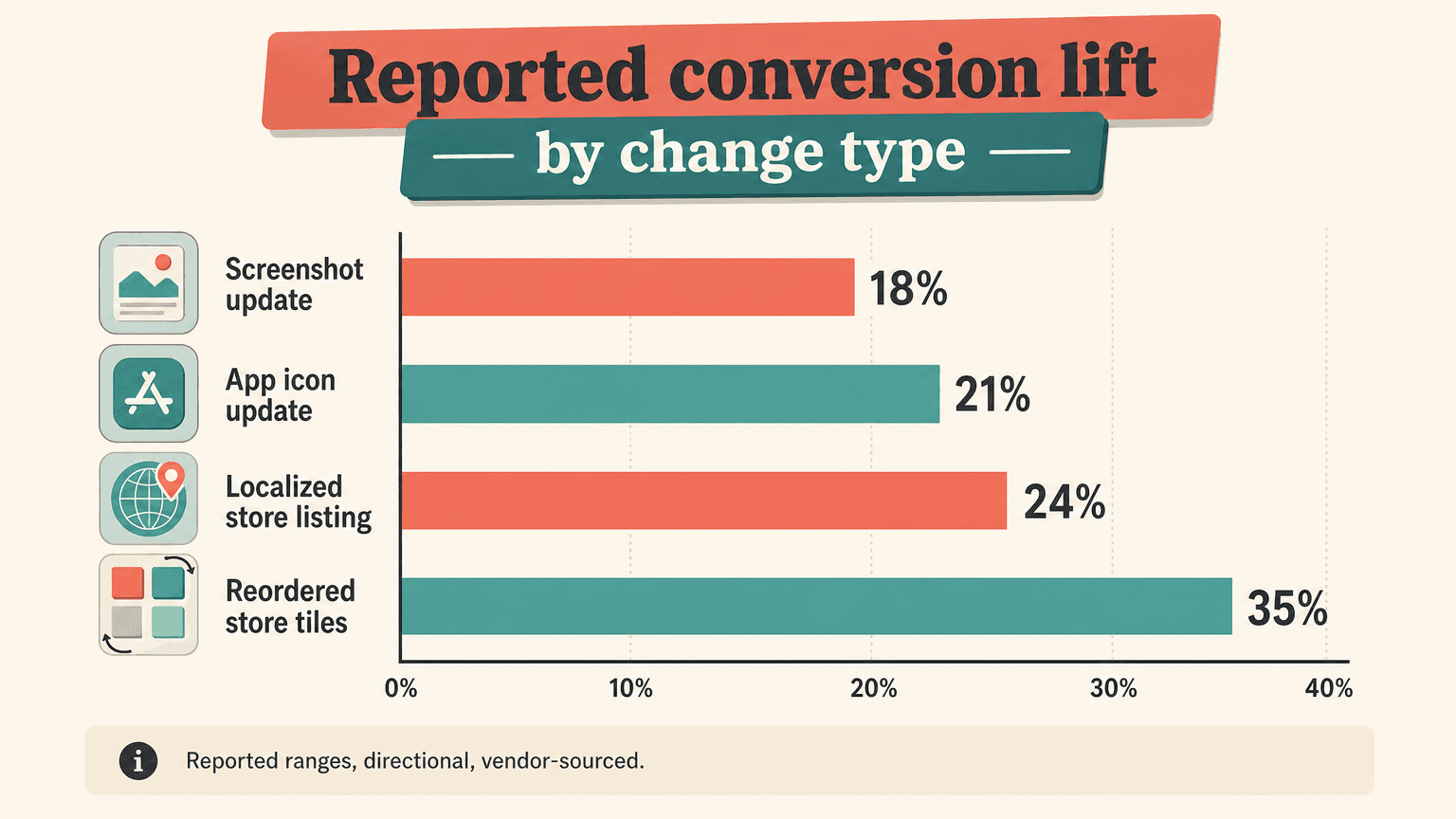
The five formulas and the 2-to-6-word headline spec come from the most on-topic published sources (screenshototter, picc.co, appsnapai, screenshotwhale). The named-app captions (Calm, Headspace, Duolingo) are attributed to picc.co rather than invented. The conversion-lift figures (20%+ from good captions, 15 to 40% from localization, 15 to 25% from top-stacked headlines) are vendor-reported and directional, not independently audited, so we cite each to its source and treat them as evidence of direction, not precise guarantees. The per-language trim percentages are general localization knowledge, flagged as such. The "Apple reads screenshot text" claim is presented with both the Appfigures argument and the ConsultMyApp counter-test, because the evidence is genuinely mixed.
From caption to finished screenshot (where a generator fits)
Once you have written the caption, you still have to render it into an actual designed screenshot. That is the only place a tool like ours fits.
ScreenFast starts with a free audit of your App Store URL or uploaded prelaunch screens. After checkout, it generates 10 design directions for $9.99 one-time. Its honest boundary: it does not write or rewrite your captions, and reliable in-design text editing is manual because AI text changes are unsupported, so bring the caption you wrote above and place it yourself. If that fits your workflow, the AI App Store screenshot generator is the production step after the copywriting. If you would rather design by hand, the Figma template guide covers that path, and conversion benchmarks show what "good" looks like once you ship.
Frequently asked questions
How many words should be on App Store screenshots?
Keep the headline 2 to 6 words (under about 30 characters) and any supporting line 8 to 12 words. Shorter, benefit-led headlines stacked at the top outperform longer or bottom-placed captions by 15 to 25% in reported A/B tests.
Should I focus on benefits or features in my screenshot captions?
Benefits, almost always. "Save 2 hours a week" beats "automatic scheduling." Name the result the user gets, not the mechanism. Features belong in the description, not on the screenshot.
Does Apple read the text in my screenshots for ranking?
Maybe, and the evidence is mixed. Appfigures argued in 2025 that Apple's algorithm reads screenshot text; an independent test by ConsultMyApp and APPlyzer across 64 phrases found the effect weak and inconsistent. Write for humans first; treat any ranking benefit as a bonus, not a reason to keyword-stuff.
Is promotional text allowed in App Store screenshots?
Text overlays are allowed, but the screenshot must show the app actually in use, and you cannot promise functionality you do not demonstrate or mimic Apple's UI and ratings. Apple is stricter here than Google Play.
How many screenshots can I add per localization?
Apple allows up to 10 screenshot slots per localization. Localize the caption copy properly per language rather than machine-translating, since localized screenshots can lift conversion 15 to 40% in non-English markets.
Are App Store screenshot captions worth A/B testing?
Yes. Captions are one of the highest-leverage things to test because they sit on the first frame almost everyone sees. Use Apple's free Product Page Optimization to test caption variants; see the A/B testing guide.